Documentation / Platinum admin guide
Raffle Ticket Generator Platinum
Platinum Admin Guide
Everything you can do in the WPRaffle admin, screen by screen. New here? Start with Getting started and Create a raffle, then see how your customers order.
Getting Started
Raffle Ticket Generator turns WooCommerce products into raffle entries. Each raffle is a WooCommerce product category; the products inside it are your ticket packages (for example 1 ticket, 5 tickets, 20 tickets). When an order is paid, the plugin issues unique ticket numbers, shows them on the order confirmation page and in the customer’s email, and lets you draw winners later.
Before you start you need:
- WordPress with WooCommerce installed and active.
- PHP 8.0 or newer (your host can tell you which version you have).
- Your license key from your wpraffle.com account.
- At least one payment method enabled in WooCommerce.
Install the plugin
- In WordPress go to Plugins → Add New → Upload Plugin.
- Choose the plugin zip file and click Install Now. If an older version is installed, choose Replace current with uploaded.
- Click Activate Plugin.
- Open WPRaffle → License, paste your key and save (see License).
Ticket numbers are issued when an order reaches Processing or Completed. Pending or unpaid orders do not receive tickets until they are paid.
Upgrading from Version 6
Version 7 stores tickets on the WooCommerce orders themselves and settings on each raffle, instead of in the plugin’s own tables. Your existing raffles move across in one step after you update.
- Take a backup of your site (most hosts and backup plugins do this in one click).
- Update the plugin: Plugins → Add New → Upload Plugin, choose the 7.0 zip and click Replace current with uploaded.
- A notice appears: “Your raffle data needs to be upgraded to the new format”. Click Run upgrade.
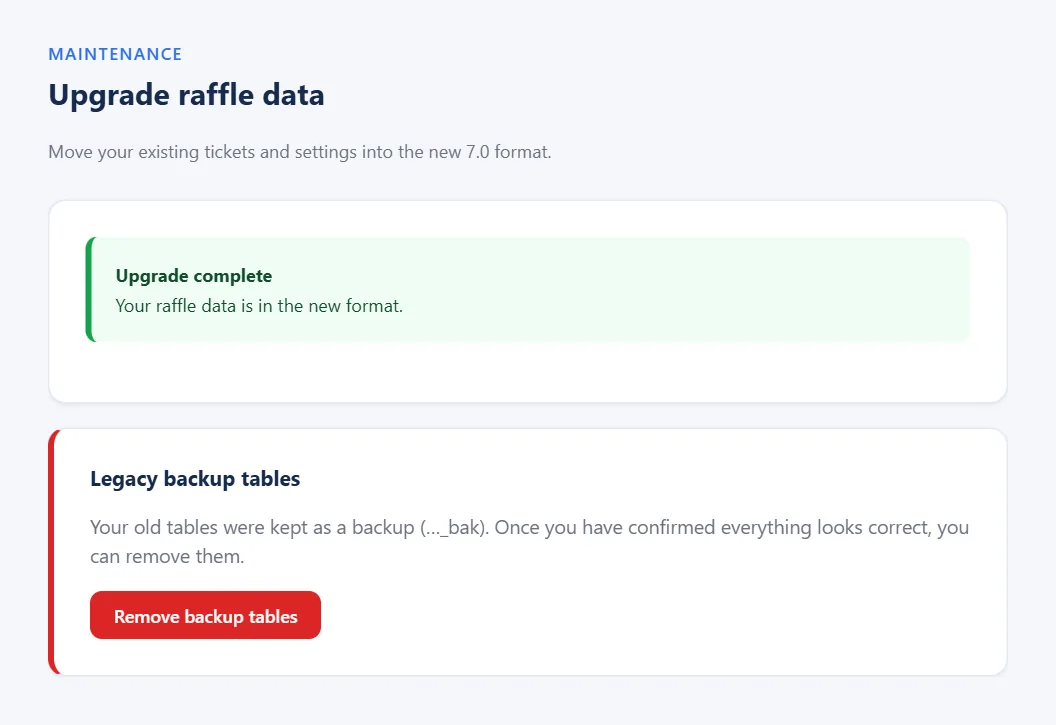
- On the Upgrade page click Run upgrade now. It works in small batches, so it is safe on a large store. Wait for Upgrade complete.
- Open a few orders and a raffle or two and check the ticket numbers and settings look right.
- When you are happy, click Remove backup tables on the Upgrade page. Until then your old tables are kept as a backup.
What moves across
- Every ticket number, on the order it was sold with.
- Each raffle’s settings: dates, ticket numbering, prefixes, display options, limits and caps.
- Recorded winners.
- New tickets continue after the highest number already used in each raffle, so no number is ever issued twice.
Version 6 counted the ticket cap down with every sale and copied it into each product’s WooCommerce stock. The upgrade turns it back into a total (tickets left plus tickets sold) and switches off WooCommerce stock on raffle products, because version 7 enforces the cap itself.
Until you click Run upgrade, raffles from version 6 show no tickets sold in the new screens. Your data is safe; it simply has not been moved yet.
The WPRaffle Menu
Everything lives under the WPRaffle menu in your WordPress admin. The sidebar is grouped into the main raffle pages, configuration pages and tools.

Dashboard
The Dashboard is your overview: active raffles, tickets sold today, revenue for the last 7 days, winners drawn, unique buyers and pending orders. Below that you see the latest ticket orders, raffles ending soon and the most recent winners.
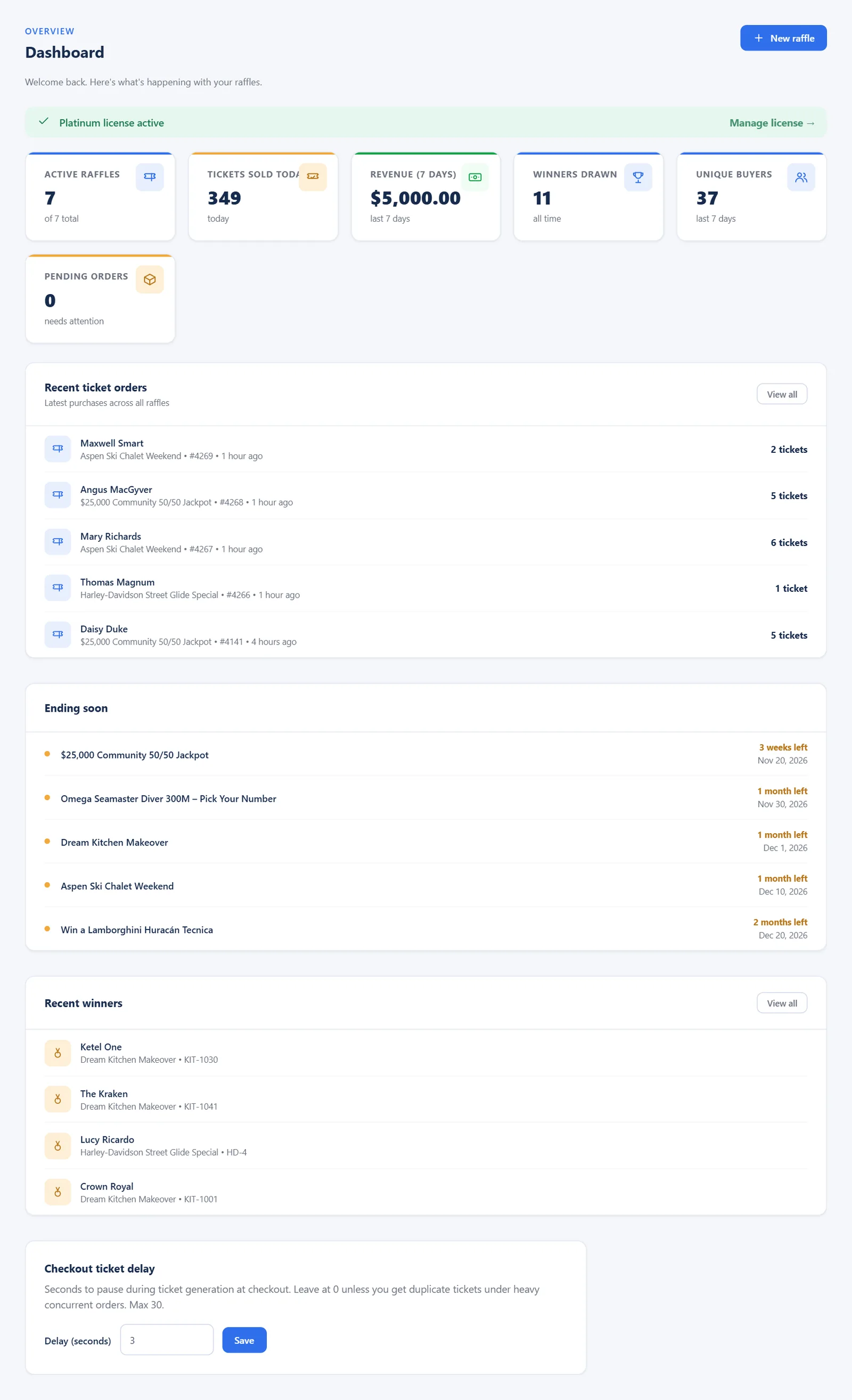
Checkout ticket delay. At the bottom of the Dashboard you can set a short pause (in seconds, maximum 30) during ticket generation. Leave it at 0. Only raise it if your host shows duplicate tickets under very heavy, simultaneous checkouts.
Create a Raffle (New Raffle Wizard)
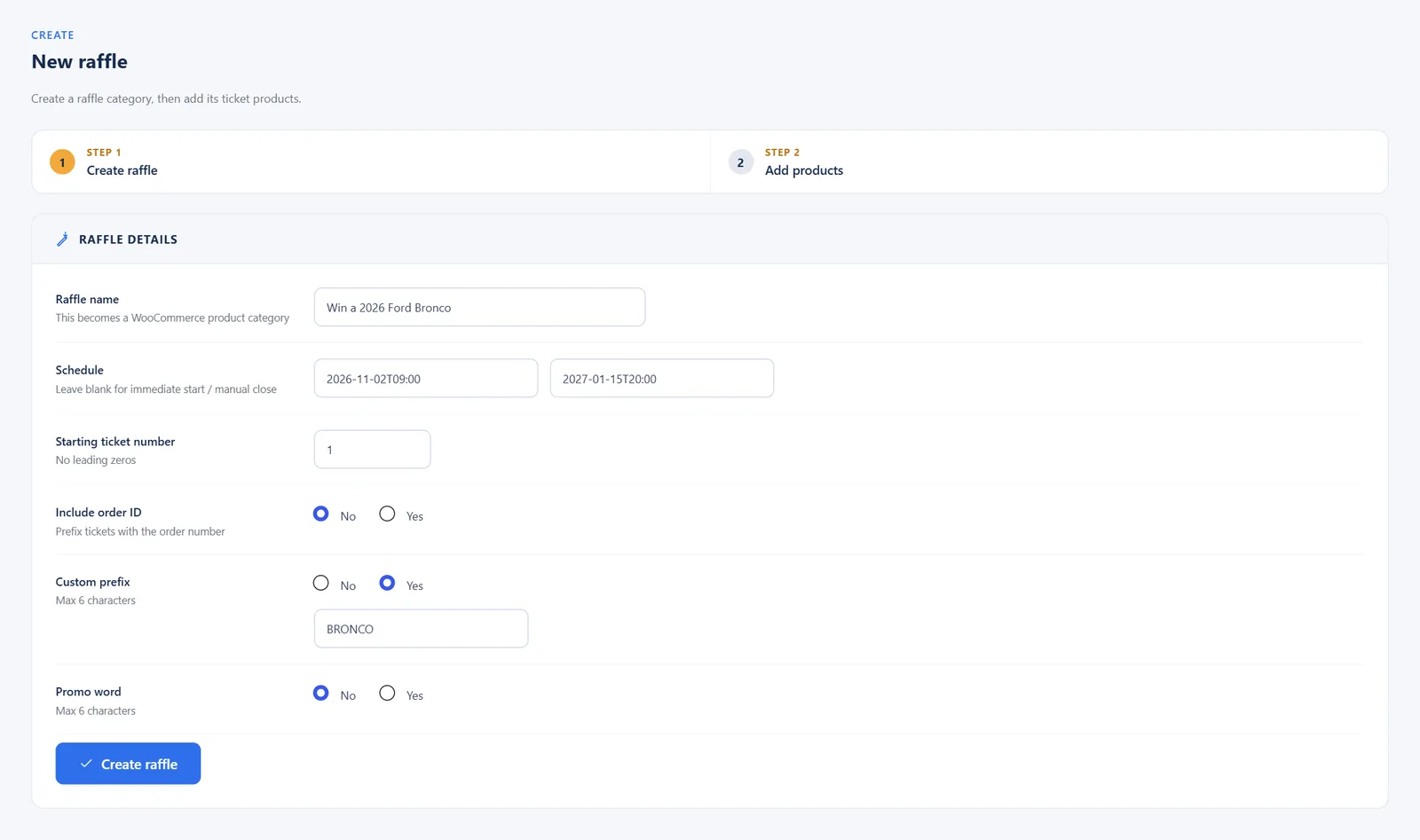
The quickest way to start is WPRaffle → New Raffle. The wizard creates the raffle and its ticket packages in two steps.
Step 1 – Raffle details
- Enter the raffle name, for example Win a 2026 Jeep Wrangler.
- Set the starting ticket number (for example 1 or 1000).
- Choose whether tickets include the order ID, a custom prefix (up to 6 characters, for example JEEP) and a promo word.
- Optionally set the start and end date and time.
- Click Create raffle.
Step 2 – Products (ticket packages)
- Add one row per package: name, price and number of tickets in that package.
- Click Create products. You will see “Raffle Made”.
A ticket number is built from the parts you switch on, in this order: order ID, prefix, promo word, number. Examples: 1162-JEEP-1000, MAL-SUN-1, LAMBO-00001.
You can change every option later in the raffle’s settings, add a product image in Products, and add more packages by creating products in the raffle category.
My Raffles
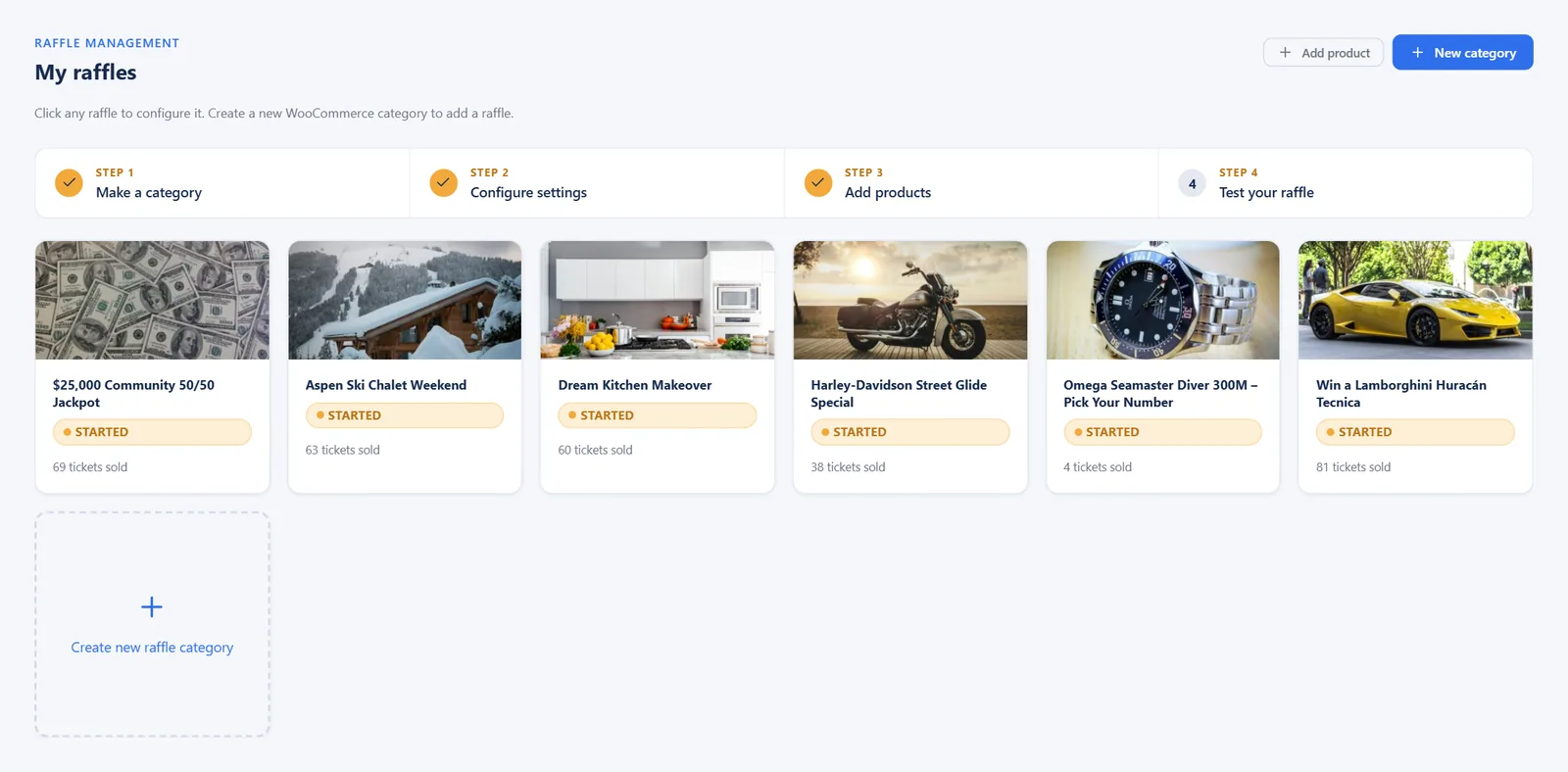
My Raffles lists every raffle with its status (running, scheduled, ended), tickets sold and dates. Click a raffle to open its settings.
Raffle Settings
Each raffle has its own settings, split into tabs. Change what you need and click Save raffle settings; you will see “Settings saved”. Settings are kept per raffle.
Once a raffle has started and tickets are sold, changing the numbering options affects only tickets issued after the change. Set numbering before you start selling.
Schedule
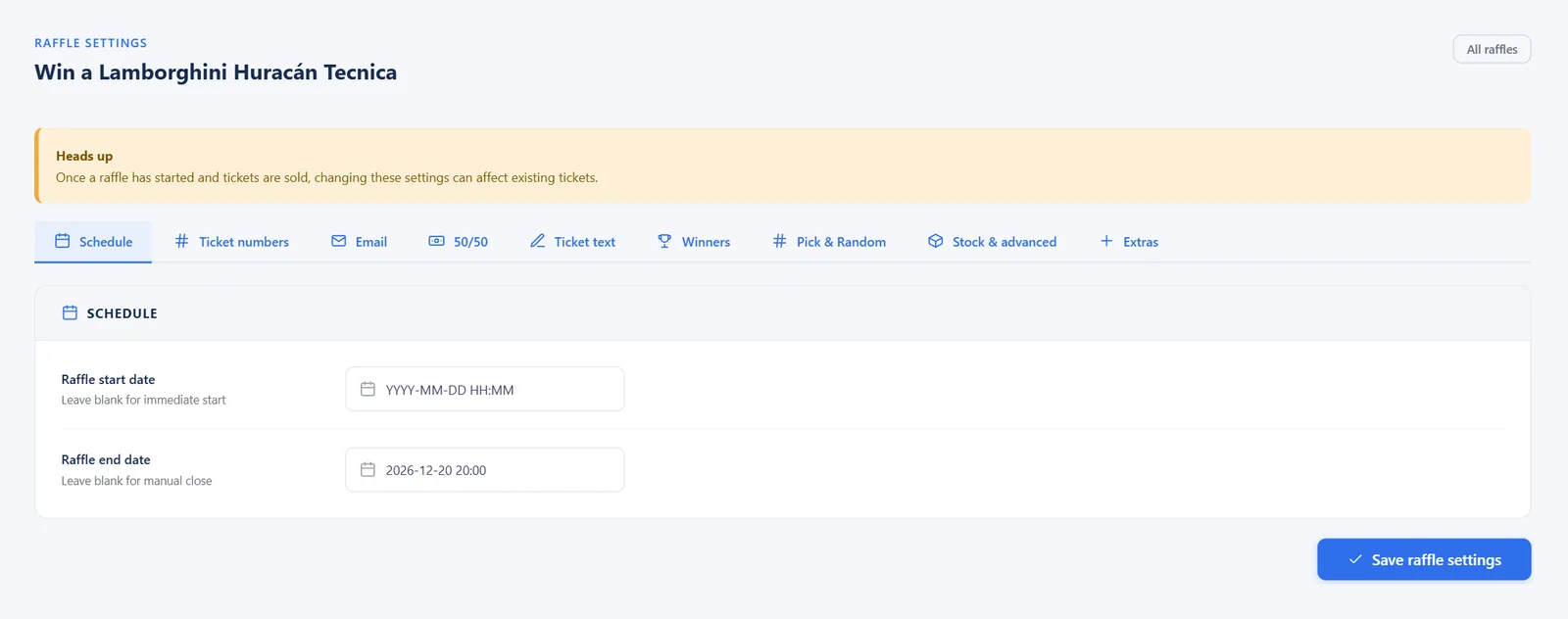
| Setting | What it does |
|---|---|
| Raffle start date | When the raffle opens. Leave blank to start immediately. Before this time the product shows “Coming soon” and cannot be bought. |
| Raffle end date | When the raffle closes. Leave blank to close it manually. After this time the product shows “Raffle ended”. |
Ticket numbers
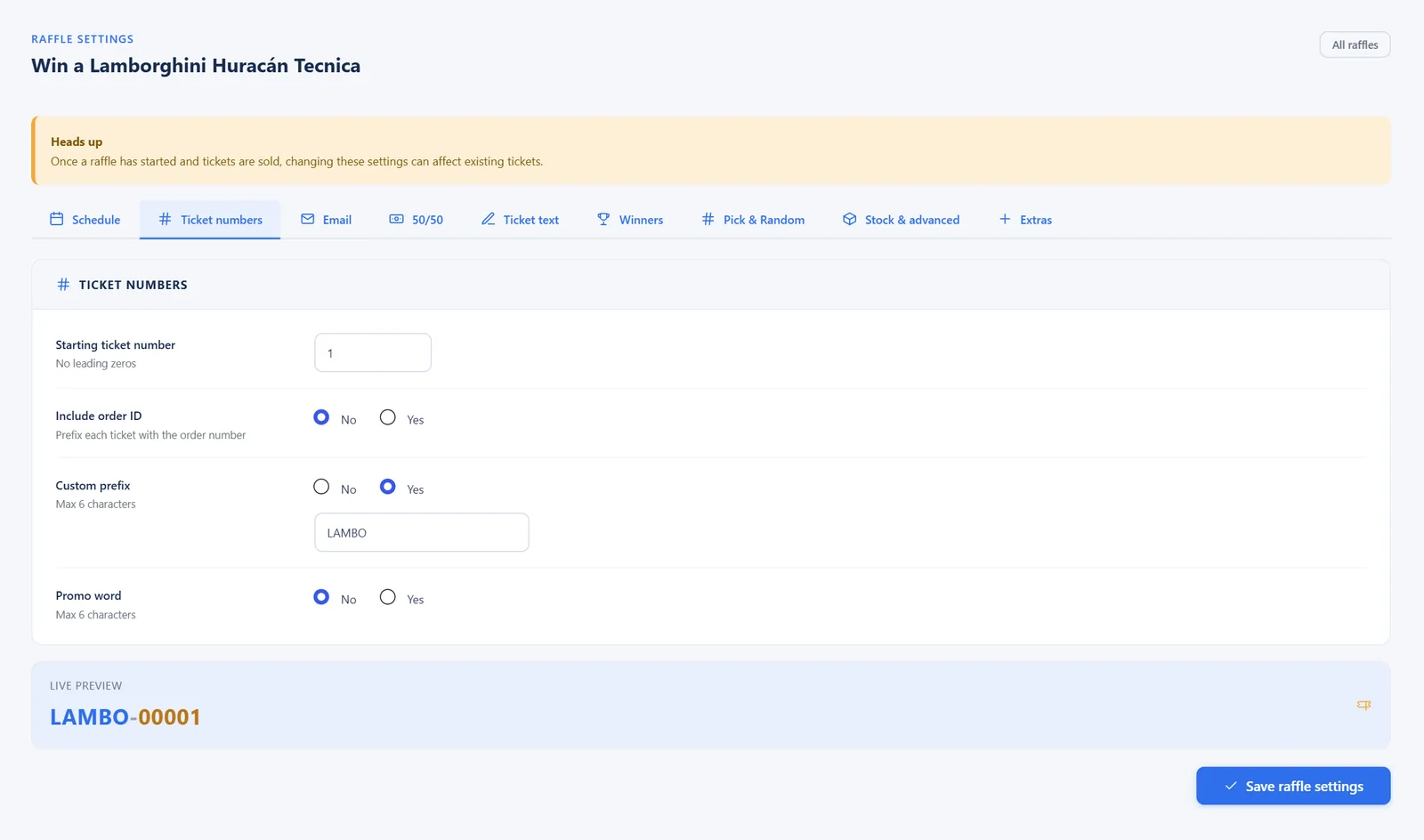
| Setting | What it does |
|---|---|
| Starting ticket number | The first number this raffle issues. No leading zeros here. |
| Include order ID | Puts the order number in front of each ticket, e.g. 1162-JEEP-1000. |
| Custom prefix | Up to 6 characters, e.g. JEEP. |
| Promo word | Up to 6 characters, e.g. SUN. |
Email (ticket display and ticket images)

| Setting | What it does |
|---|---|
| Number display style | Individual (every number on its own line), Range (100 to 120) or Auto (range when more than 4). |
| Send ticket images | Show each ticket as an image instead of plain text, on the confirmation page and in emails. Needs the GD image library on your server. Most hosts include it; your host can confirm. |
| On the ticket, show | Choose what prints on the ticket image: raffle name, customer name, phone number and (Gold/Platinum) email address. |
| Ticket image | Pick one of the ready-made templates or upload your own. Uploaded images must be exactly 300 × 147 px (PNG or JPG). |
| Setting | What it does |
|---|---|
| Position text on the ticket | Drag each label (raffle name, customer name, ticket number and so on) onto the ticket preview to the place it should print, then save. New raffles start with the labels in the text area of the ticket; Reset positions puts them back there. |
Use a template with a clear, light area for the text. Long raffle names are automatically printed smaller so they stay inside the ticket.
| Setting | What it does |
|---|---|
| Image style | Standard is compact (300 × 147). Large is a full-size ticket with sharper text; large images must be exactly 1200 × 400 px. |
| Send in emails as | Embed the large ticket image in the email, or send a link the customer clicks to view it. |
50/50
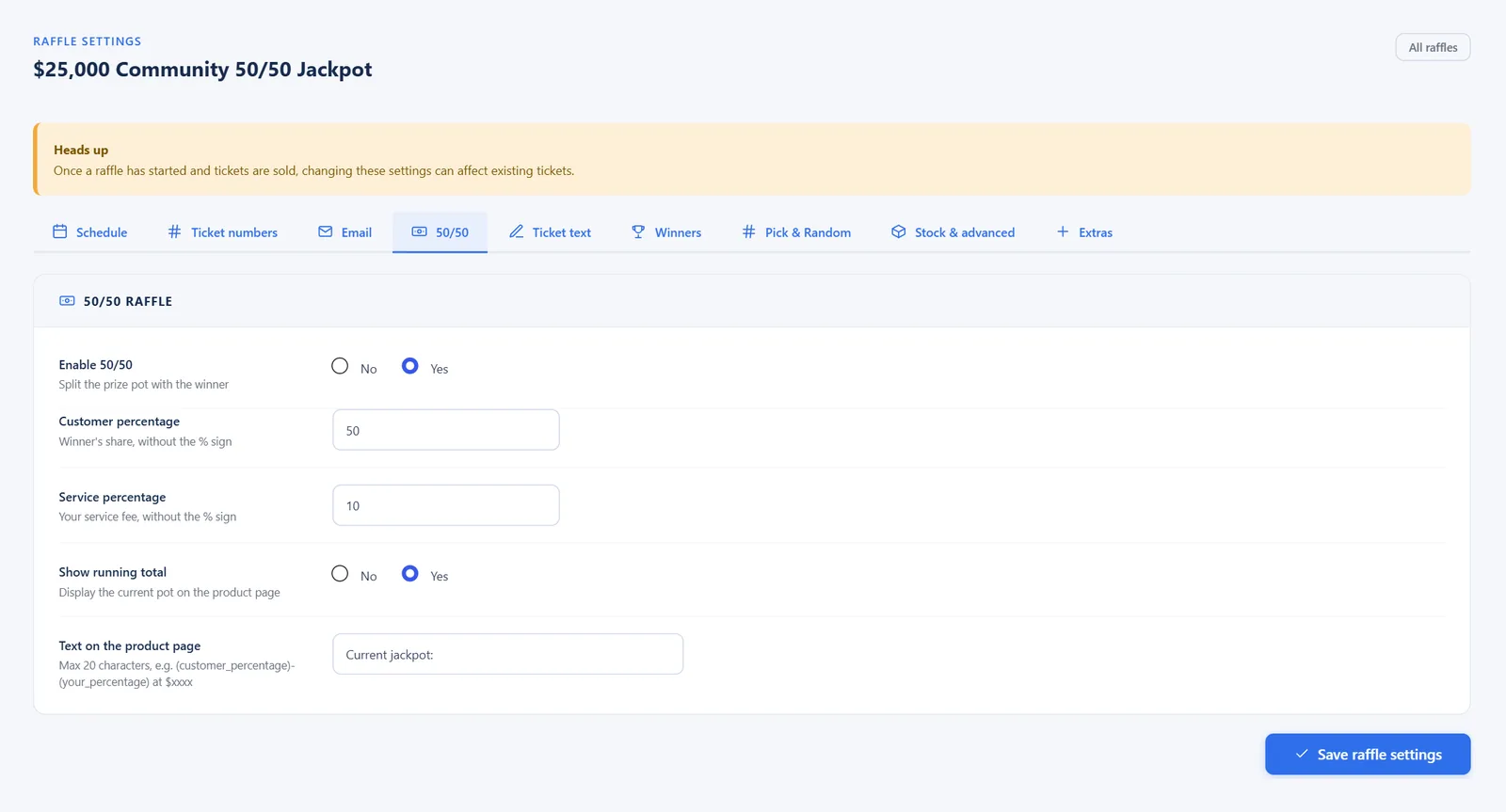
| Setting | What it does |
|---|---|
| Enable 50/50 | Turns the raffle into a 50/50: the winner receives a share of the ticket sales. |
| Customer percentage | The winner’s share, without the % sign (e.g. 50). |
| Service percentage | Your fee, without the % sign. It is taken off the top first. |
| Show running total | Shows the current pot on the product page. |
| Text on the product page | The label in front of the pot, e.g. “Jackpot:”. |
How the pot is worked out: with only a customer percentage, the winner gets that percentage of sales. With a service percentage too, the fee comes off first and the winner gets their percentage of what is left. Example: $870 in sales, 10% fee, 50% share → ($870 − $87) × 50% = $391.50.
Ticket text
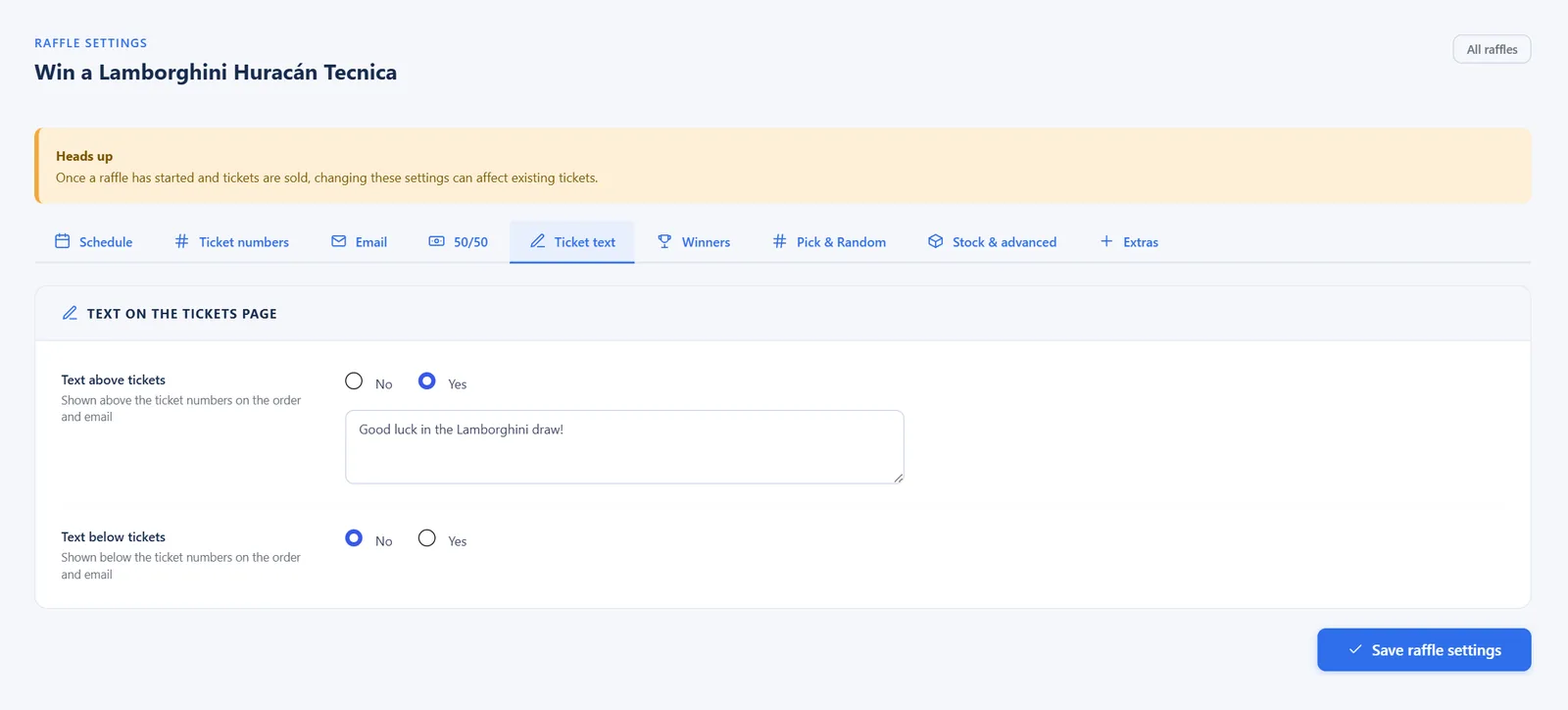
| Setting | What it does |
|---|---|
| Text above tickets | A message shown above the ticket numbers on the order page and email, e.g. a thank-you. |
| Text below tickets | A message shown below the ticket numbers. |
Winners
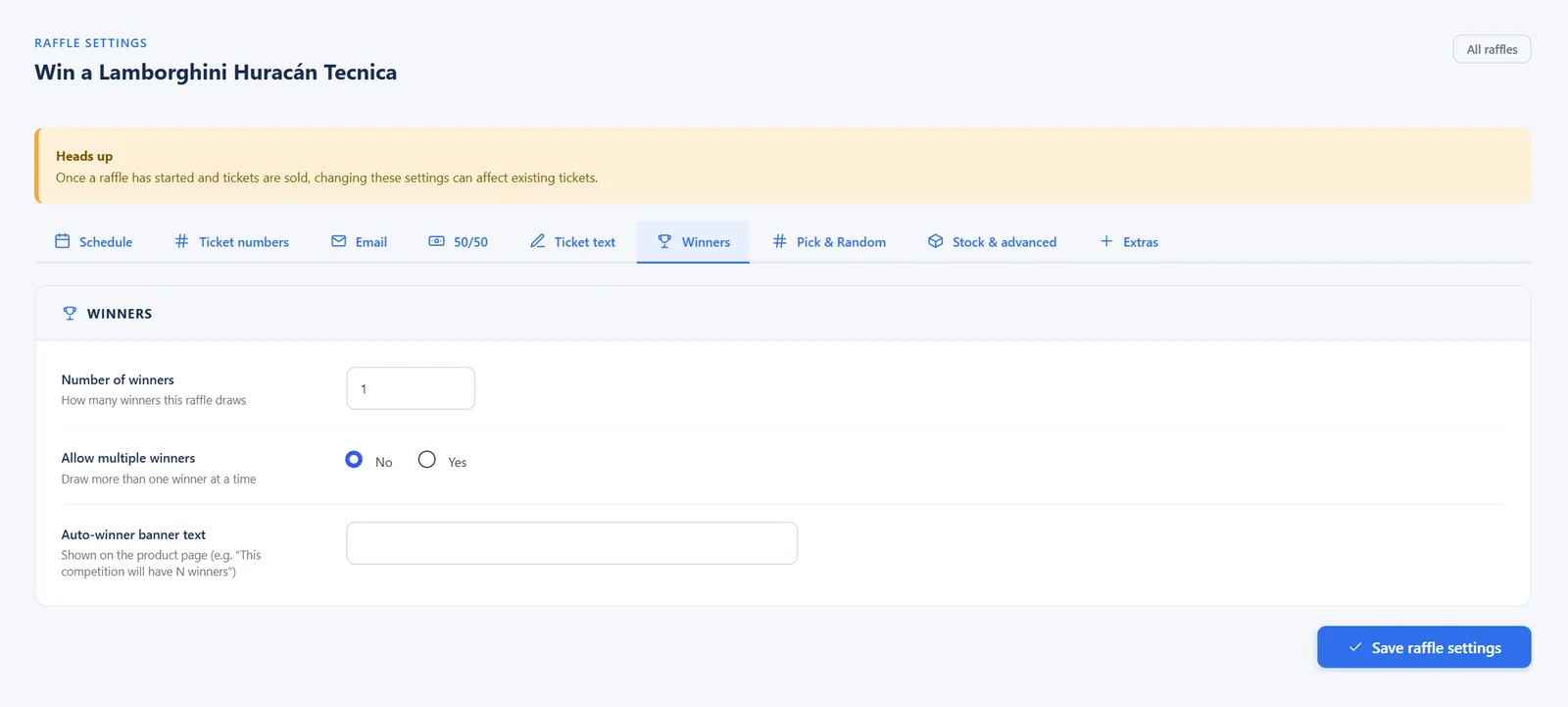
| Setting | What it does |
|---|---|
| Number of winners | How many winners this raffle will have. |
| Allow multiple winners | Draw more than one winner at a time. |
| Auto-winner banner text | Shown on the product page, e.g. “3 winners will be drawn live on December 20!”. |
Pick & Random
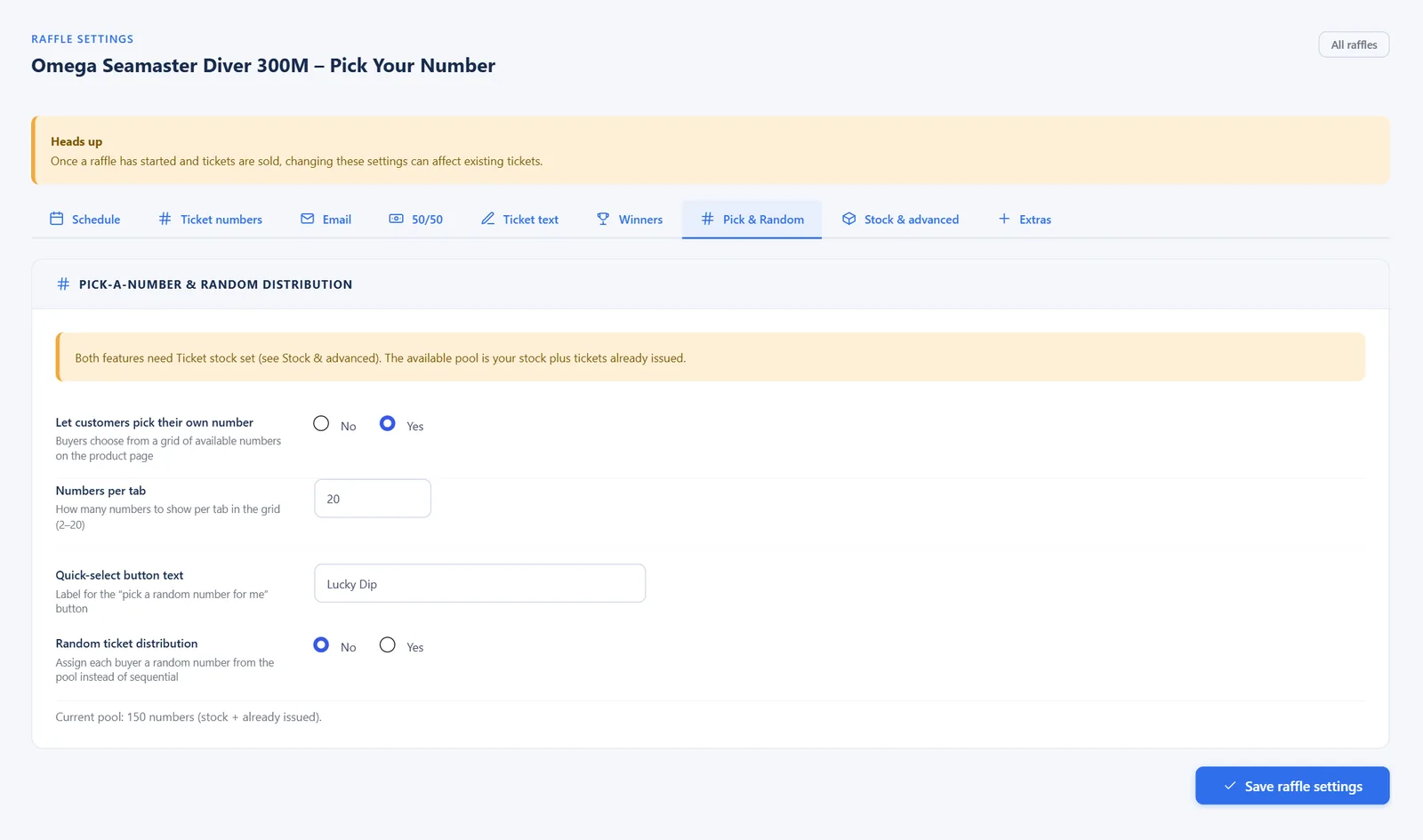
| Setting | What it does |
|---|---|
| Let customers pick their own number | Buyers choose their numbers from a grid on the product page. The grid size comes from Ticket stock (Stock & advanced). A chosen number is held while it is in a cart, and stays held on an unpaid order (for example bank transfer) until the order is paid or cancelled. |
| Numbers per tab | How many numbers each tab of the grid shows (2–20). |
| Quick-select button text | Label for the “pick for me” button, e.g. “Lucky Dip”. |
| Random ticket distribution | Give each buyer random numbers from a pool instead of sequential numbers. Set Ticket stock to size the pool. |
Stock & advanced
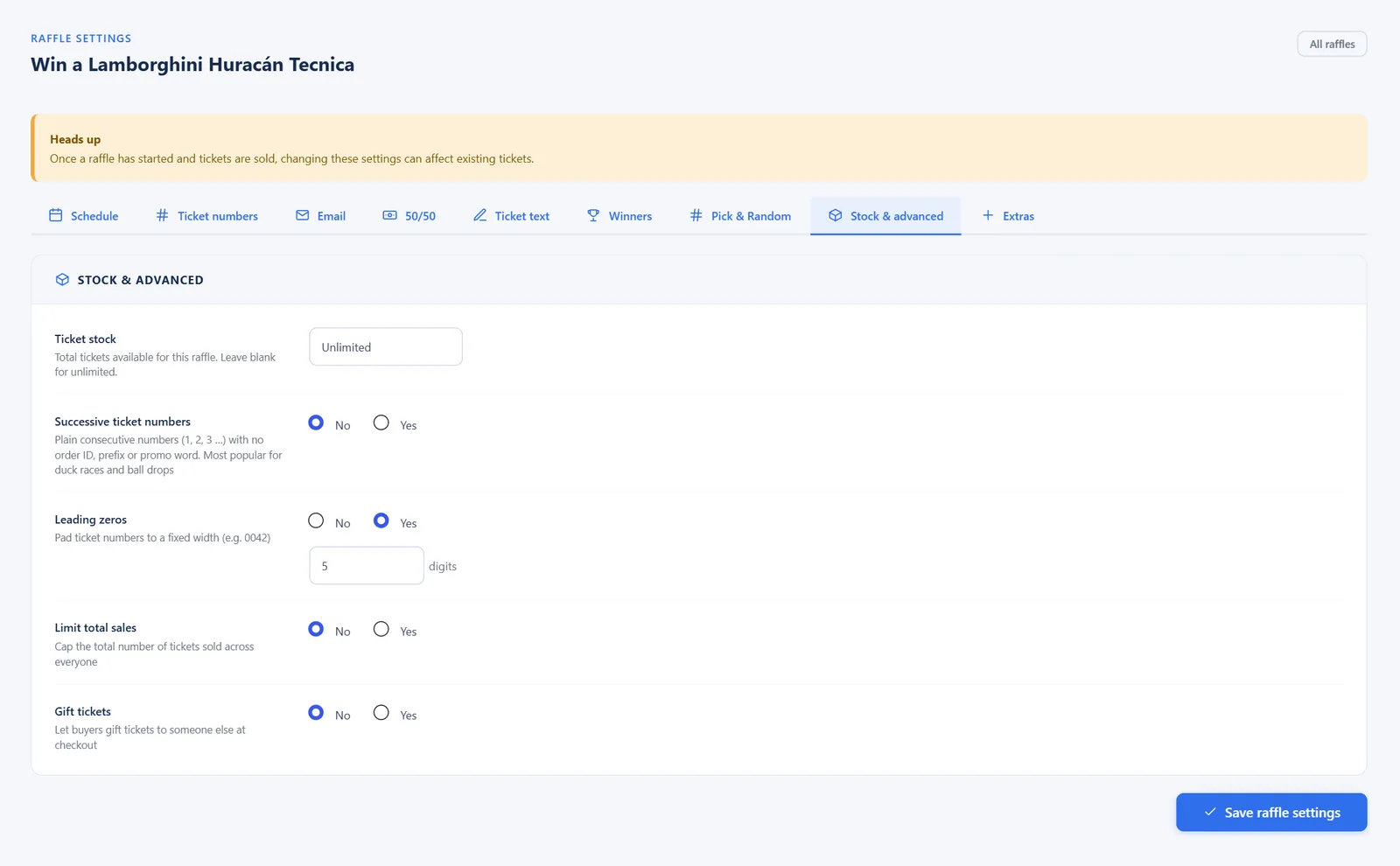
| Setting | What it does |
|---|---|
| Ticket stock | Total tickets available. When they are all sold the raffle shows “Sold out” and cannot be bought. Leave blank for unlimited. |
| Successive ticket numbers | Plain numbers 1, 2, 3… with no order ID, prefix or promo word. Popular for duck races and ball drops. |
| Setting | What it does |
|---|---|
| Leading zeros | Pad numbers to a fixed width, e.g. 5 digits gives LAMBO-00042. |
| Limit total sales | A cap on tickets sold across everyone. At the cap the raffle shows “Sold out”. |
| Gift tickets | Lets buyers enter a gift recipient’s name at checkout. The name is saved on the order and printed on the ticket. |
The limit on tickets per customer is in the raffle’s Extras tab (see Per-raffle extras), together with the entry list, free postal entry and bundle offers.
Ticket Packages (Products)
Every product in a raffle category is a ticket package. You can edit them in Products like any WooCommerce product: title, price, image and description.
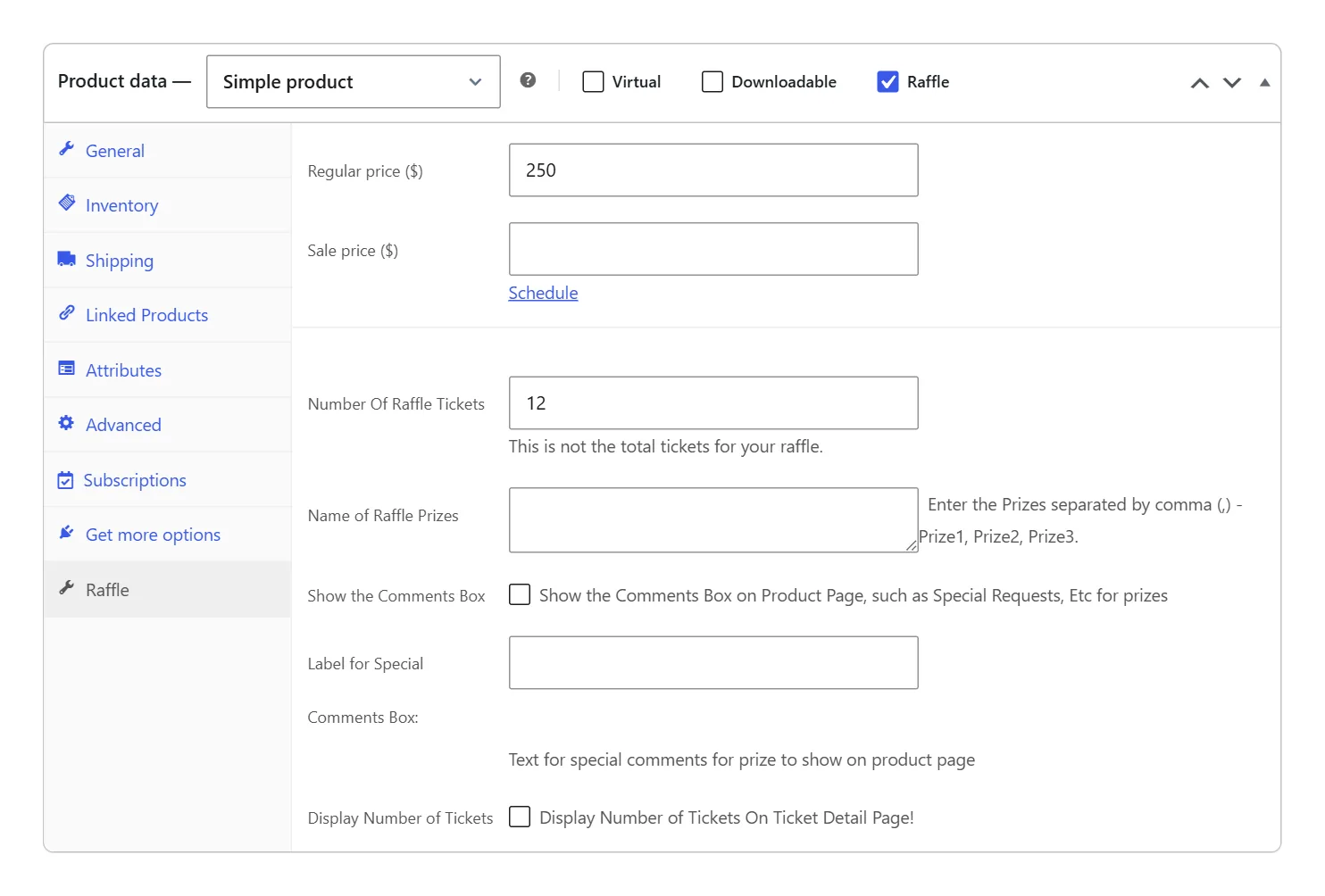
| Setting | What it does |
|---|---|
| Raffle | Marks the product as a raffle ticket package. It must be in a raffle category. |
| Number of tickets | How many tickets one purchase of this product gives. Quantity multiplies it: 2 × a 5-ticket pack = 10 tickets. |
Give packages clear names that include the ticket count, for example “Jeep Wrangler – 5 Tickets” or “Porsche 911 – 15 Tickets (Best Value)”.
Quiz (Skill Question)
A quiz asks buyers a question before they can enter a raffle. Many regions require a skill question for prize competitions.
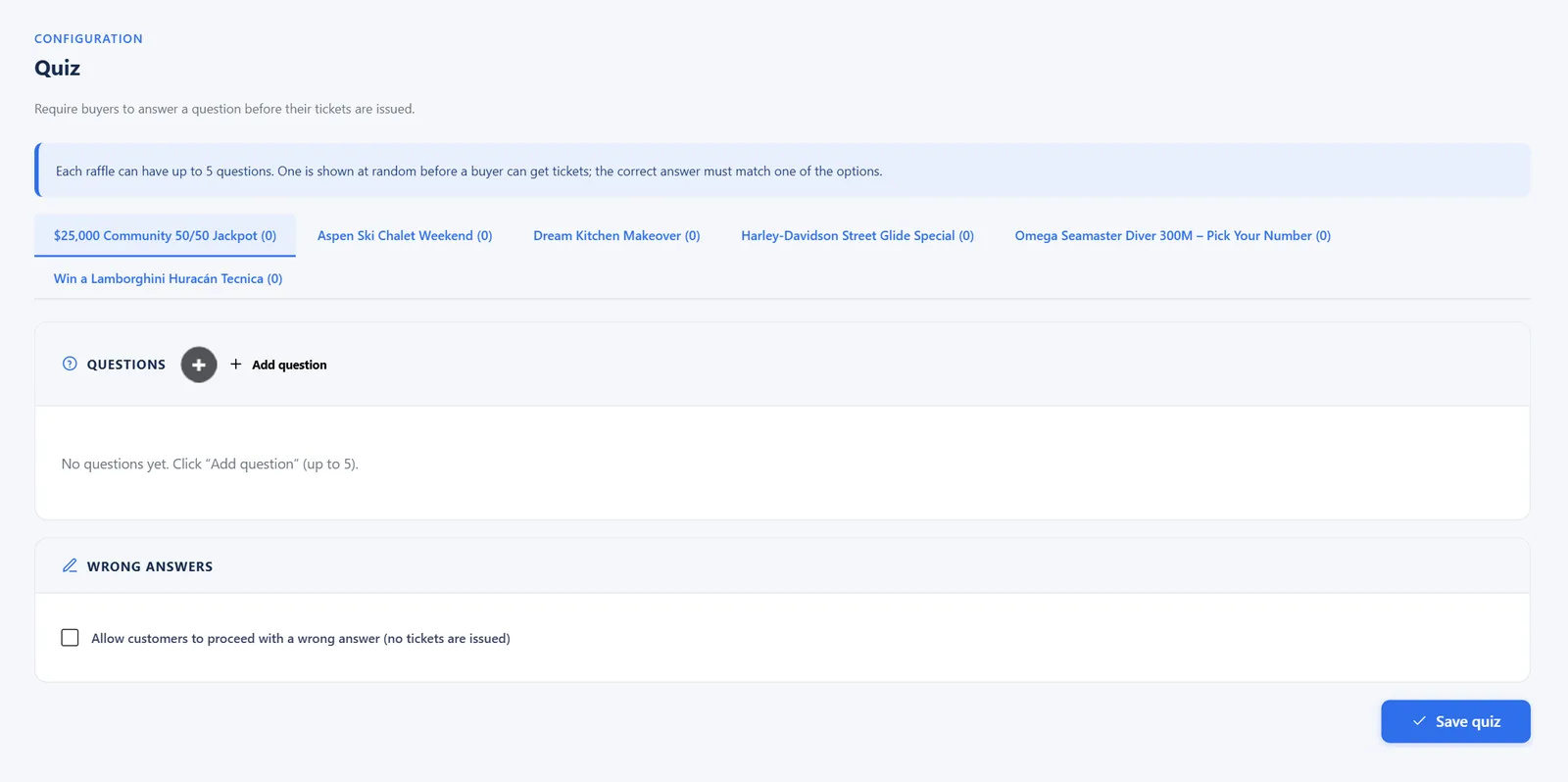
- Open Quiz and pick the raffle.
- Click Add question. Enter the question and three answer options.
- Type the correct answer exactly as one of the options.
- Optionally allow wrong answers: the order still goes through, but no tickets are issued, and the text you enter is shown in the email.
- Save.
On the product page the buyer must choose an answer before adding to cart. A wrong answer shows “Your answer is incorrect” (unless wrong answers are allowed).
Countdown & Progress
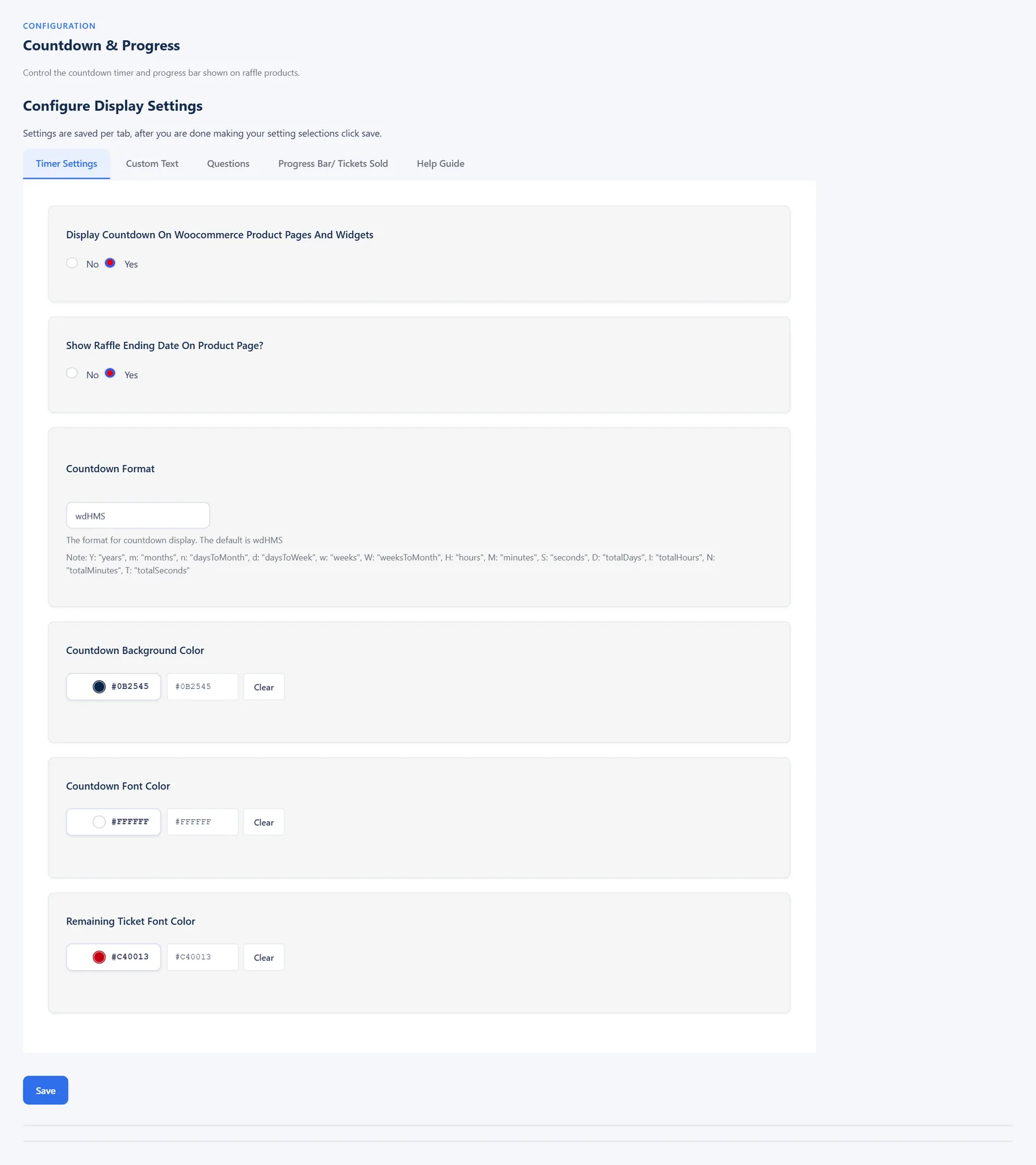
Controls the countdown timer and progress information on product pages: headings, colours, and which elements show (such as tickets sold and tickets remaining). Settings are saved per tab.
Raffle Extras (Store-Wide Options)
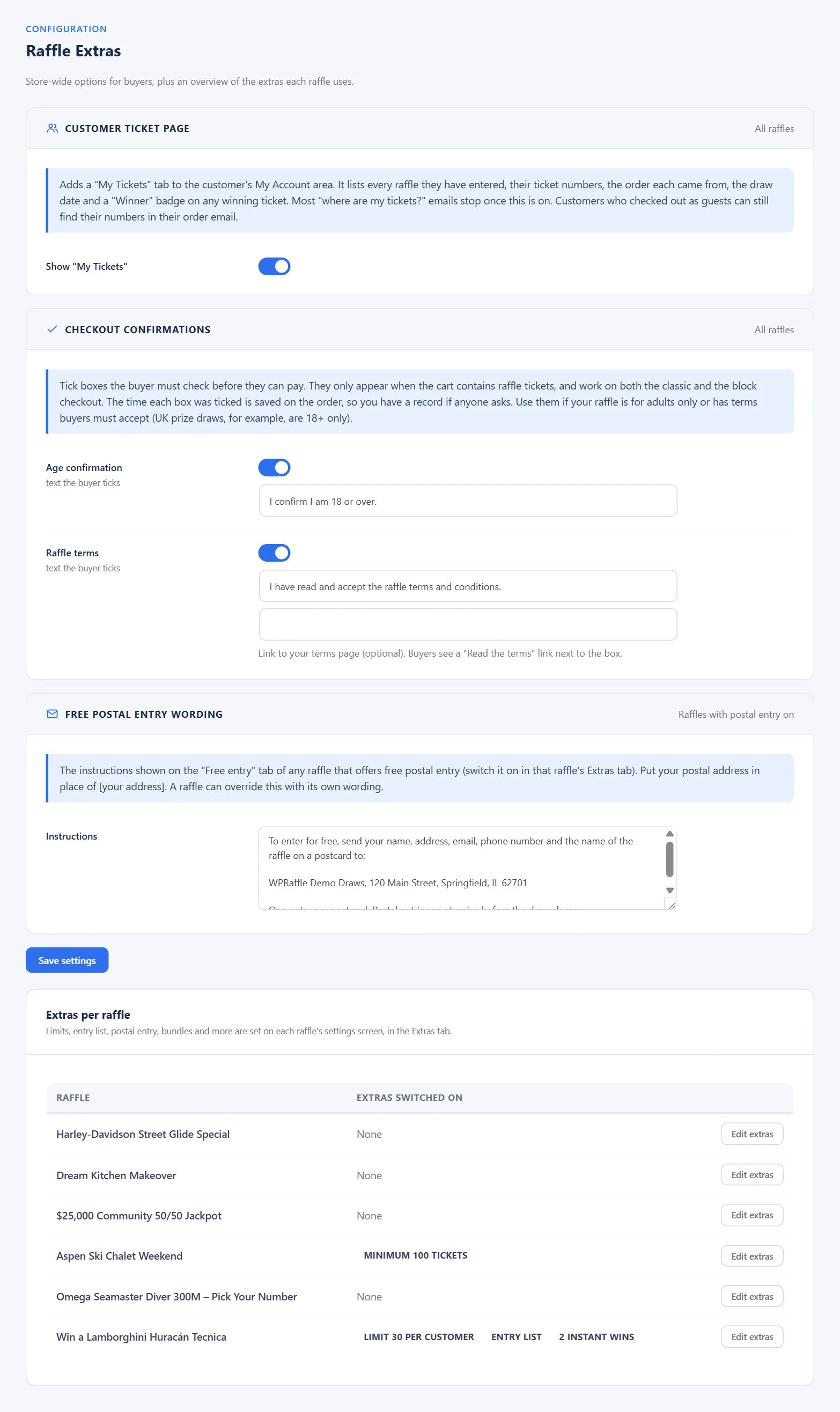
WPRaffle → Raffle Extras holds the options that apply to every raffle in your shop. Each box starts with a short explanation of what it does. Change what you need and click Save settings.
My Tickets page for customers
Switch on Show “My Tickets” to add a My Tickets tab to your customers’ My Account area. It lists every raffle they have entered, the ticket numbers from each order, the draw date and a Winner badge on any winning ticket. Customers stop emailing to ask “where are my tickets?”, because they can always look them up. Buyers who checked out as guests still find their numbers in their order email.

Checkout confirmations
Tick boxes the buyer must check before they can pay. They only appear when the cart contains raffle tickets, and they work on both the classic checkout and the block checkout.
| Setting | What it does |
|---|---|
| Age confirmation | Shows a box such as “I confirm I am 18 or over.” Change the wording to suit your rules. |
| Raffle terms | Shows a box such as “I have read and accept the raffle terms and conditions.” Add the address of your terms page and buyers see a “Read the terms” link next to the box. |
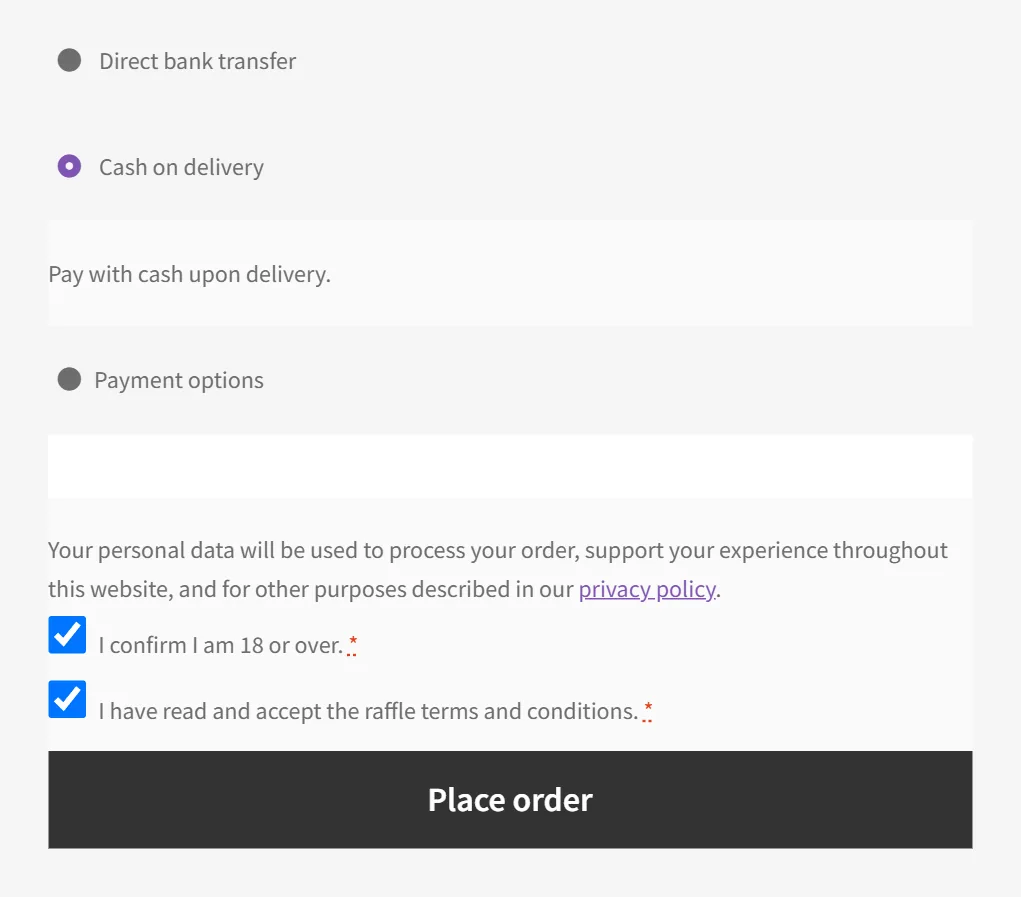
The time each box was ticked is saved on the order, so you have a record if anyone asks. Use these boxes when your raffle is for adults only or has terms buyers must accept.
Free postal entry wording
The instructions shown on the Free entry tab of any raffle that offers free entry by post. Put your own postal address in place of [your address]. A raffle can use its own wording instead (see Per-raffle extras).
Extras per raffle
The table at the bottom lists every raffle and the extras switched on for it, for example “Limit 6 per customer” or “Buy 3 get 1 free”. Click Edit extras to open that raffle’s Extras tab.
Per-Raffle Extras (Extras Tab)
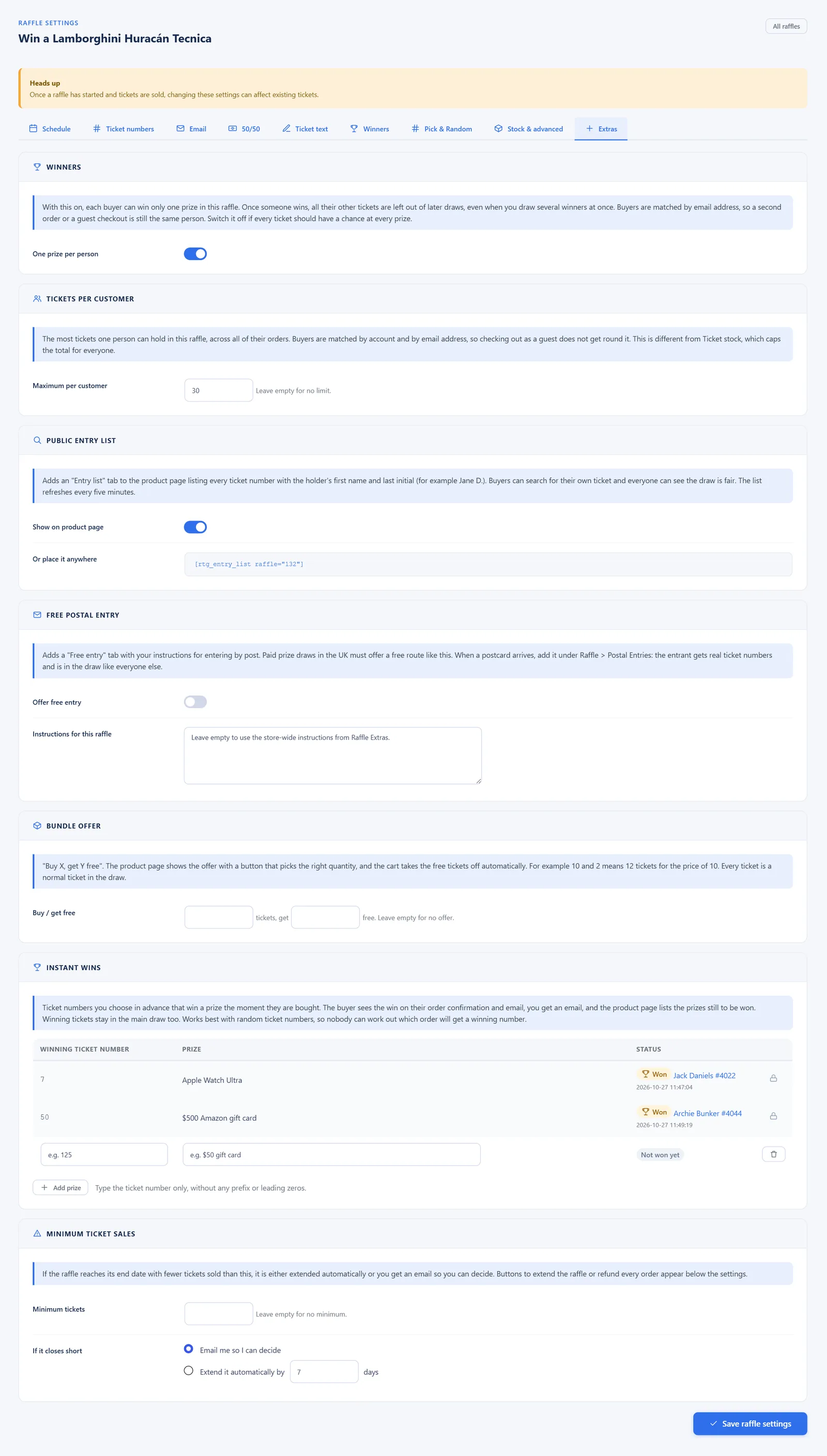
Each raffle’s settings have an Extras tab. Open My Raffles, click the raffle and choose Extras. Every option has a short explanation above it, and everything is saved with the rest of the raffle settings when you click Save raffle settings.
Tickets per customer
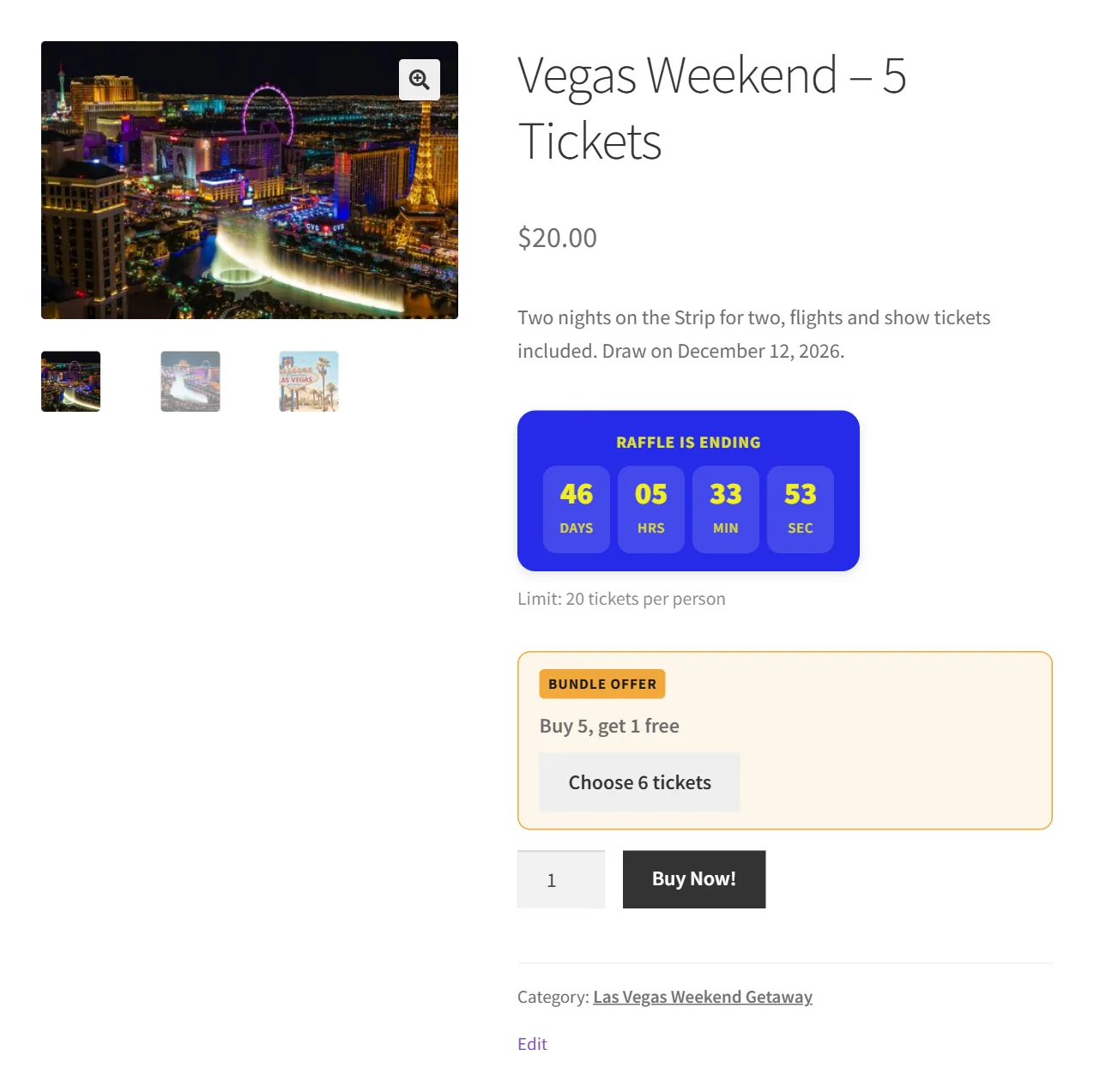
The most tickets one person can hold in this raffle, across all of their orders. Buyers are matched by their account and by email address, so checking out as a guest does not get round the limit. Leave it empty for no limit.
- The product page shows the limit, for example “Limit: 6 tickets per person”.
- If a buyer tries to go over it, the cart stops them with a clear message, for example “Las Vegas Weekend Getaway allows 20 tickets per person. You already have 12, so this would bring you to 25.”
- Orders waiting for payment (on hold) count towards the limit too.
This is different from Ticket stock, which caps the total number of tickets for everyone.
Public entry list
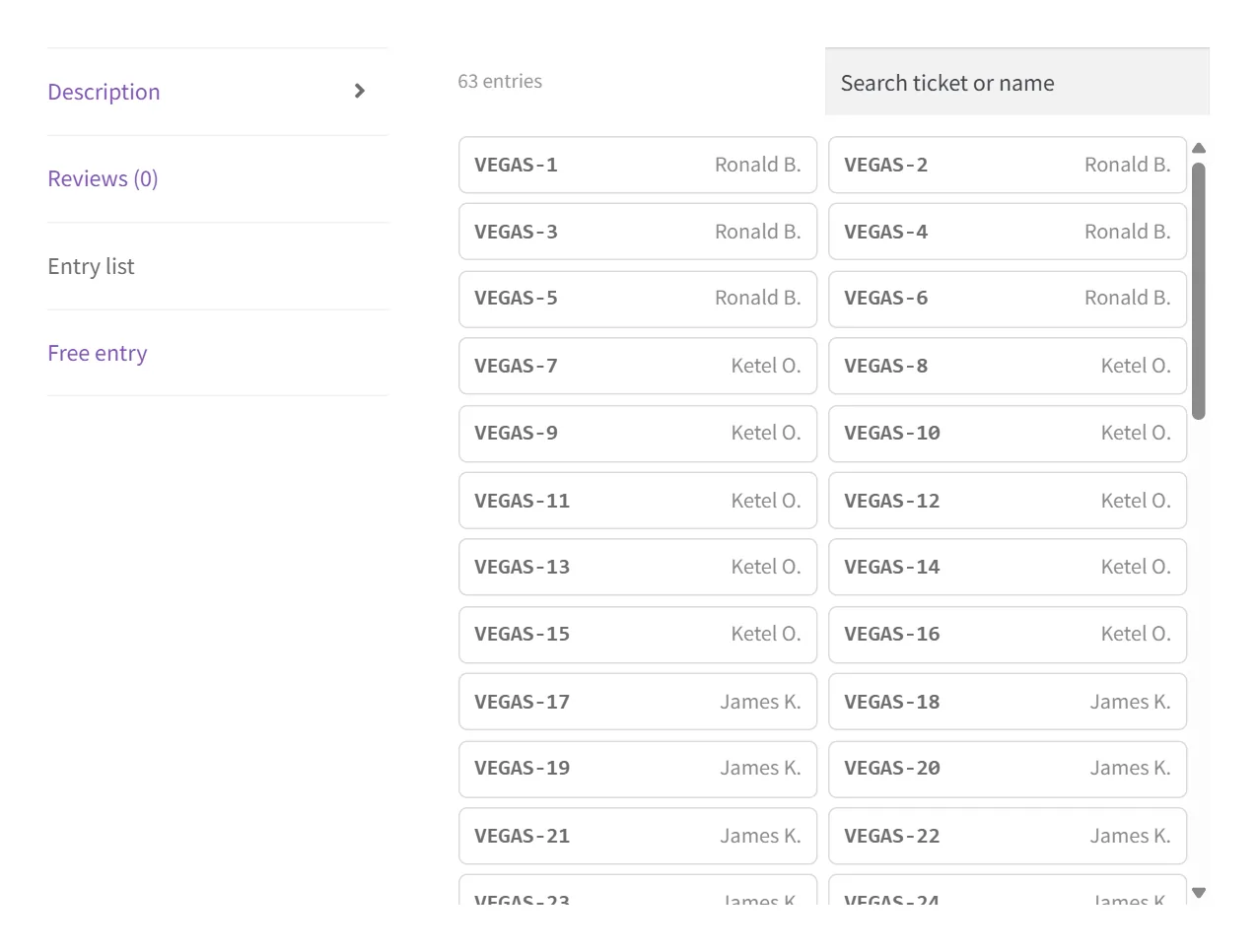
Switch on Show on product page to add an Entry list tab to the product page. It lists every ticket number with the holder’s first name and last initial (for example Jane D.), with a search box so buyers can find their own ticket. Everyone can see the draw is fair, and no full names or contact details are shown. The list refreshes every five minutes.
To show the list somewhere else, for example on a results page, copy the shortcode shown next to the setting, such as [rtg_entry_list raffle="12"].
Free postal entry
Switch on Offer free entry to add a Free entry tab to the product page with your instructions for entering by post. Paid prize draws in the UK, and in some other places, must offer a free way to enter like this. Leave the instructions box empty to use the store-wide wording from Raffle Extras, or write wording for this raffle only.
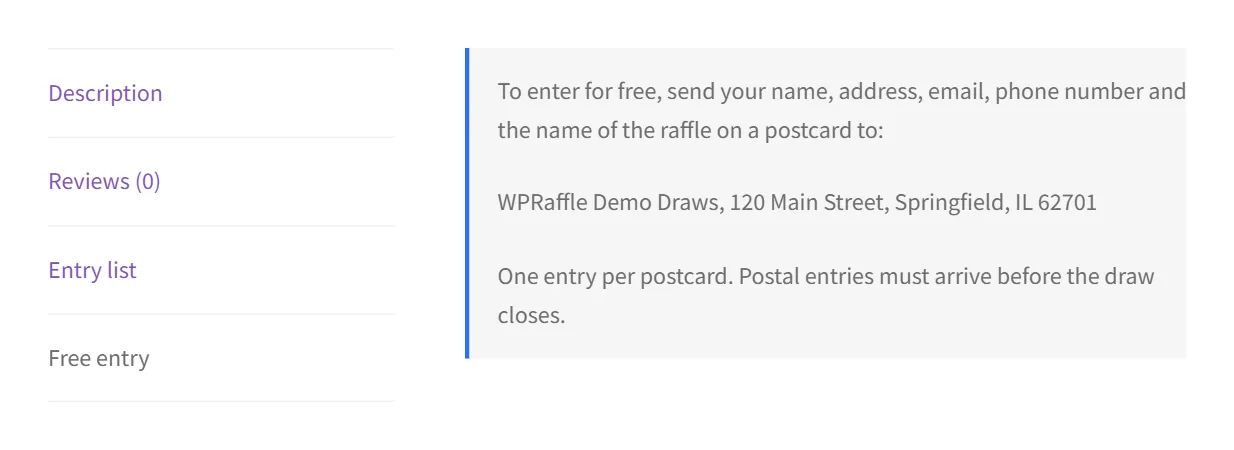
When a postcard arrives, record it in Postal Entries.
Bundle offer
“Buy X, get Y free”. Enter how many tickets the buyer pays for and how many they get free, for example 10 and 2 for 12 tickets at the price of 10. Leave both empty for no offer.
- The product page shows the offer with a button that picks the right quantity, for example Choose 12 tickets.
- The cart takes the free tickets off automatically, as a “Bundle” discount line.
- If the buyer is close to the offer, the cart tells them, for example “Add 2 more to get 2 free”.
- Every ticket, paid or free, is a normal ticket in the draw.
Platinum raffles also have Instant wins and Minimum ticket sales in the same tab.
Postal Entries
Record free entries that arrive by post. Each postal entry gets real ticket numbers, the same as a paid order, and is included in the draw.
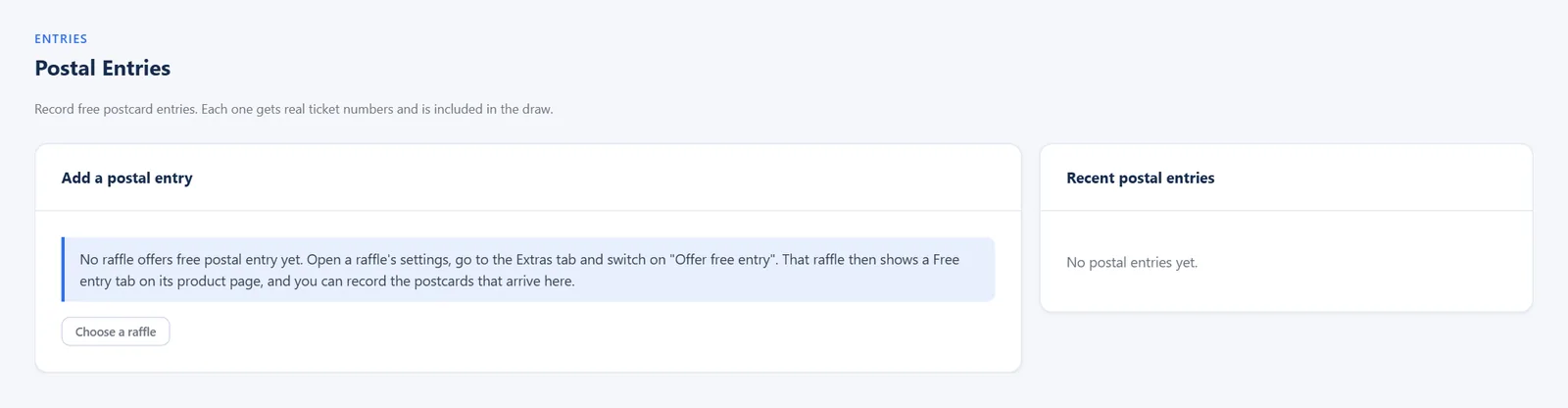
- Open WPRaffle → Postal Entries.
- Choose the raffle product and the number of entries (usually one per postcard).
- Type the entrant’s name, email, phone and address from the postcard. Add an optional note, for example the postmark date.
- Leave Email the entrant their ticket numbers ticked to send them the normal ticket email.
- Click Add entry. The entrant appears under Recent postal entries with their tickets.
A postal entry is saved as a free ($0), completed order, so it appears in View Tickets, exports, reports and draws like any other entry. Exports and the Sales report mark it as a postal entry, so you can always tell paid and free entries apart.
Instant Wins
Choose ticket numbers in advance that win a prize the moment they are bought. Instant wins are set per raffle, in the raffle’s Extras tab.
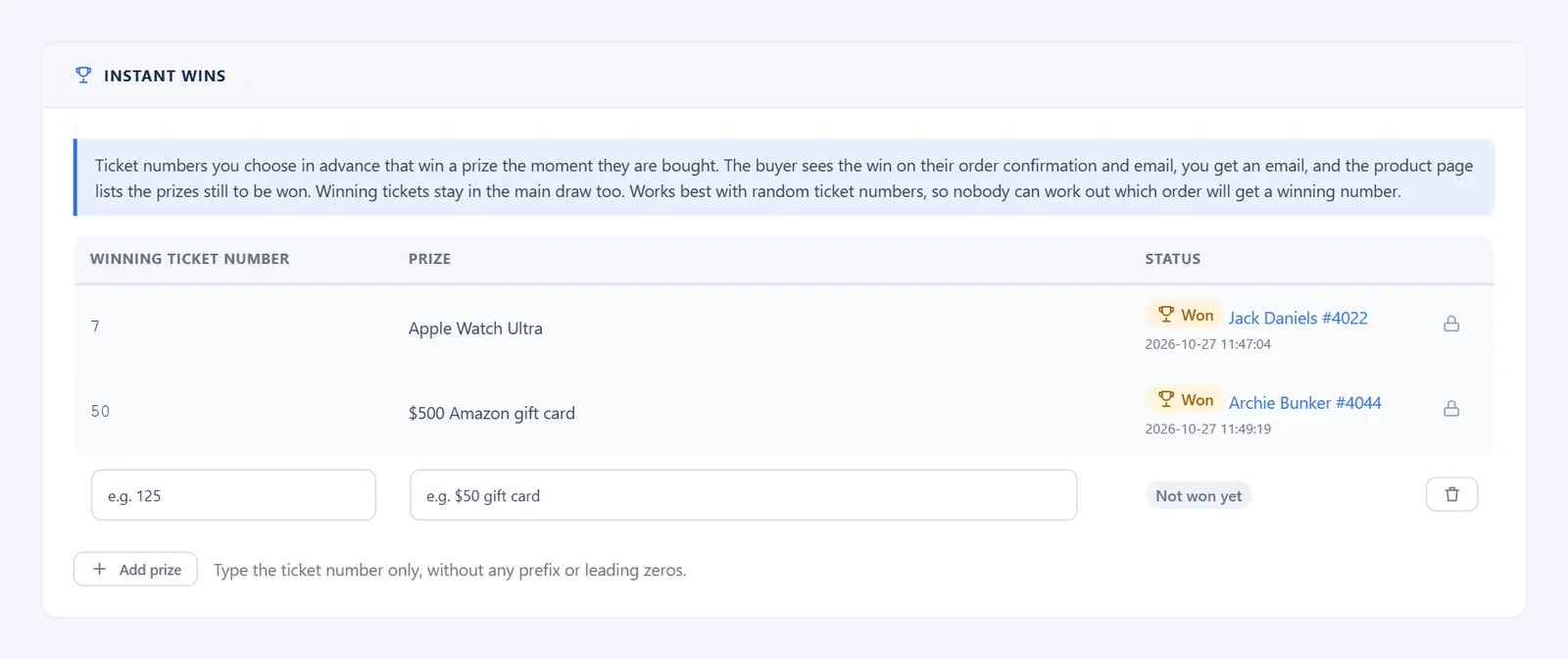
- Open the raffle’s settings and choose Extras.
- In Instant wins, type a winning ticket number and the prize on the first row.
- Click Add prize for each further prize. The bin button removes a row.
- Click Save raffle settings.
Type the ticket number only, without any prefix or leading zeros: 125 matches LAMBO-00125. When the raffle has a Ticket stock, the box below the table shows the range of numbers the raffle can issue.
Mistakes are caught before you save. A number listed twice, a number that has already won, or a row with only one box filled in turns red and the raffle settings cannot be saved until it is fixed. A number outside the raffle’s ticket range shows an amber warning, because it can never be won.
When a winning number is issued:
- The buyer sees the win on their order confirmation page and in their order email.
- You get an email with the ticket, the prize and the buyer’s contact details.
- The win is saved on the order, with an order note.
- The prize shows as Won in the table, with a link to the order. Won prizes are locked: they cannot be changed or removed, so a buyer who was told they won never loses it.
The product page lists the prizes and how many are still to be won, with the winners’ first names and last initials.
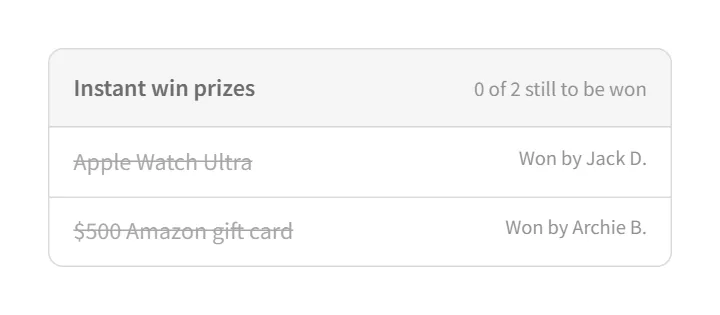
Instant wins work best with random ticket distribution (Settings → Pick & Random). With sequential numbers, buyers could work out which order will get a winning number. Winning tickets stay in the main draw as well.
Minimum Ticket Sales
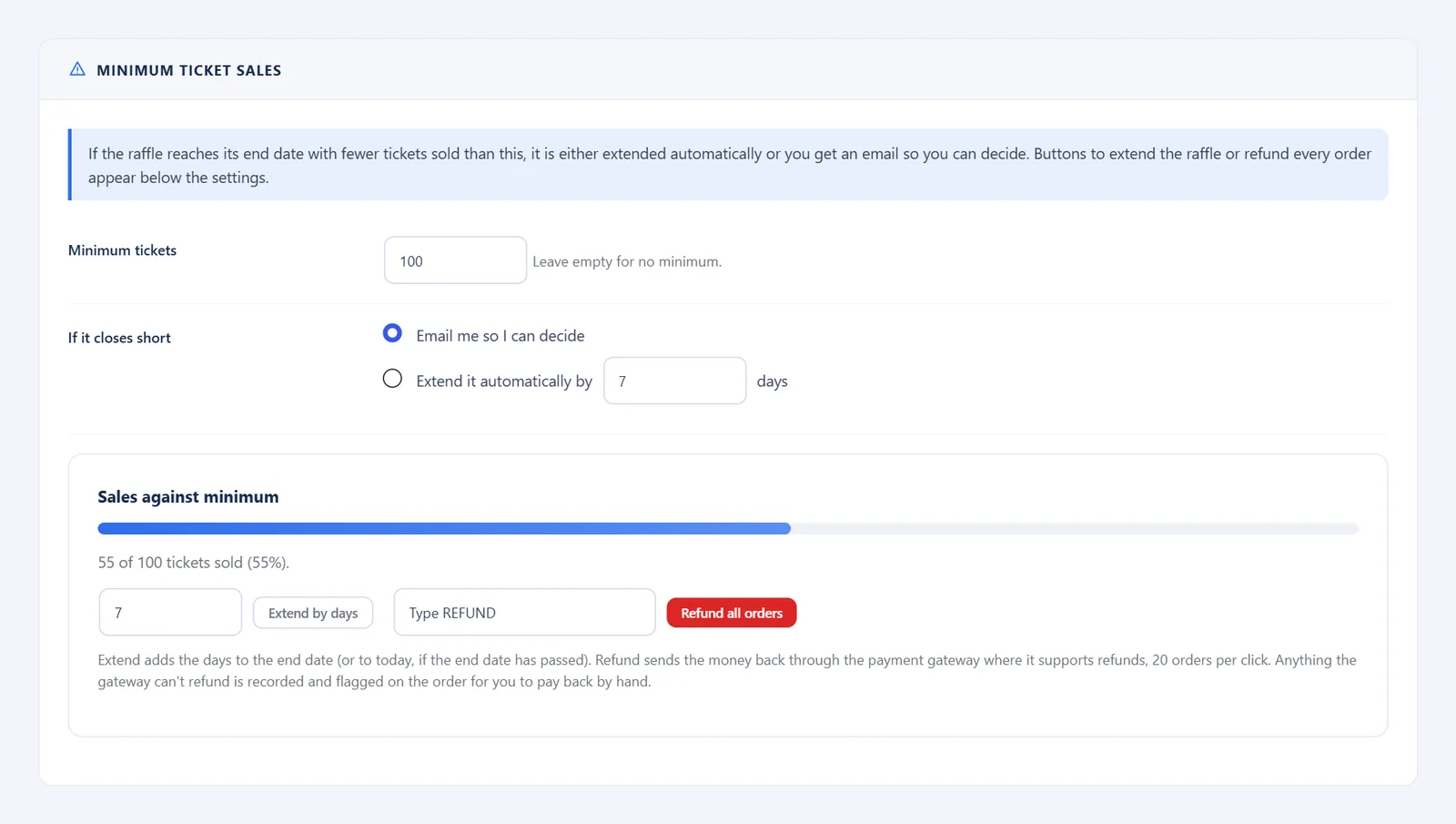
Set the fewest tickets a raffle must sell to go ahead, and what happens if it closes short. Found in the raffle’s Extras tab.
| Setting | What it does |
|---|---|
| Minimum tickets | The number of tickets that must be sold by the end date. Leave empty for no minimum. |
| If it closes short | Email me so I can decide sends you an email when the raffle ends below its minimum. Extend it automatically by moves the end date on by the number of days you choose. |
Sales against minimum shows how close the raffle is, with two buttons:
- Extend by days adds the days to the end date, or to today if the end date has passed.
- Refund all orders refunds every order in the raffle. Type REFUND in the box first, so it cannot be clicked by accident. Refunds go back through the payment gateway where it supports refunds, 20 orders per click; click again to continue. Anything the gateway cannot refund is recorded and flagged on the order for you to pay back by hand.
Refunds cannot be undone. Extend the raffle first if you think it can still reach its minimum.
View Tickets and Export
View Tickets shows every raffle with tickets sold and, per raffle, each ticket with its buyer and order. Use the date filters to narrow it down.
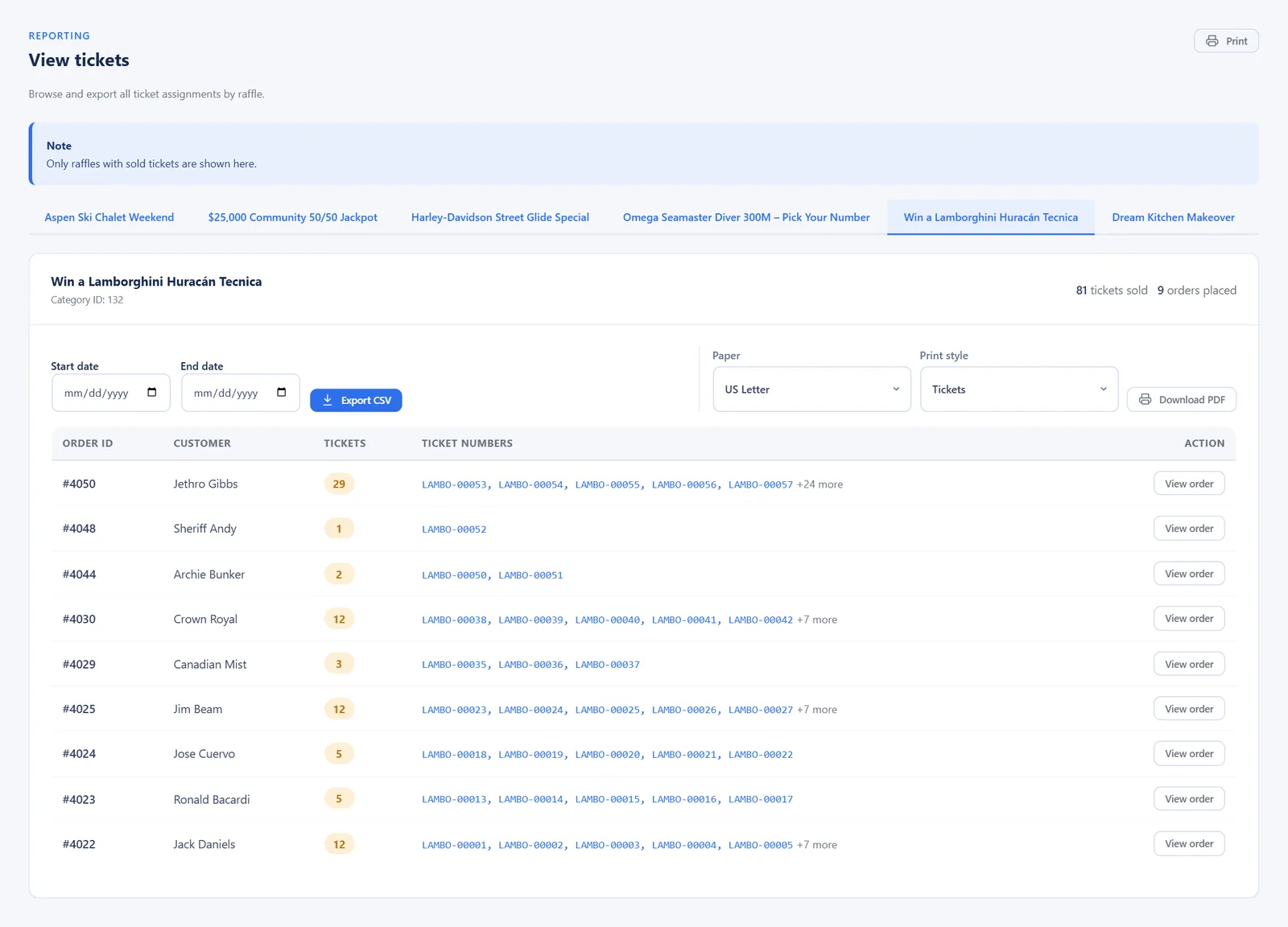
Export CSV downloads a spreadsheet with one row per ticket: order number, order date, order status, payment method, entry method (online or postal), customer name, address, email, phone, product and ticket number.
Gold and Platinum exports also include the prize choice, special comments and the quiz question, answer and result where used.
The export is built in batches, so it stays quick and does not run out of memory even for a raffle with tens of thousands of orders. The date filters apply to the export.
Print tickets as a PDF
Next to Export CSV, choose the Paper and Print style and click Download PDF. The date filters apply here too, so you can print just one day’s sales.
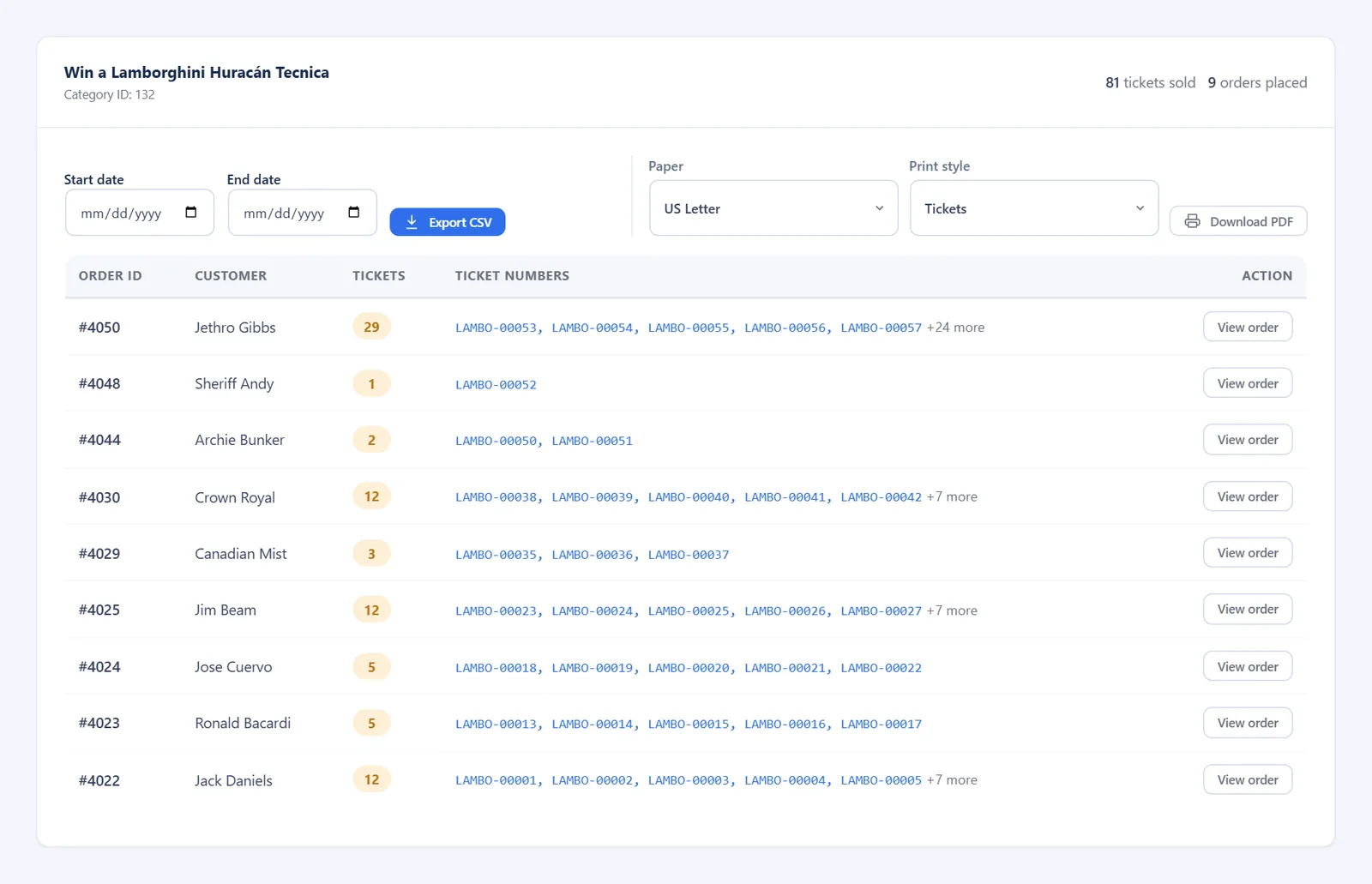
| Setting | What it does |
|---|---|
| Paper | A4 or US Letter. Shops in the US, Canada, Mexico and the Philippines start on US Letter, everyone else on A4. |
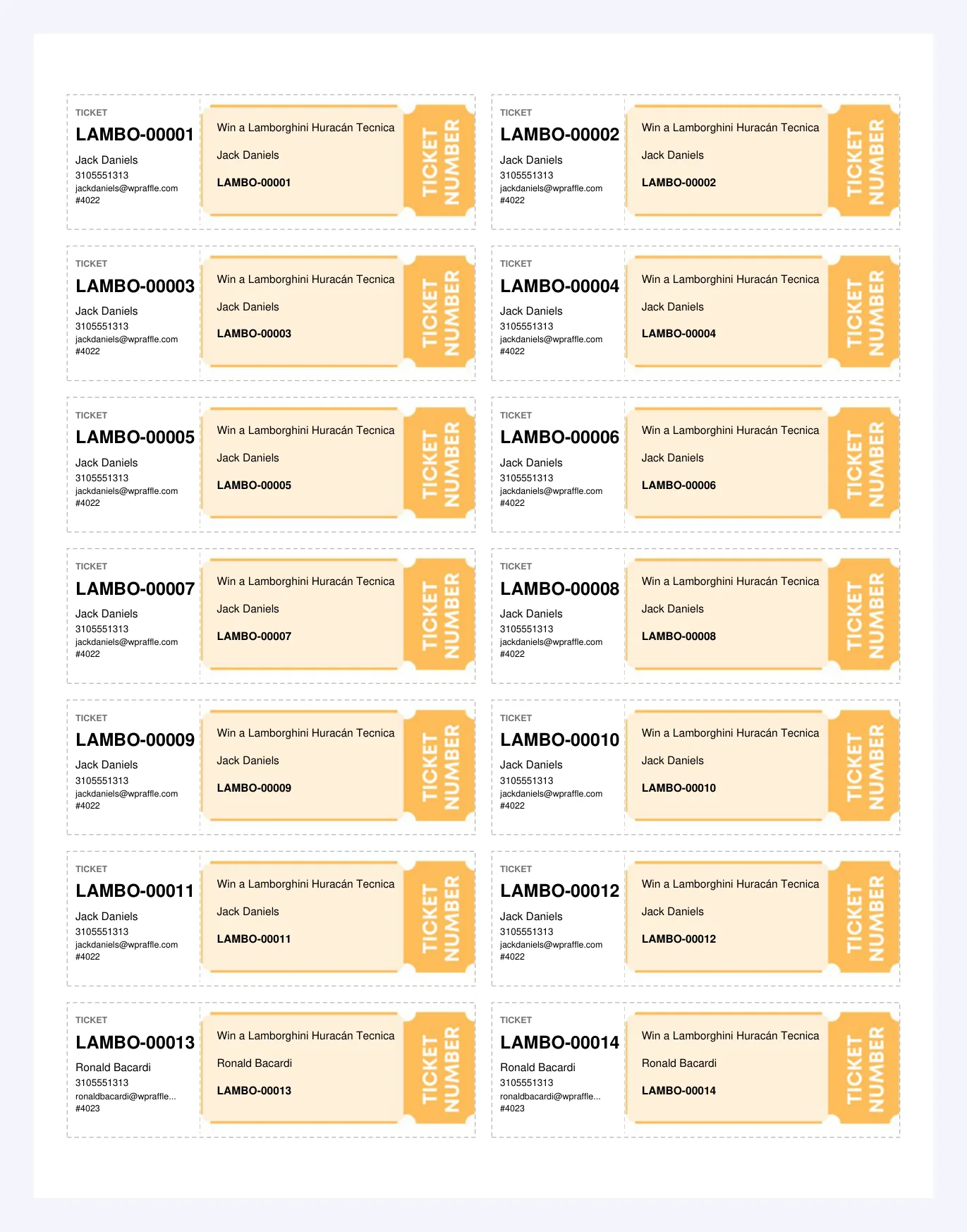
| Tickets | The raffle’s own ticket design with the ticket number, raffle name and buyer, as many as fit on each page. Raffles without ticket images get a clean printed design instead. |
| Tickets with tear-off stub | Each ticket has a stub on the left with the buyer’s name, phone, email and order number. Tear it off and keep it, or put the stubs in a drum for a live draw. |
| Draw slips (40 per page) | Small slips with just the ticket number and the buyer’s name, for cutting up and drawing by hand. |
Reports
WPRaffle → Reports shows what each raffle has taken. Use From and To to look at a date range, and Export CSV to download any table.
Sales by raffle
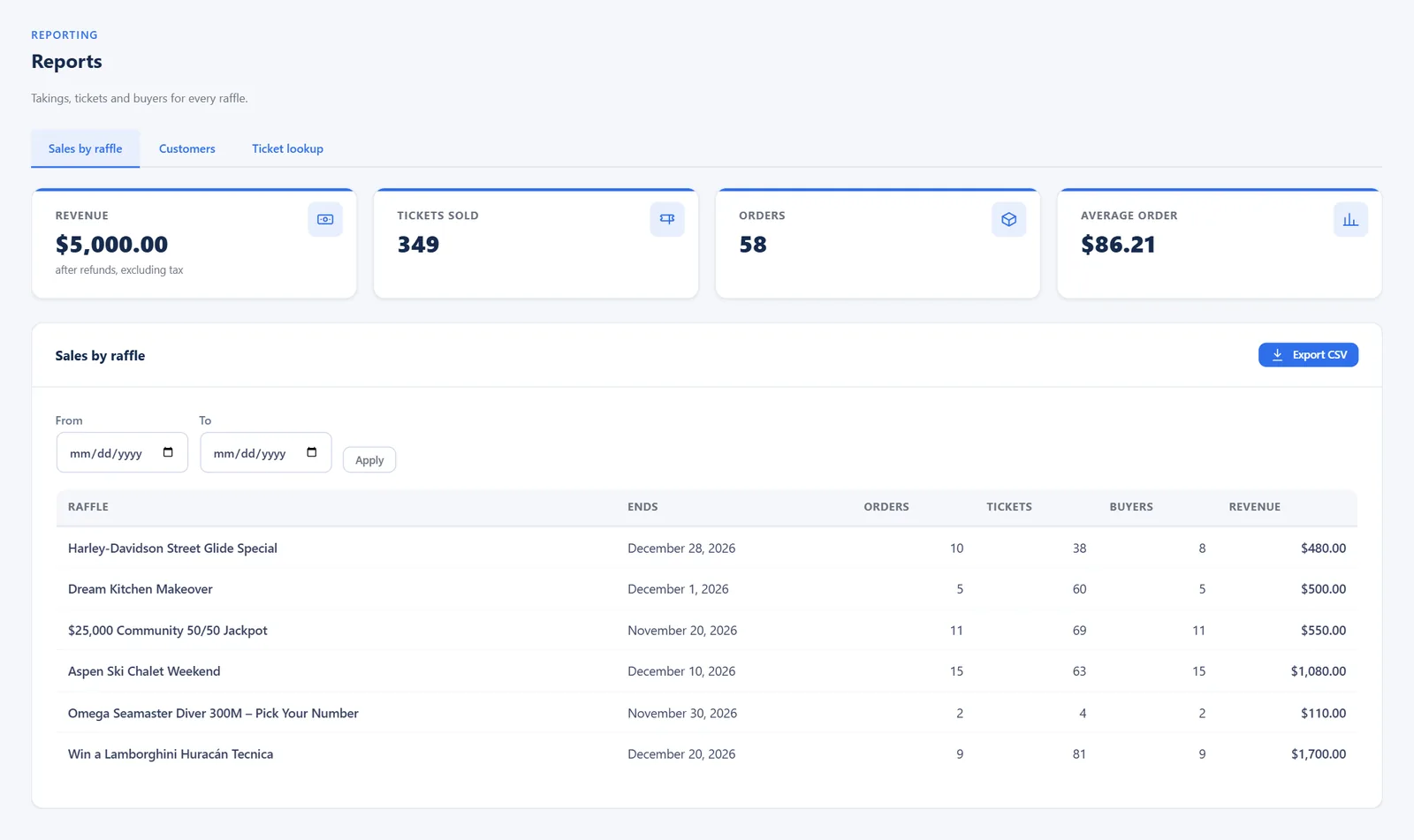
The boxes at the top show revenue (after refunds, excluding tax), tickets sold, orders and the average order. The table shows each raffle with its end date, orders, tickets, number of different buyers and revenue. Raffles with free postal entries show how many there were.
Customers
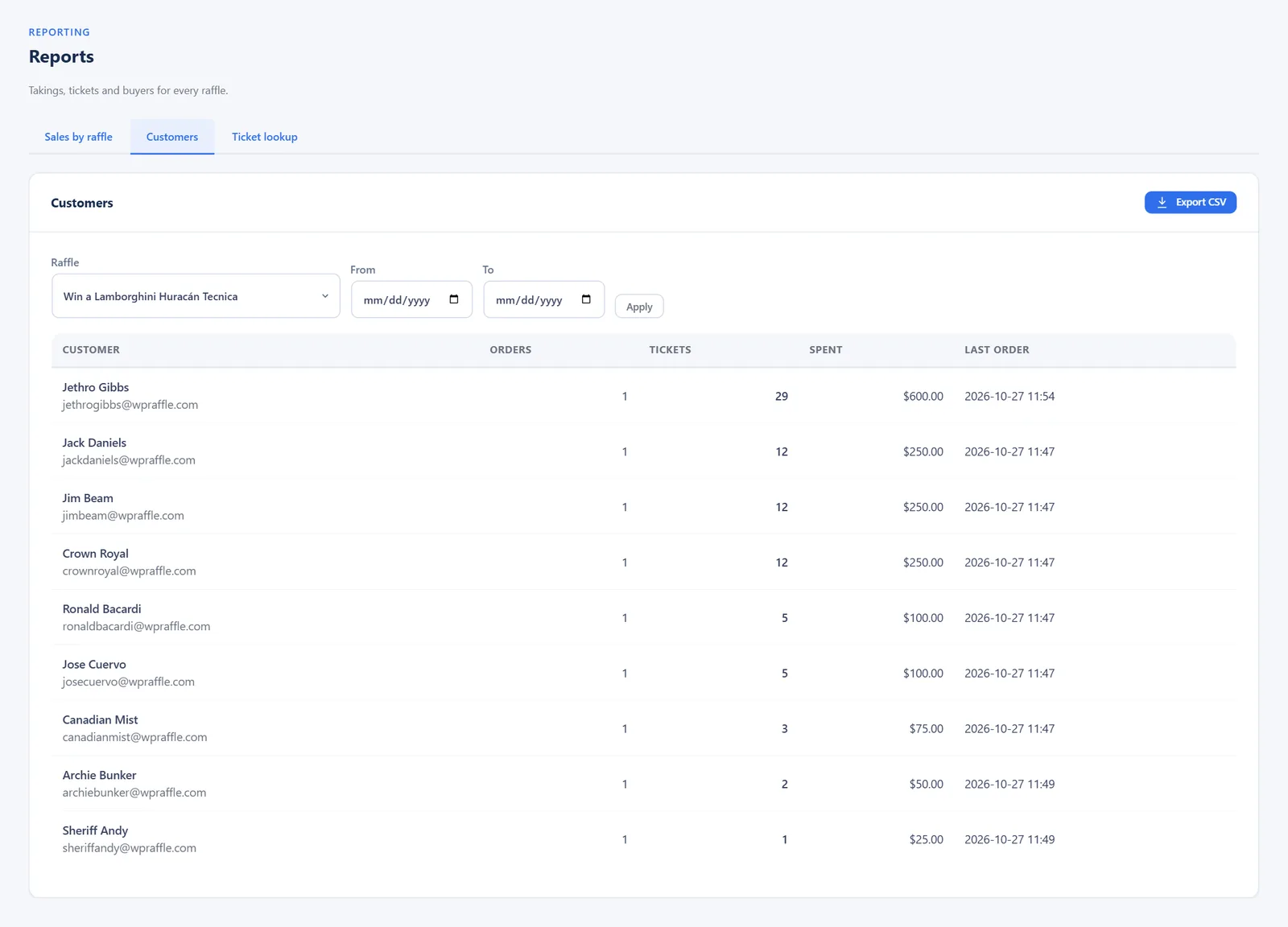
Pick a raffle to see every buyer with their orders, tickets, amount spent and last order date. Buyers who hold more tickets than the raffle’s per-customer limit are marked Over limit; this happens when the limit was set after they bought.
Ticket lookup
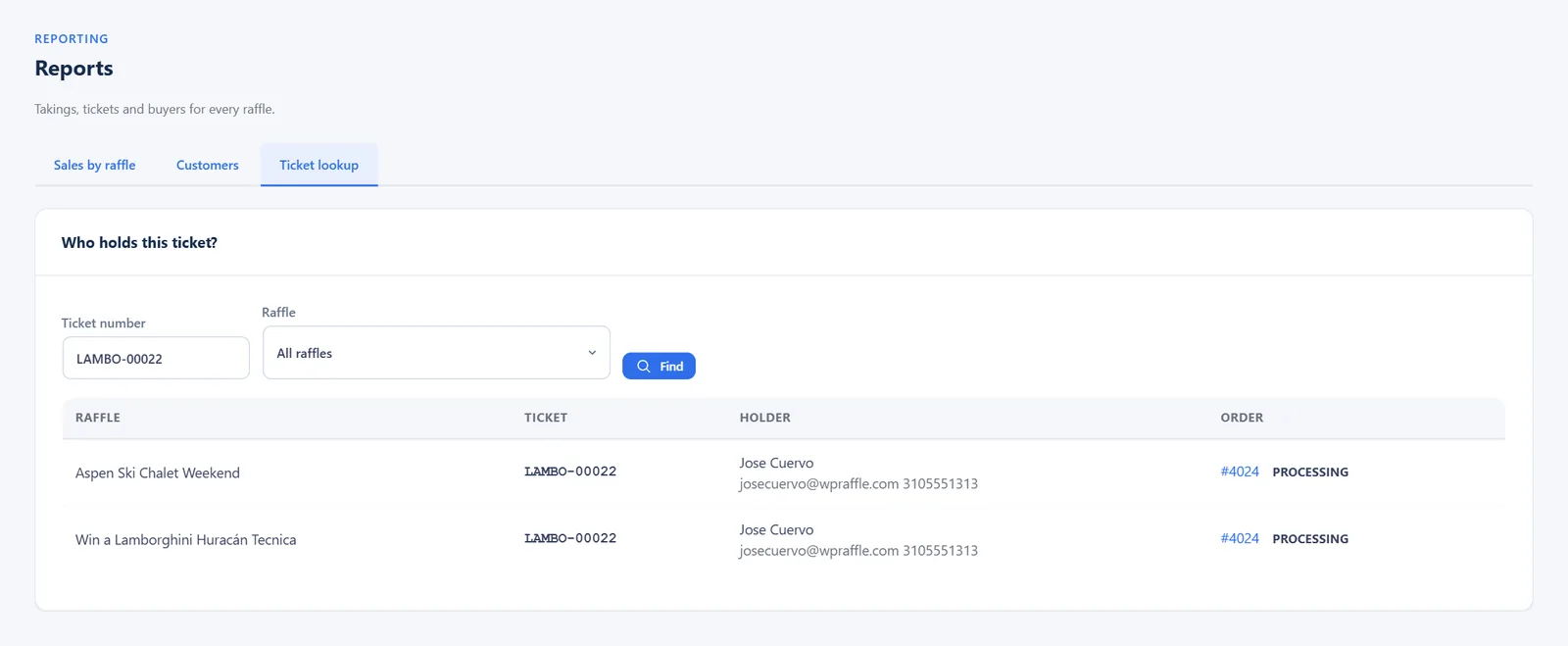
Type a ticket number to find who holds it, in one raffle or all of them. You see the holder’s name, email and phone and a link to the order. Handy when a winner is drawn offline or a customer phones in.
Select Winners (Draw in the Admin)
Draw winners privately from the admin.
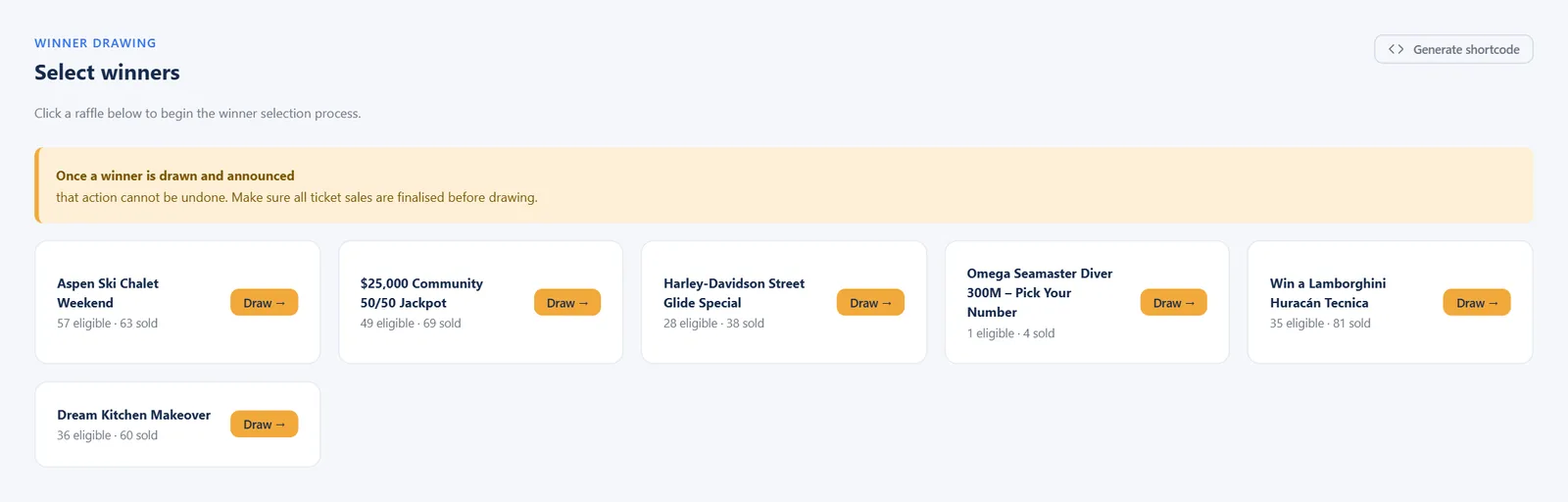
- Open Select Winners. Each card shows the raffle, eligible tickets and tickets sold.
- Click Draw → on the raffle.
- Click Draw random winner. The numbers roll and the winner’s name, ticket and order appear.
- Or click Enter winner manually if you drew offline.
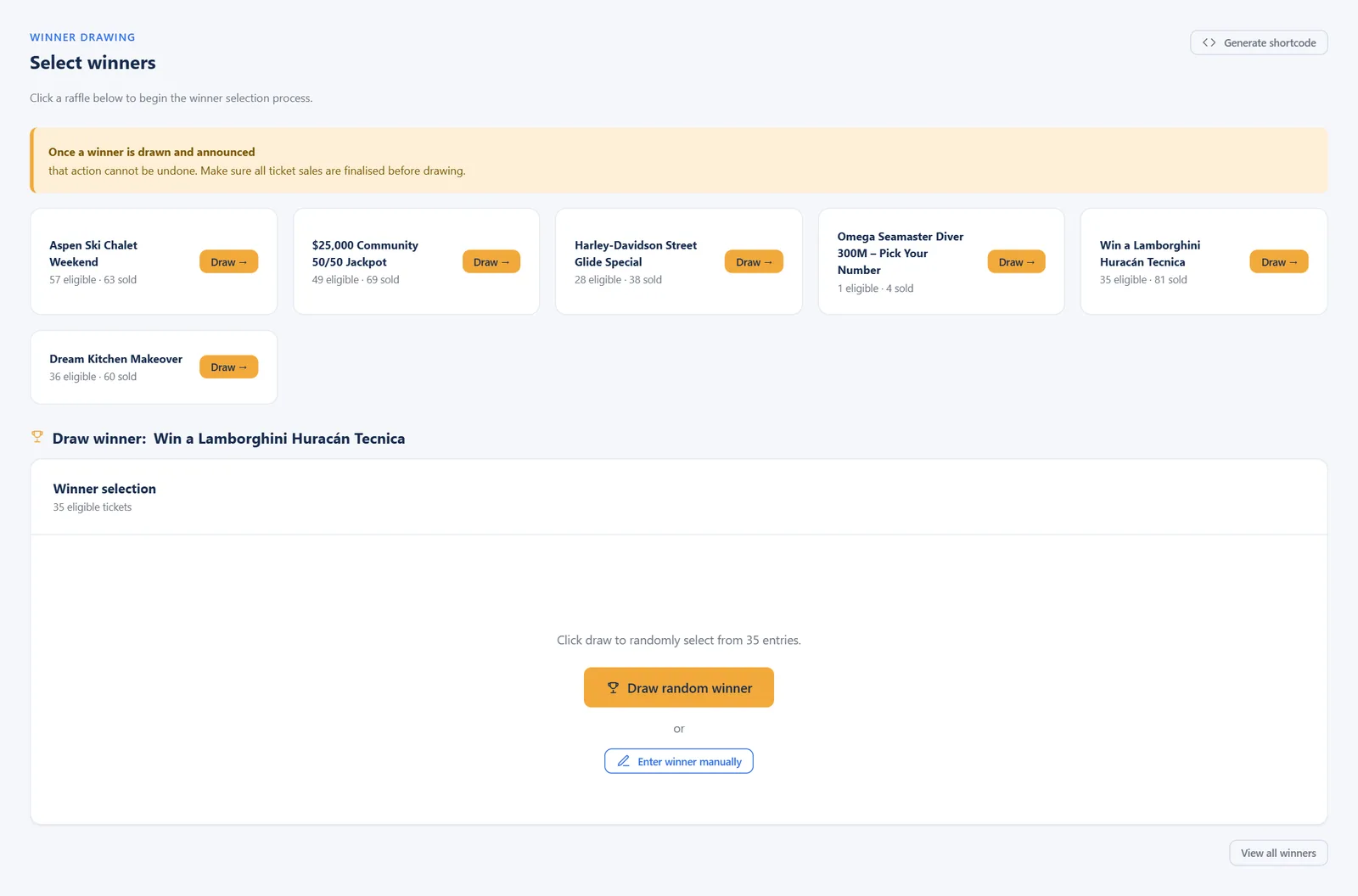
“Eligible” is tickets sold minus tickets that have already won, so the same ticket cannot win twice.
One prize per person. When a raffle has more than one winner, each person can win only once, however many tickets or orders they have. Buyers are matched by the email address on their order, so a second order with the same email counts as the same person. This applies to admin draws, the live draw page and date-range draws. To let one person win more than once, switch off One prize per person in the Winners section of the raffle’s Extras tab.
Every draw is recorded in the Draw Audit, with the full list of entries it was drawn from.
Raffle Winners
Raffle Winners lists every winner. From each winner card you can email the winner, copy a shortcode that displays that winner on a page, or delete the record.
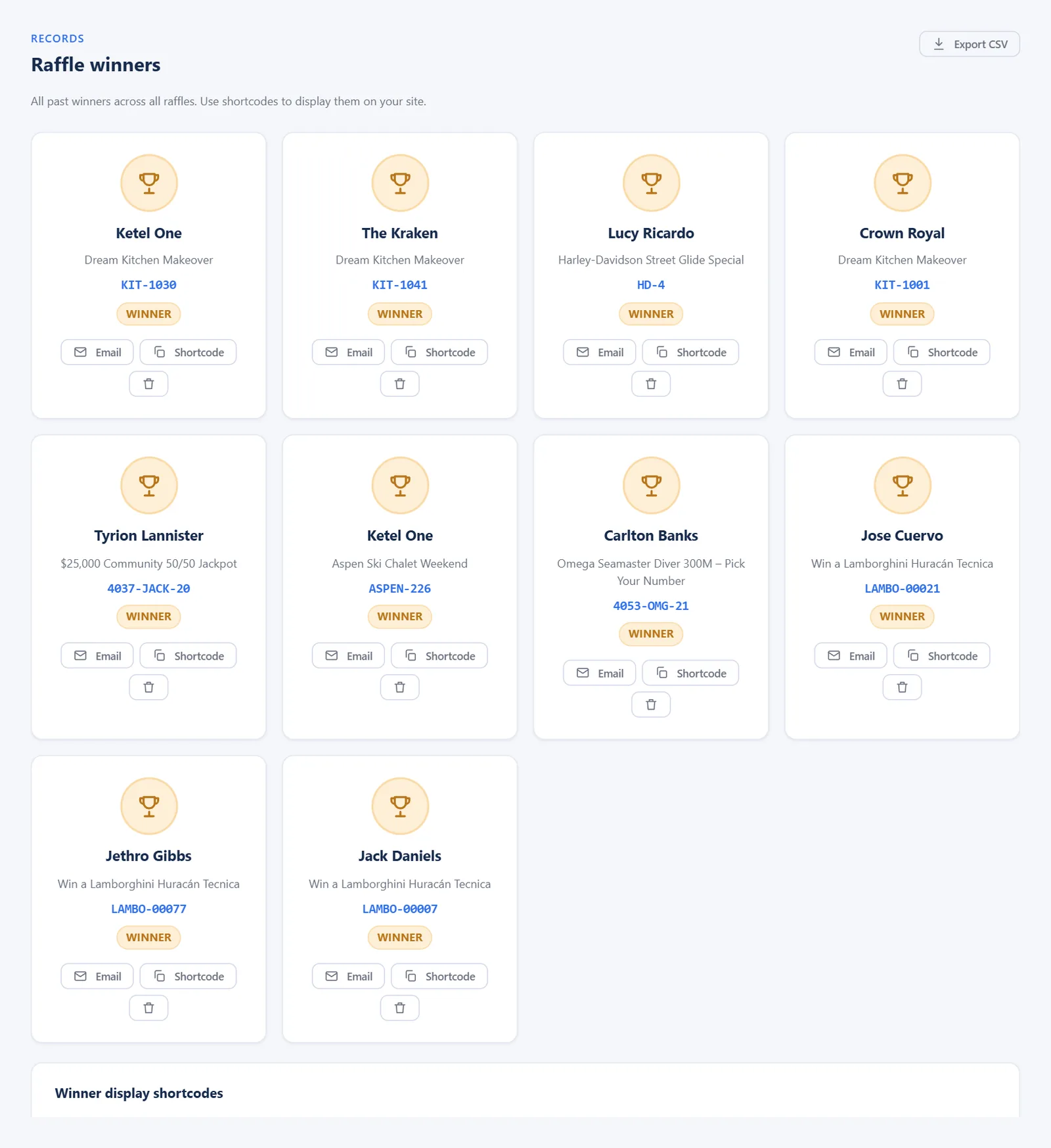
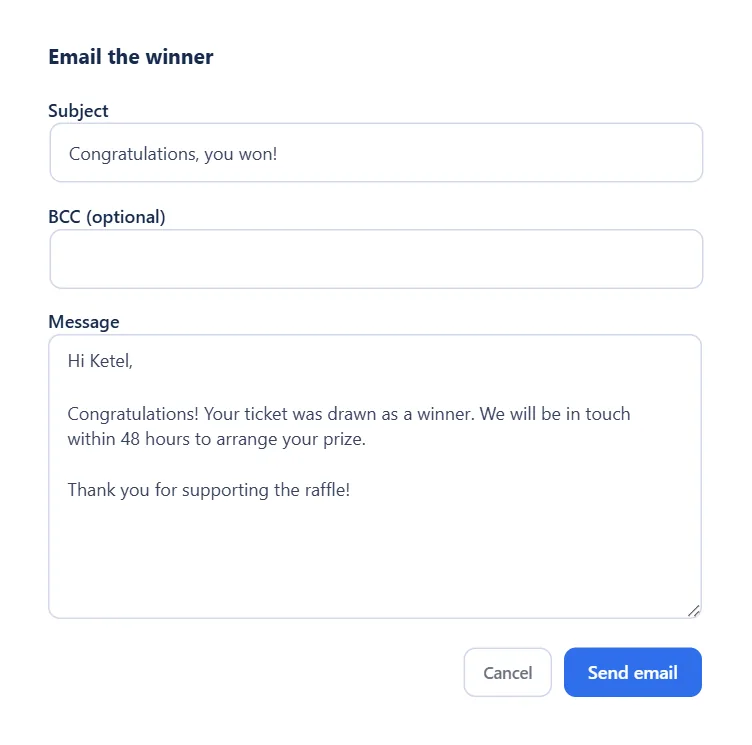
Email a winner: click Email, write the subject and message (optionally a BCC address) and click Send email. The message goes to the email address on the winning order.
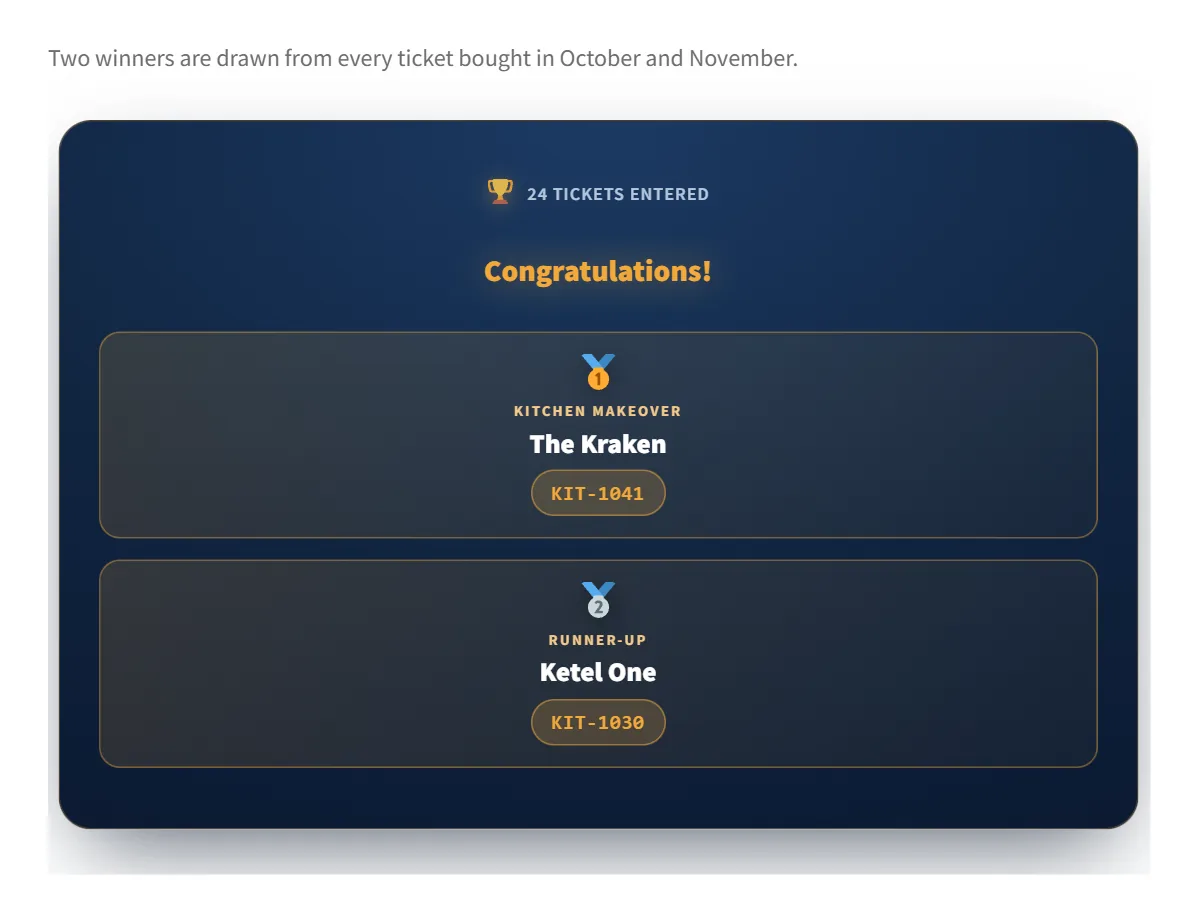
Show a live draw on your website. Copy the [winnerpage] shortcode from the bottom of this page into any page. Visitors see a countdown, then rolling numbers, then the winners. Once drawn, the page keeps showing the same winners. Set the draw time in the Automatic Winner Setting box of the page editor (Start Time); without one, the draw runs once the end date of the raffle has passed (or straight away if the raffle has no end date or is sold out).
Shortcodes
Paste these into any page or post. Replace the numbers with your own: the raffle (category) ID is shown in the address bar when you open a raffle’s settings (cat_id=…); the product ID is shown when you edit a product.
| Shortcode | What it shows |
|---|---|
[winnerpage catid="12" numberofwinners="1"] |
Live winner draw for a raffle: countdown, rolling ticket numbers, then the winners. Options: catid (required), numberofwinners, winnertype1 … winnertype10 (labels such as “Grand Prize”), time (seconds the numbers roll), textstart, textend. Once drawn, the page keeps showing the same winners. |
[winnerpagedaterange catid="12" numberofwinners="1" winnerdatefrom="2026-01-01" winnerdateto="2026-12-31"] |
The same live draw, using only tickets from orders placed between the two dates. |
[winner winner_name="Jane Smith" order_id="1234" ticket_number="JEEP-1042" winner_type="Winner 1"] |
Displays one past winner as a sentence. Copy it ready-made from the winner’s Shortcode button on Raffle Winners. |
[raffle_countdown catid="12"] |
A countdown box for a raffle (“Raffle starts in…”, “Raffle ends in…”, “This raffle has ended.”). Without catid it uses the raffle of the product being viewed. |
[fifty_raffles cat_id="12"] |
The 50/50 raffle’s name and its current pot, e.g. “Jackpot: 50-50 split is currently at $391.50”. |
[raffles_tickets_and_sales cat_id="12" show_tickets="1" show_sales="1"] |
Tickets sold and/or total sales for a raffle. Change the labels with textshow_tickets and textshow_totals. |
[show_ticket_shortcode orderid="1234"] |
The ticket numbers of one order. |
[rtg_entry_list raffle="12"] |
The public entry list for a raffle: every ticket number with the holder’s first name and last initial, and a search box. The same list as the Entry list tab on the product page. |
[raffle_tickets id="345"] |
The full raffle box for a product (tickets per item, progress, quiz, prize fields, number picker). For page builders that hide the standard product layout. |
[raffles per_page="12" columns="4"] |
A grid of all raffle products. Also available: [featured_raffles] (raffle products you have starred as Featured in Products), [recent_raffles] (newest first), [future_raffles] (not started yet), [ending_soon_raffles] (ending within the next 5 days) and [finished_raffles] (ended). A list with nothing to show displays “No products were found”. Options: per_page, columns, orderby, order, ids, paginate. |
[raffle_winners] |
A table of past winners. |
[my_raffles] |
For a logged-in customer: the raffles they have entered and the raffles they have won. Also [my_active_raffles] and [winned_raffles] separately. |
Draw Audit
A permanent record of every winner drawn in the admin, so you can show that a draw was fair. Open WPRaffle → Draw Audit.
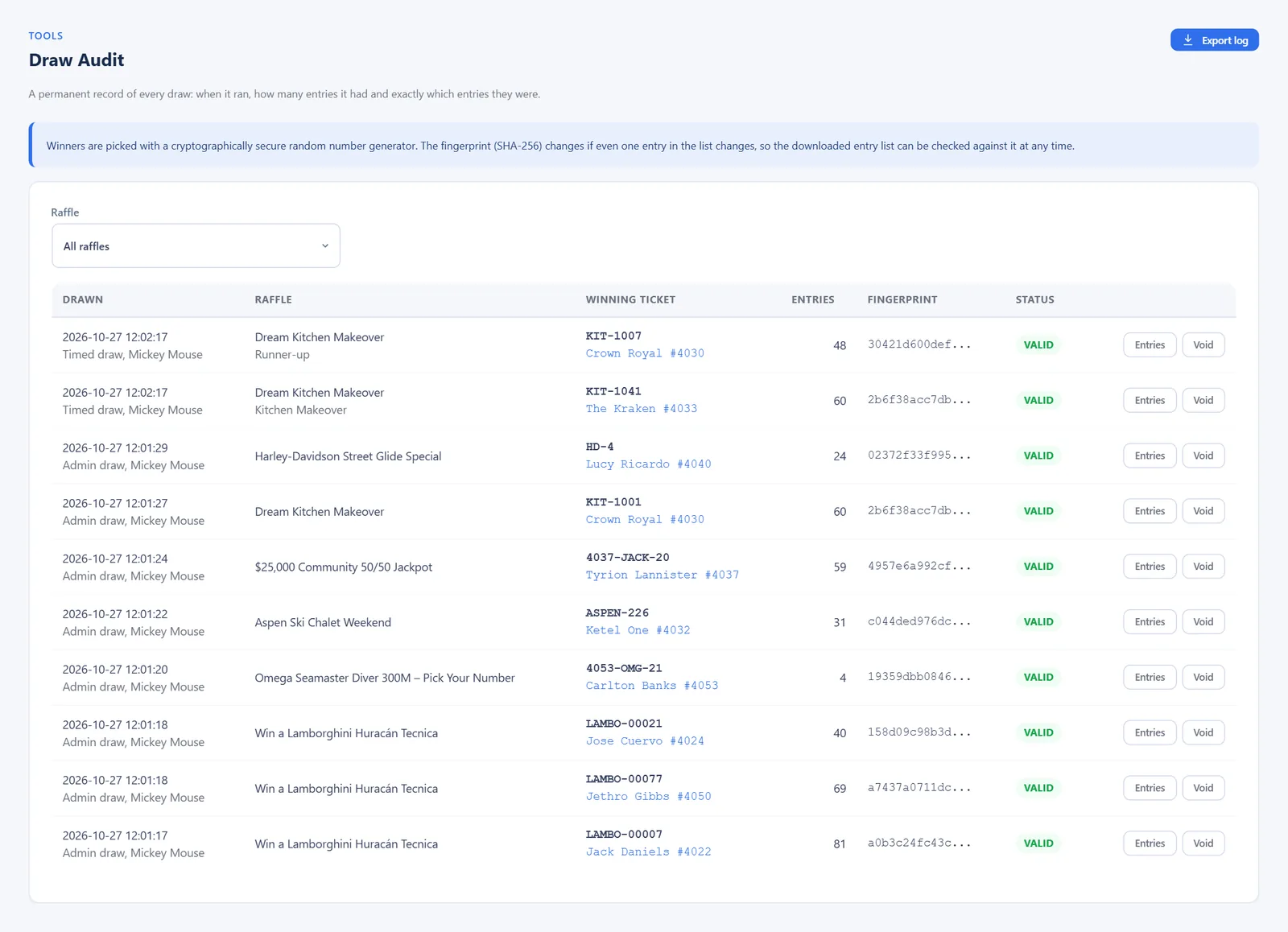
Each row shows when the draw ran and who ran it, the raffle, the winning ticket and order, how many entries were in the draw, a fingerprint and the status.
- Entries downloads the exact list of entries the winner was drawn from.
- The fingerprint (SHA-256) is worked out from that list. If even one entry changed, the fingerprint would be different, so anyone can check the downloaded list against it.
- Void marks a draw as not counting, with a reason you type (for example “Winner could not be contacted”). The row stays in the log. Deleting a winner from Raffle Winners voids its draw automatically.
- Export log downloads the whole audit as a spreadsheet.
Winners are picked with a cryptographically secure random number generator, the same kind used for passwords and encryption.
Manual Orders
Sell tickets offline (at an event, by phone, by cheque) and issue numbers straight away.
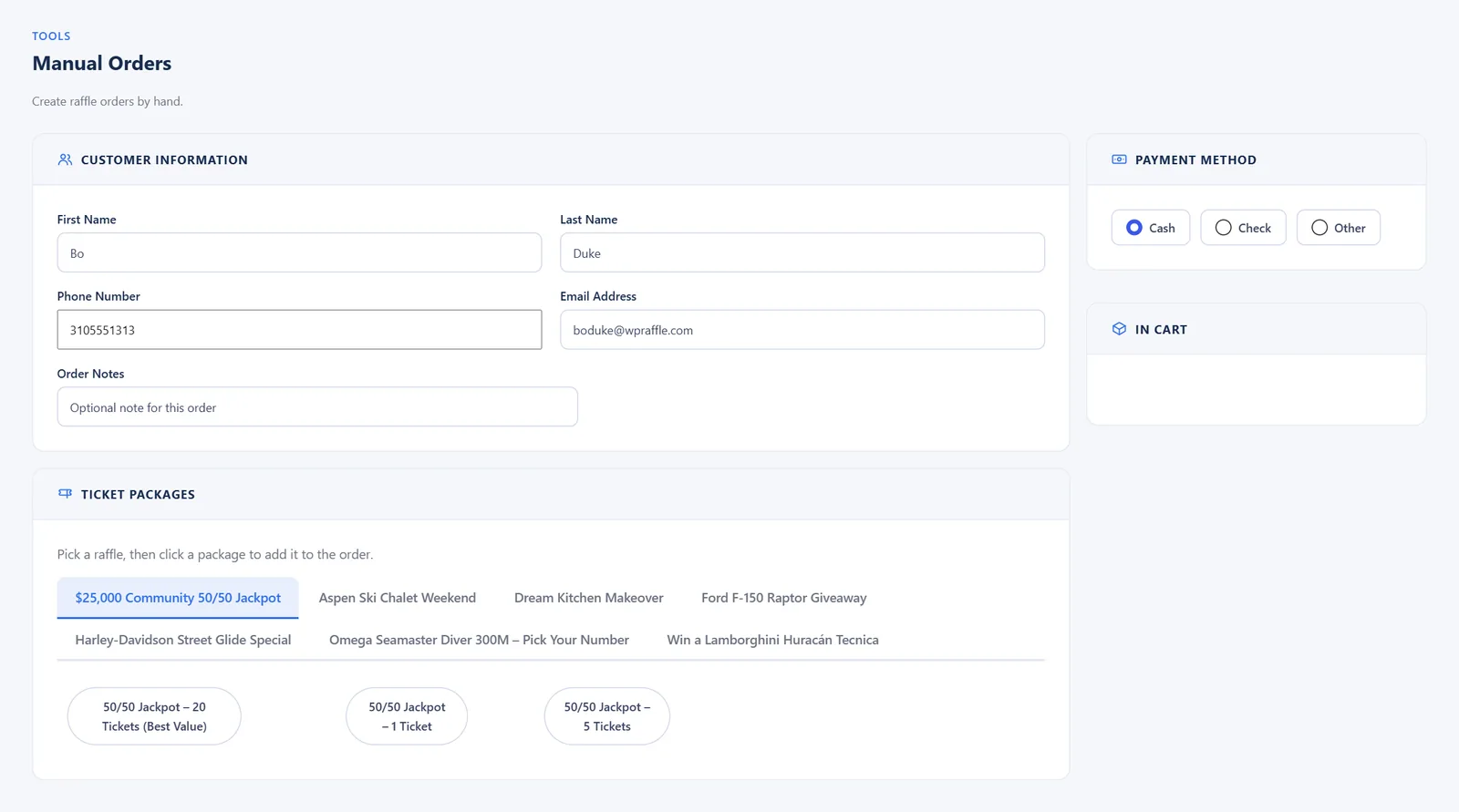
- Enter the customer’s name, phone and email, and an optional note.
- Pick a raffle, then click a package to add it. Add more packages if needed.
- Choose the payment method: Cash, Check (enter the check number) or Other.
- If the raffle has gift tickets on, fill in the recipient.
- Click Place Order. You will see “Order created” with a link to the order. Tickets continue the raffle’s numbering.
Manual orders follow the raffle’s rules: a raffle that has ended, has not started, or is sold out is refused with a red “Order not created” message.
Random Tickets (Reserve Numbers)
For raffles using random ticket distribution, you can hold back numbers for an offline or manual draw. Reserved numbers are never sold online.
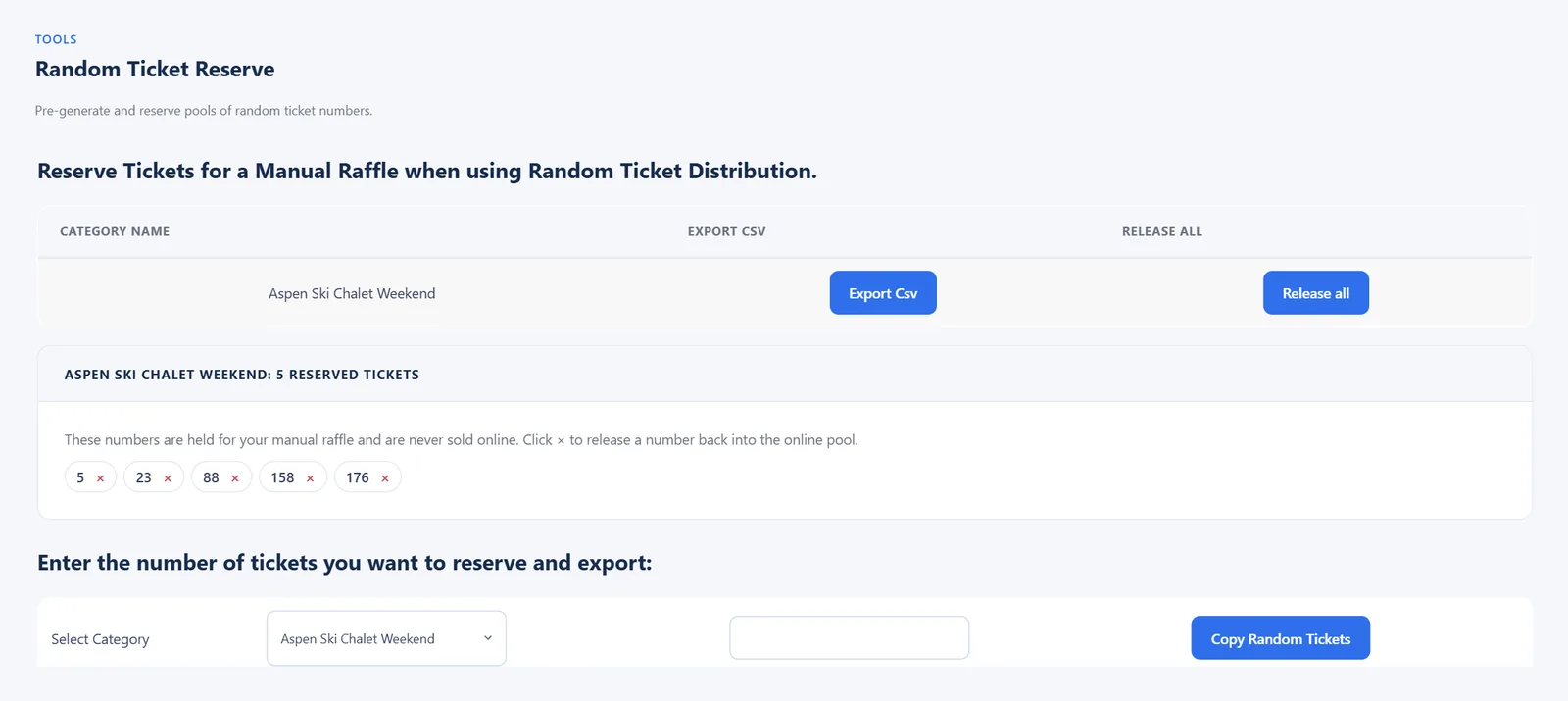
- Choose the raffle and enter how many numbers to reserve.
- Click Copy Random Tickets. The reserved numbers appear as chips.
- Click Export CSV to download them, × on a chip to release one number back to the online pool, or Release all to release every reserved number for that raffle.
Subscription Tickets
Sell raffle entries on a subscription (for example “1 entry every month”) with WooCommerce Subscriptions. You can use a subscription product in the raffle category, or switch on a monthly plan for an ordinary ticket package with All Products for WooCommerce Subscriptions.
- The first payment issues tickets just like a normal order.
- Every renewal is a new paid entry, so it gets new ticket numbers, the next ones in the raffle. Earlier numbers stay valid, so a subscriber collects one more entry each month.
- Each renewal email (Processing or Completed renewal order) includes that renewal’s ticket numbers.
- The subscription screen, in the admin and in the customer’s account, lists the tickets from every paid order of that subscription.
- If a renewal comes in after the raffle has ended or sold out, no tickets are issued and the order gets a note. Before the next payment is taken, a subscription whose raffles have all ended or sold out is set to Expired, so the customer is not charged for entries that cannot exist.
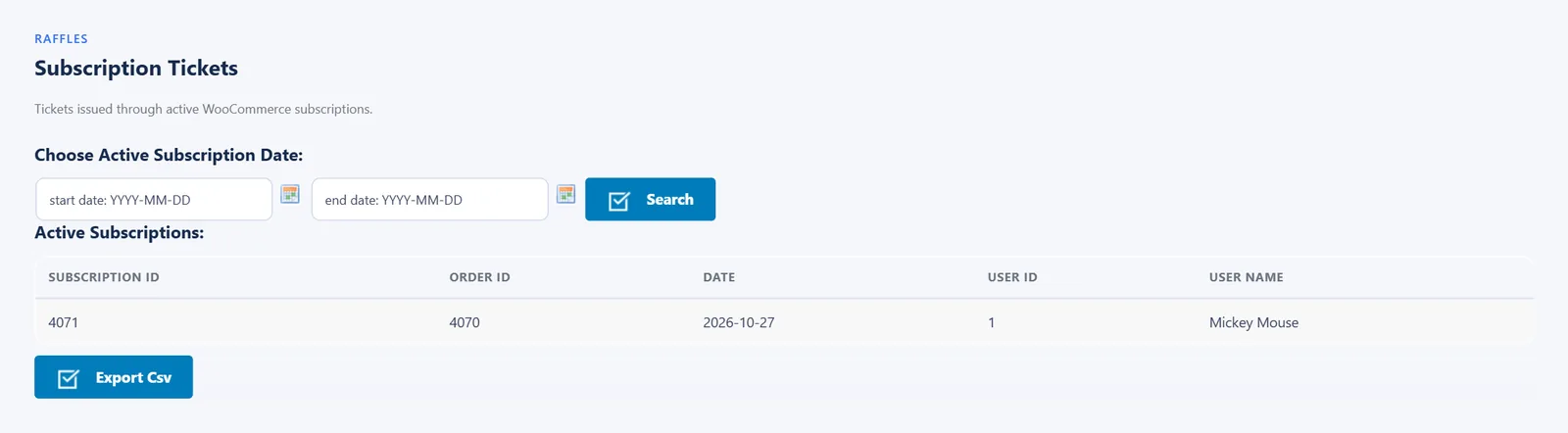
This page lists active subscriptions for a chosen date. Export Csv downloads every ticket from those subscriptions, renewals included.
To take subscriptions with Cash on Delivery or another manual payment method, switch on Accept manual renewals in WooCommerce → Settings → Subscriptions. Renewal orders then wait as Pending payment until you mark them paid, and tickets are issued at that moment.
Activity Log
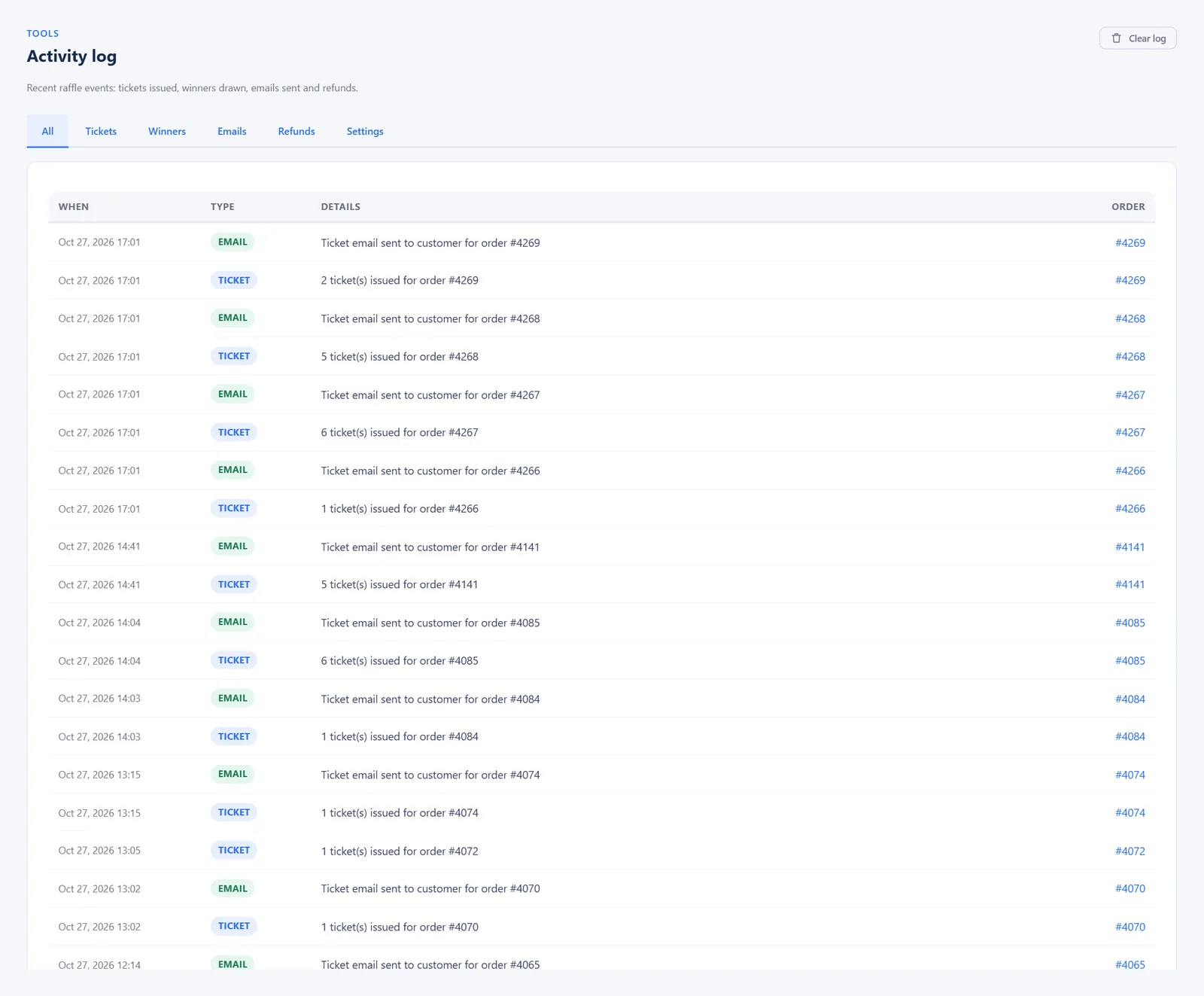
A timeline of what the plugin did: tickets issued per order, emails sent, winners drawn, settings changes and data clears. Useful when a customer asks “did my tickets get issued?”.
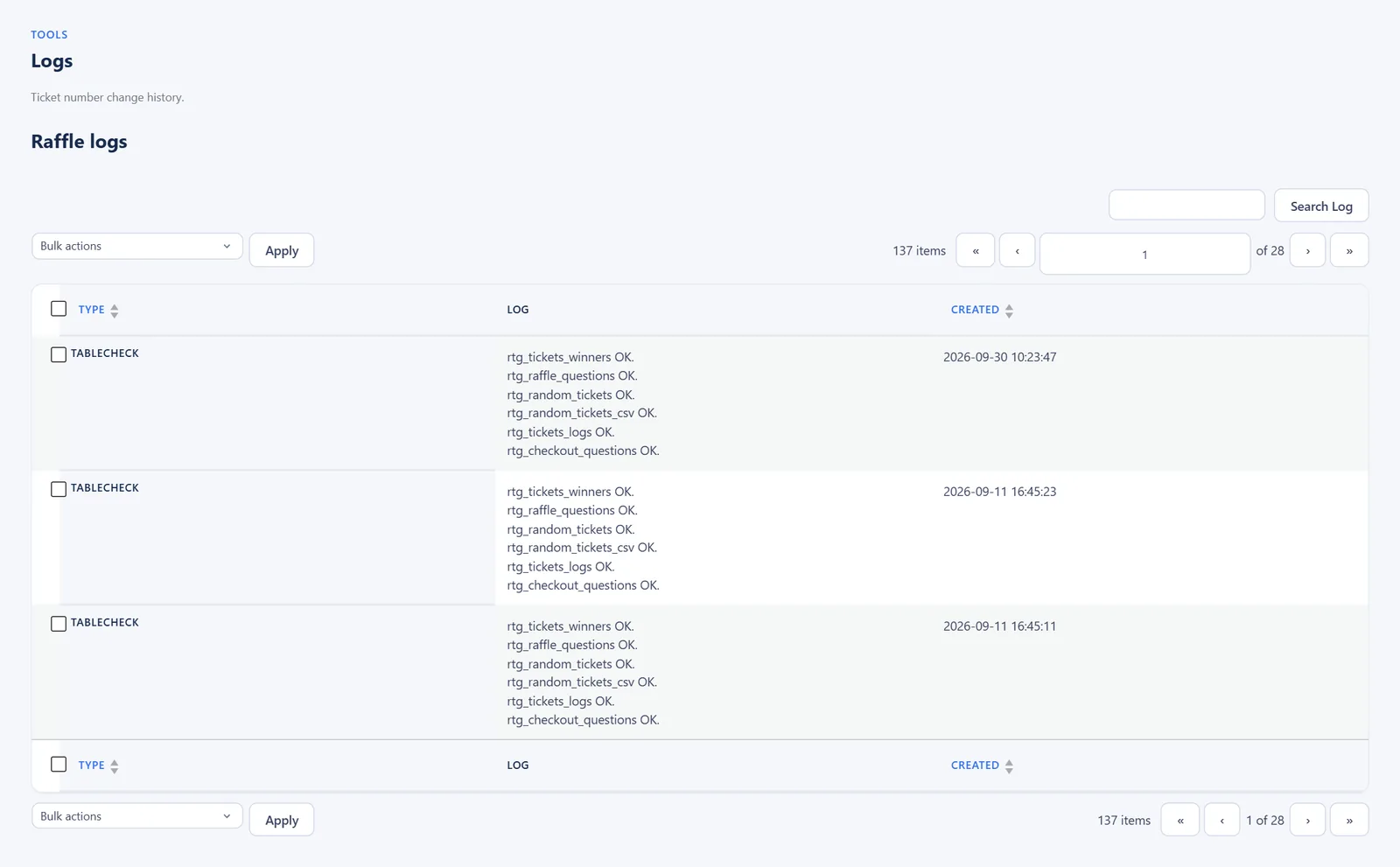
Logs
A searchable technical log of ticket generation events.
Duplicate Checker
Checks a raffle for any ticket number held by more than one order, and fixes it.
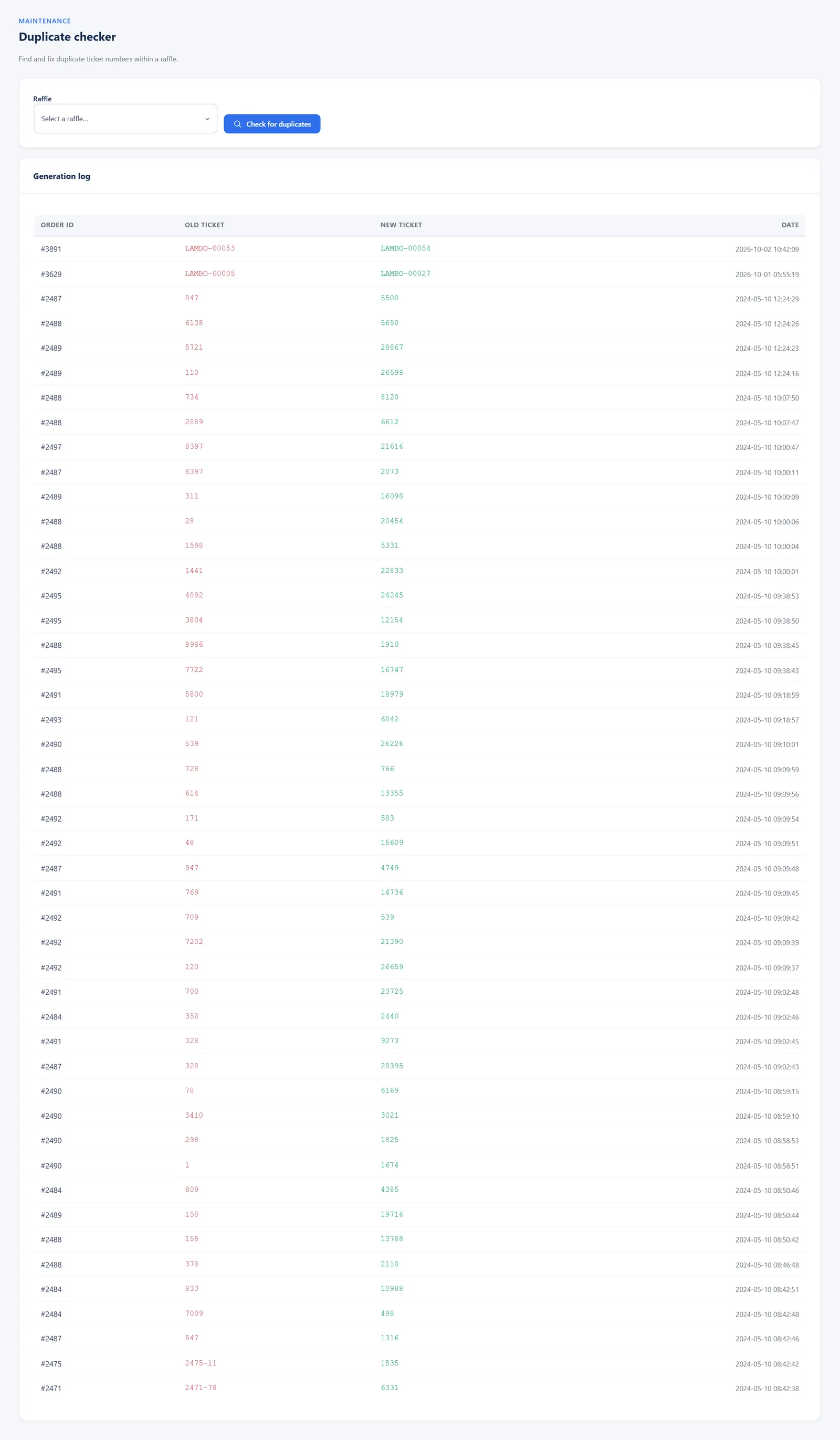
- Choose the raffle and click Check for duplicates.
- If duplicates are listed, click Generate new ticket next to the order that should get a new number. It receives the next unused number, the button shows it (for example Fixed: 1042), and the change is recorded in the Generation log below.
Under normal use there are no duplicates. This tool is a safety net after imports or manual edits.
Raffle Tools
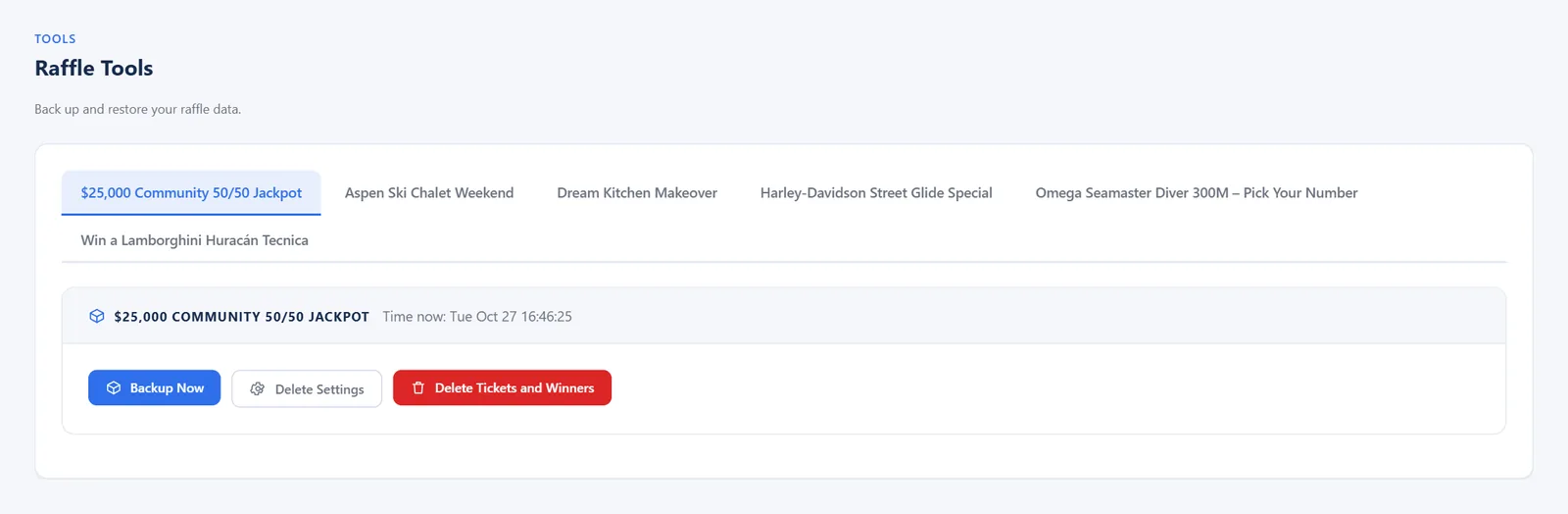
Back up a raffle before you change or reset it. Pick the raffle from the tabs, then:
- Backup Now saves a snapshot of every ticket (and any winners) in that raffle. Each snapshot is listed with its date, with buttons to Download Ticket Csv, Download Winner Csv, Restore (puts the ticket numbers back on the same orders) or Delete the snapshot.
- Delete Settings resets the settings of that raffle to the defaults.
- Delete Tickets and Winners removes the ticket numbers and winners of that one raffle (orders are kept). Make a backup first.
Repair Tables
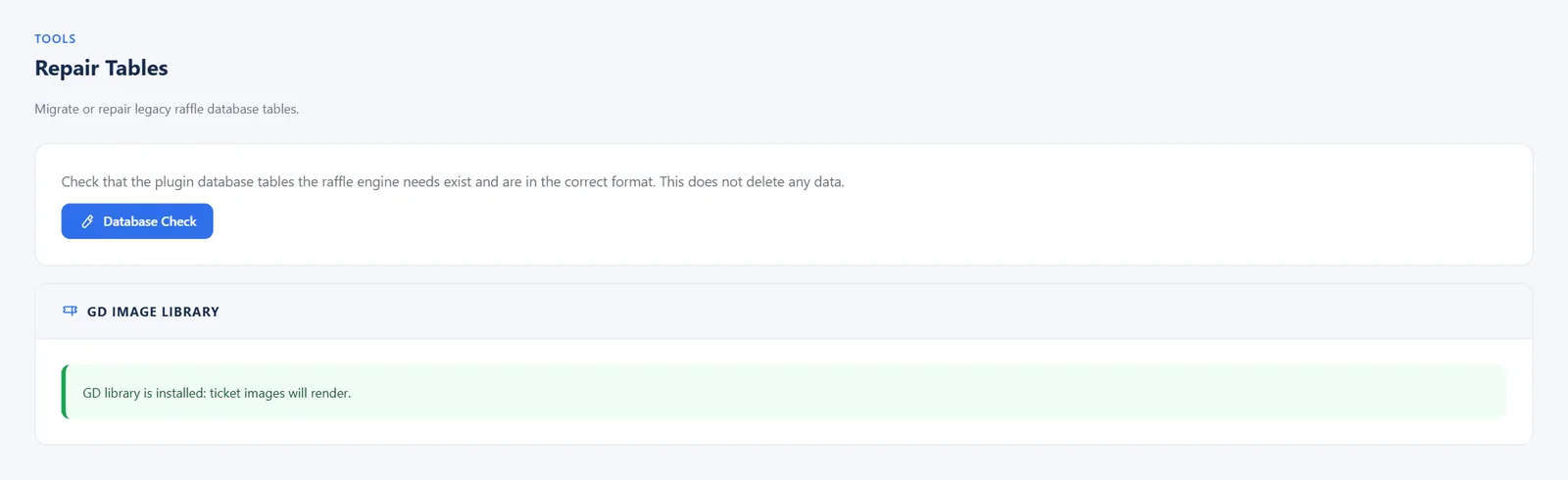
Database Check confirms that the database tables the plugin needs exist and are in the right format, and repairs them. It never deletes data. The page also shows whether the GD image library (needed for ticket images) is available on your server.
Import Tickets
Bring in tickets sold elsewhere (another system, a spreadsheet, paper sales). Each CSV row becomes a completed order with those ticket numbers, and the numbers are marked as used so they are never sold online.
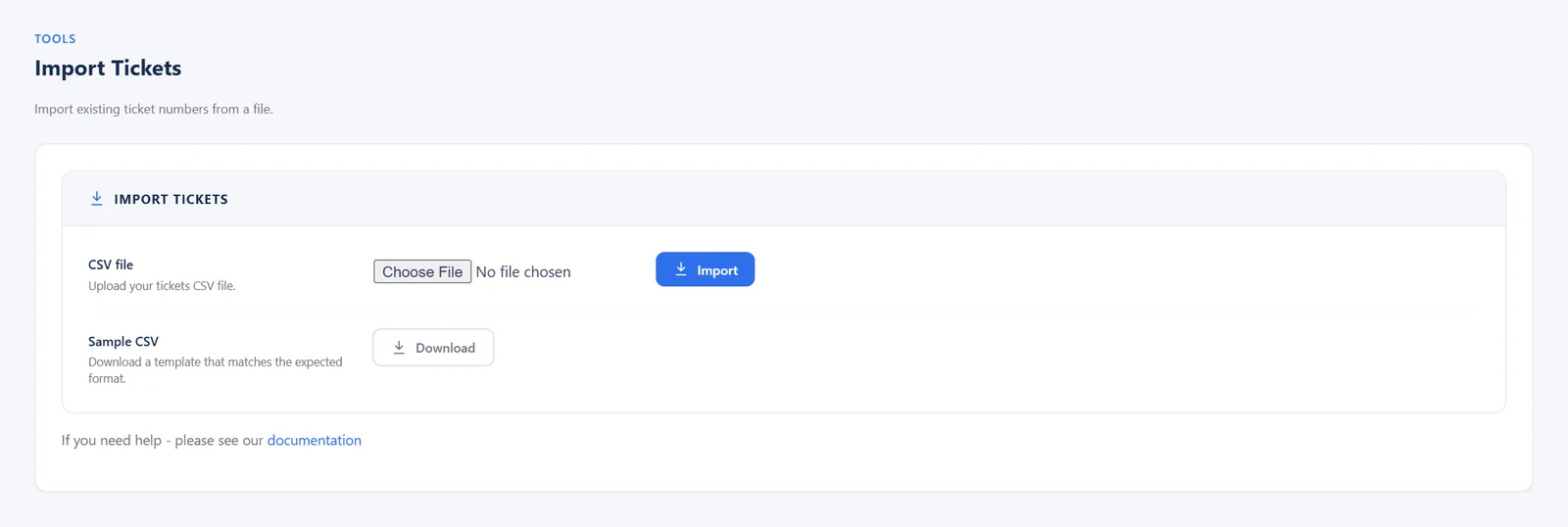
- Click Download next to Sample CSV to get the template.
- Fill one row per buyer (see the columns below).
- Choose the file and click Import.
CSV columns, in this order: prefix, customer name, address, email, phone, product ID, tickets, raffle category ID. The tickets column takes one number (42) or a range (40_to_45).
prefix,name,address,email,phone,product_id,tickets,category_id WIN,Jane Smith,1 Main Street,jane@example.com,5551234,123,40_to_45,12- The prefix can be written with or without the dash:
VEGASandVEGAS-both giveVEGAS-55. - After the import the page shows what happened, for example “Imported 4 ticket(s) on 2 order(s). Skipped 1 ticket(s) that were already sold: VEGAS-10”.
Numbers that are already sold in that raffle are skipped and listed in that message, so an import can never create duplicate tickets.
Clear Data
Removes all issued ticket numbers and recorded winners for every raffle, and resets each raffle’s counter so numbering starts again from its starting number. Your raffle settings, products and orders are kept.
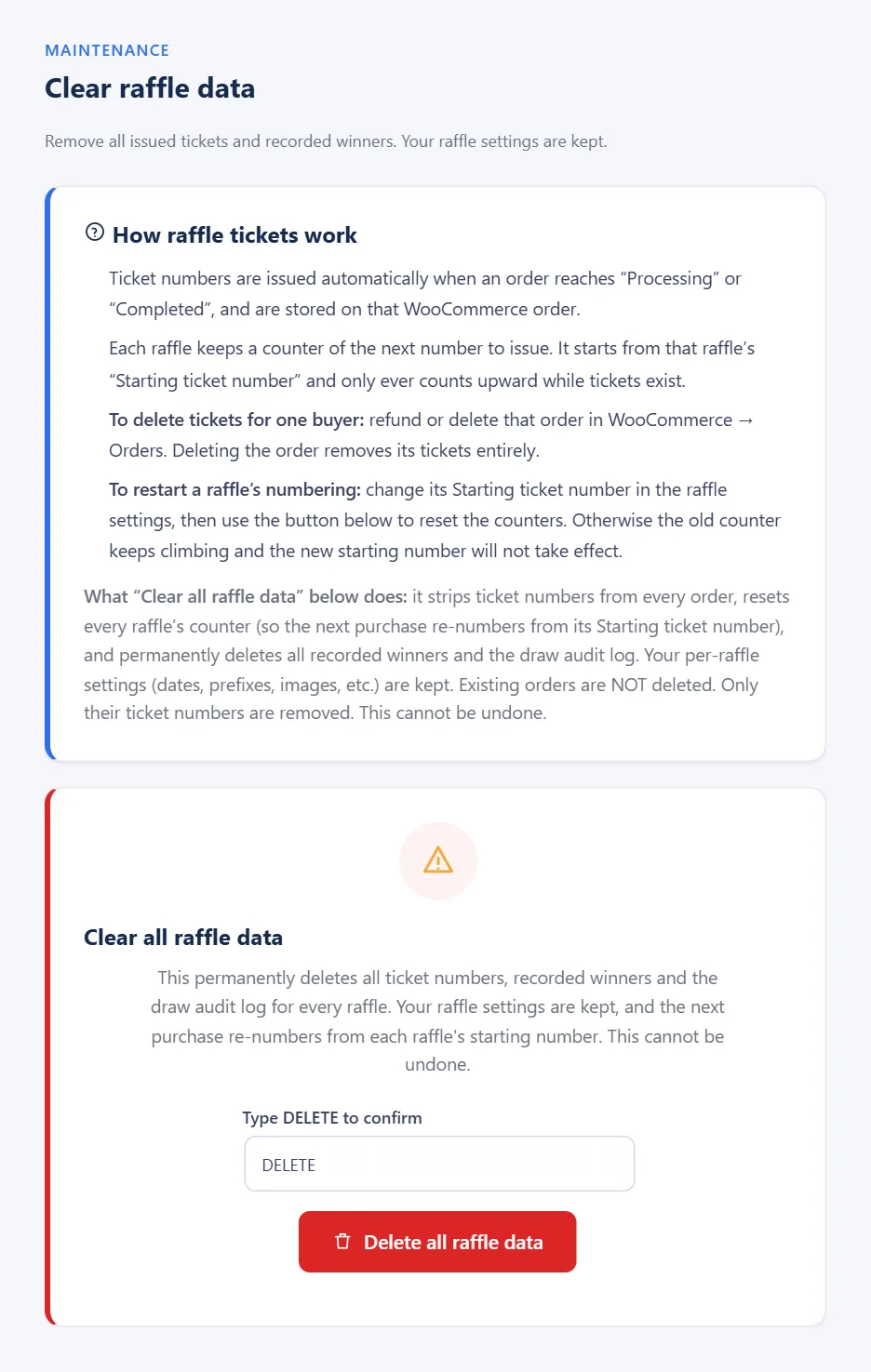
- Type DELETE in the box.
- Click Delete all raffle data. A green “All raffle data has been cleared” message appears.
This cannot be undone. Use it to reset a test site or before starting a fresh season, not on a live raffle. To remove one buyer’s tickets, refund or delete that order instead.
License
Enter your license key to activate the plugin. Without a valid key the raffle features are switched off and raffle products cannot be bought, so no customer pays without receiving tickets. Manage your keys and site URLs in your wpraffle.com account.
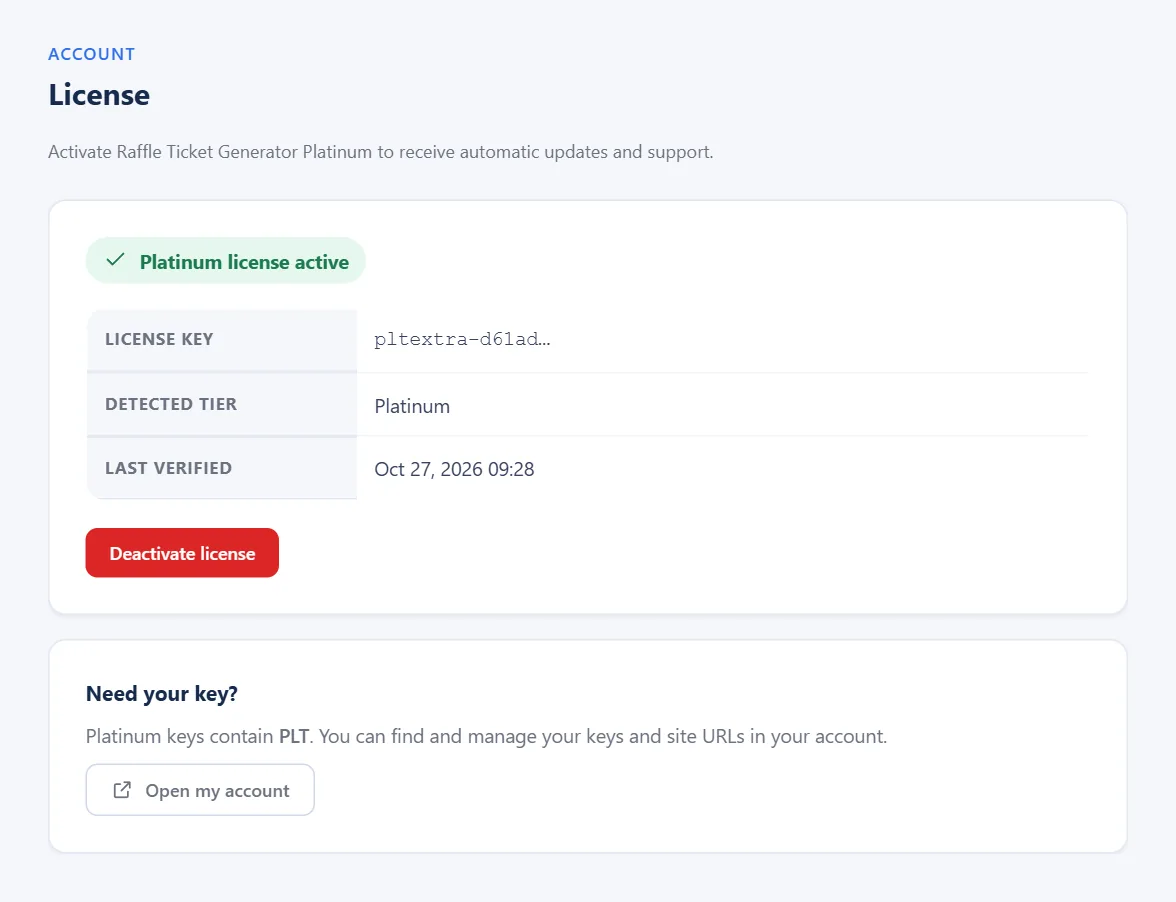
The plugin checks your key with the WPRaffle license server regularly. If your site cannot reach the server, for example because of a firewall, the License page shows Not confirmed yet. Everything keeps working for 3 days while the plugin tries again every hour. Once the connection is fixed, click Check again now.
Help
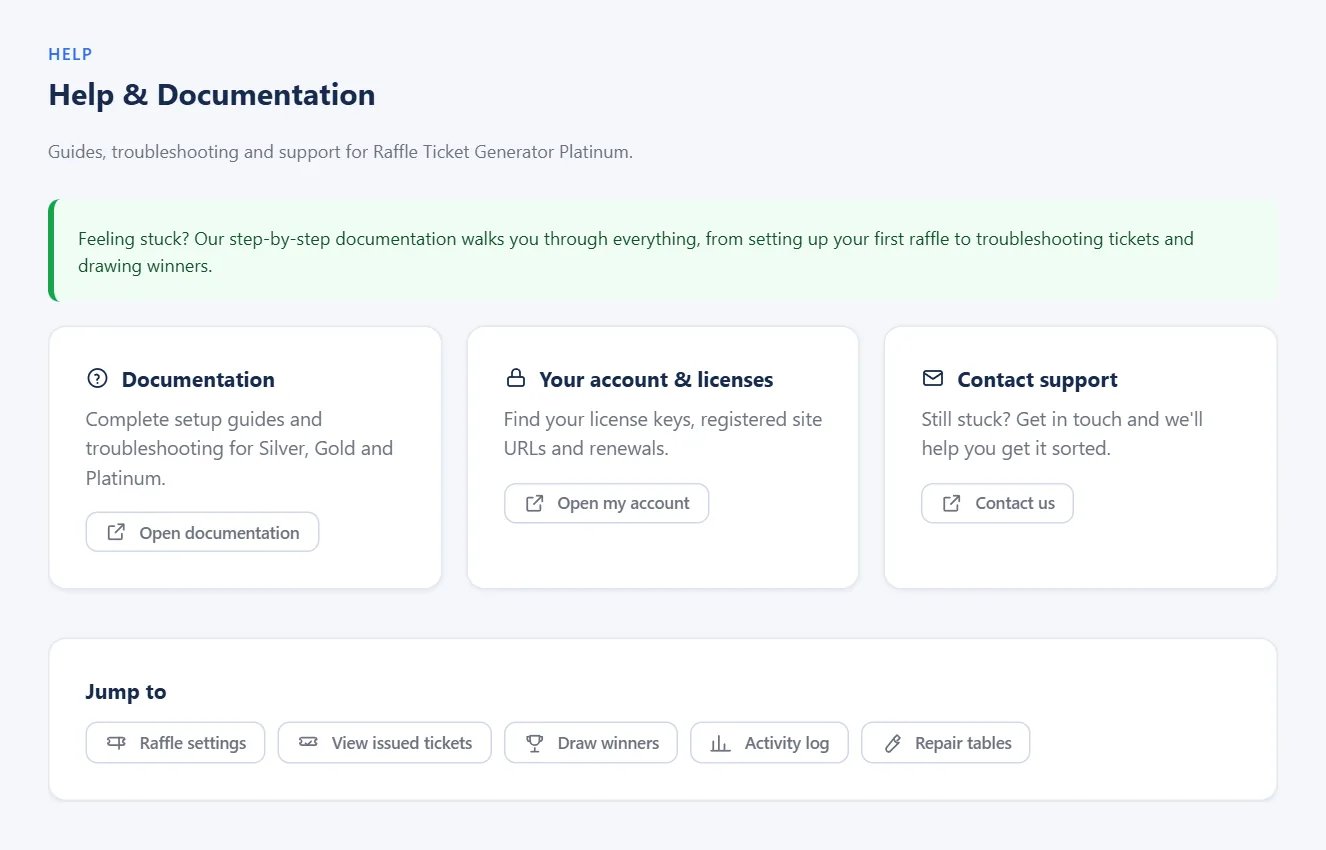
Links to the setup guides, your account and support.
Questions
A customer paid but has no tickets.
Tickets are issued when the order is Processing or Completed. Check the order status in WooCommerce → Orders, and look for the order in the Activity Log.
Ticket emails are not arriving.
Ticket numbers are added to WooCommerce’s own Processing and Completed order emails. If those emails do not arrive, the problem is mail delivery on your site; check your SMTP plugin settings or your host’s mail log.
Ticket images do not show.
Make sure “Send ticket images” is Yes and a ticket template is chosen. Ticket images also need the GD image library on your server; ask your host if you are not sure it is installed.
Can the same ticket win twice?
No. Tickets that have won are excluded from later draws in the admin.
Can the same person win two prizes?
Not by default. With One prize per person on (the default), a raffle with several winners skips anyone who has already won it, matched by the email address on their orders. Switch it off in the raffle’s Extras tab if one person may win more than once.
I am upgrading from version 6. What do I need to do?
Update the plugin as usual, then click Run upgrade in the notice that appears (or open WPRaffle → Upgrade). It moves your tickets and settings into the new format and keeps your old tables as a backup. See Upgrading from version 6.
What happens if I cancel or refund an order?
Its ticket numbers are released and can be issued to the next buyer. If you set the order back to Processing or Completed, it receives new numbers, so no number is ever held by two people.
Can I change the numbering after selling?
Yes, but only new tickets use the new format. Set numbering before you start selling.
Where can customers see their ticket numbers?
On the order confirmation page, in their order email and, with Show “My Tickets” switched on in Raffle Extras, in the My Tickets tab of their account.
Can I print tickets?
Yes. In View Tickets, choose the paper (A4 or US Letter) and the print style (tickets, tickets with a tear-off stub, or draw slips) and click Download PDF.
Can a customer get round the ticket limit by checking out as a guest?
No. Buyers are matched by account and by email address, so a guest checkout with the same email counts towards the same limit.
How can I prove a draw was fair?
Open Draw Audit. Every draw is listed with the exact entries it was drawn from, which you can download, and a fingerprint that changes if a single entry is altered.
Do free postal entrants get real ticket numbers?
Yes. Add them in Postal Entries and they get ticket numbers in the raffle’s normal numbering, and they are included in every draw.
Can an instant win be taken back?
No. Once a winning number has been issued the prize is locked and stays on the order, even if you edit the prize list later.