Documentation / How to order raffle tickets
For your customers
How to Order Raffle Tickets
What your customers see when they buy tickets, step by step. Share this page or copy the steps into your own FAQ.
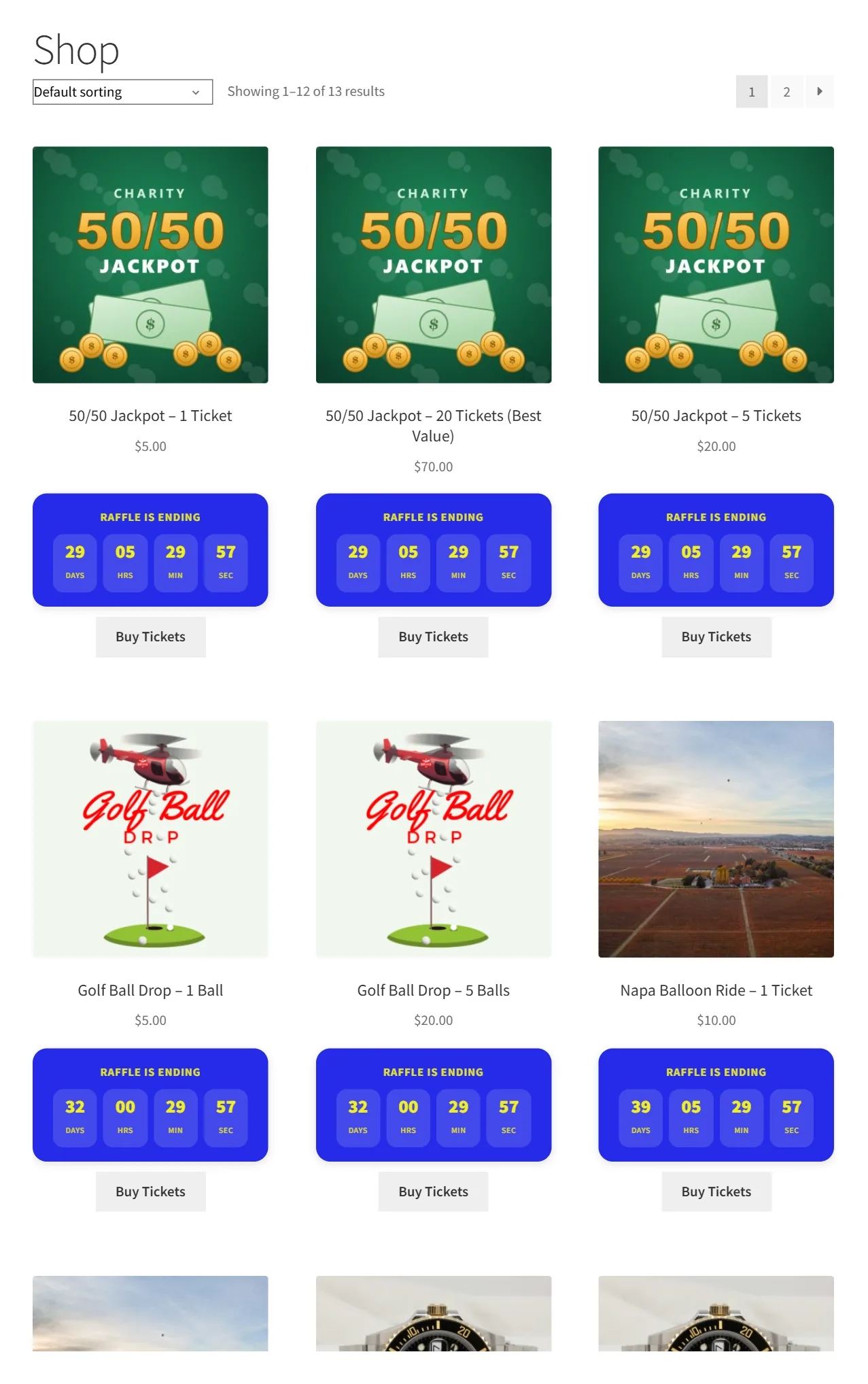
1Choose a Raffle
Customers browse your shop. Each raffle shows its countdown; raffles that have not started show Coming soon, sold-out raffles show Sold out and closed raffles show Raffle ended.
2Pick a Ticket Package
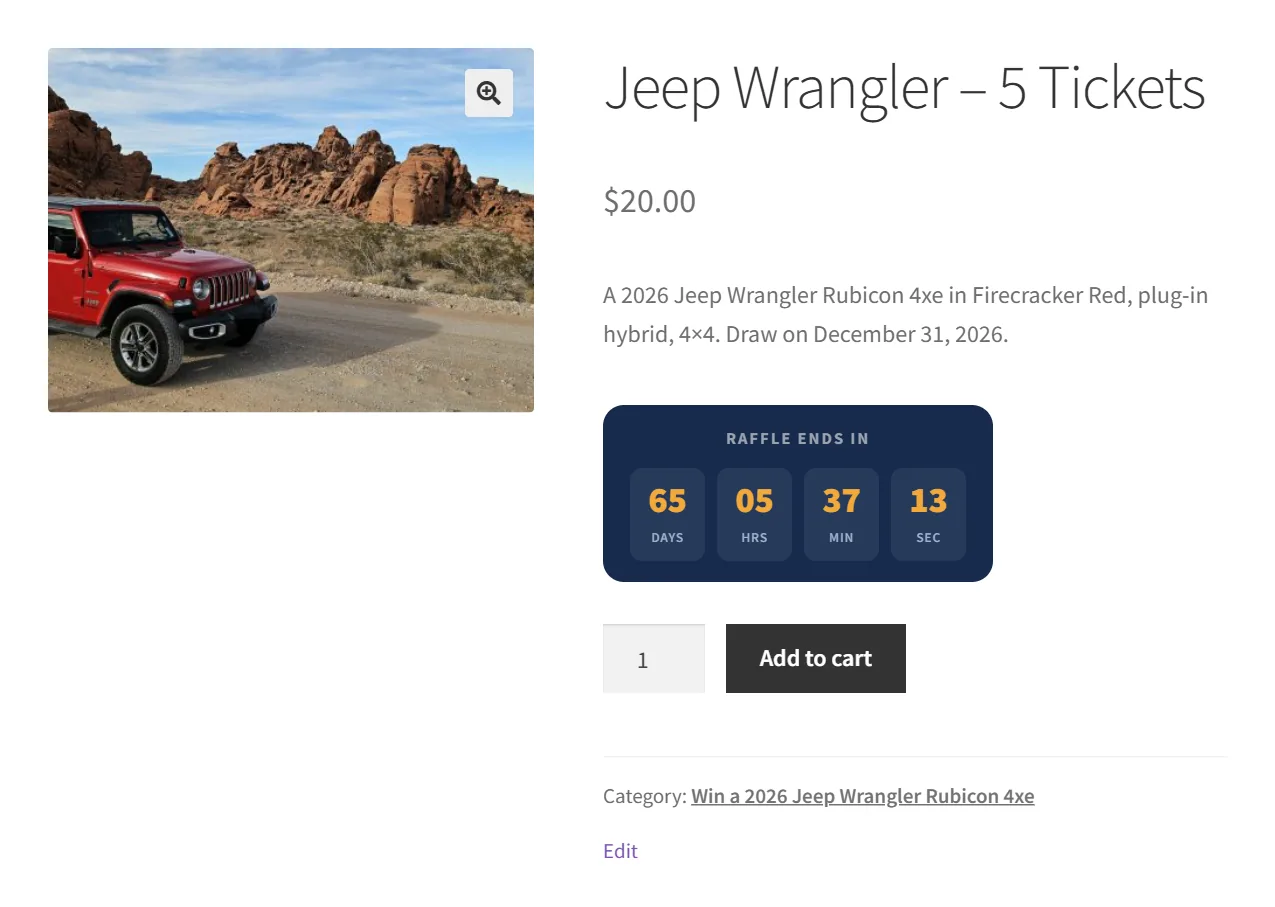
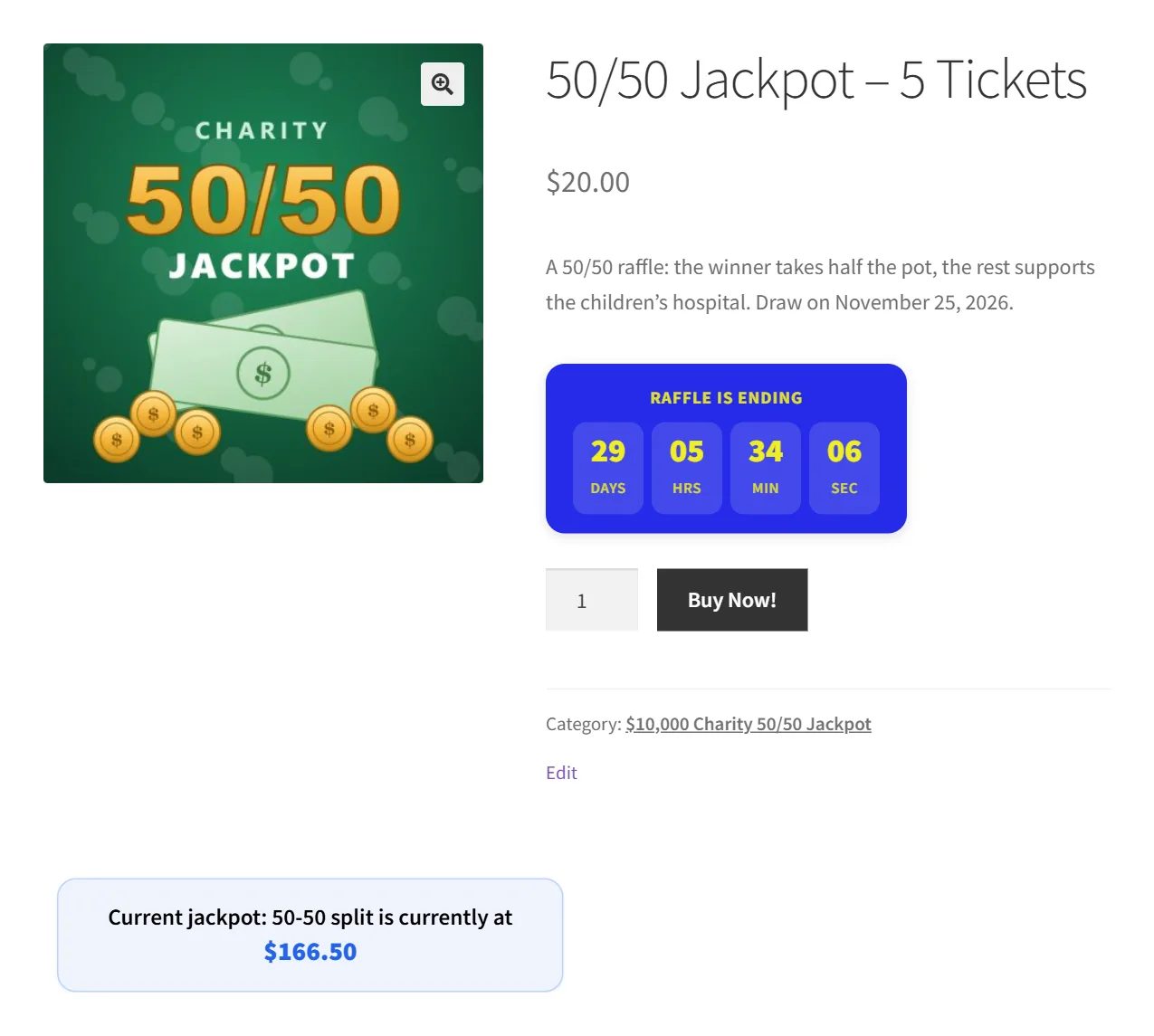
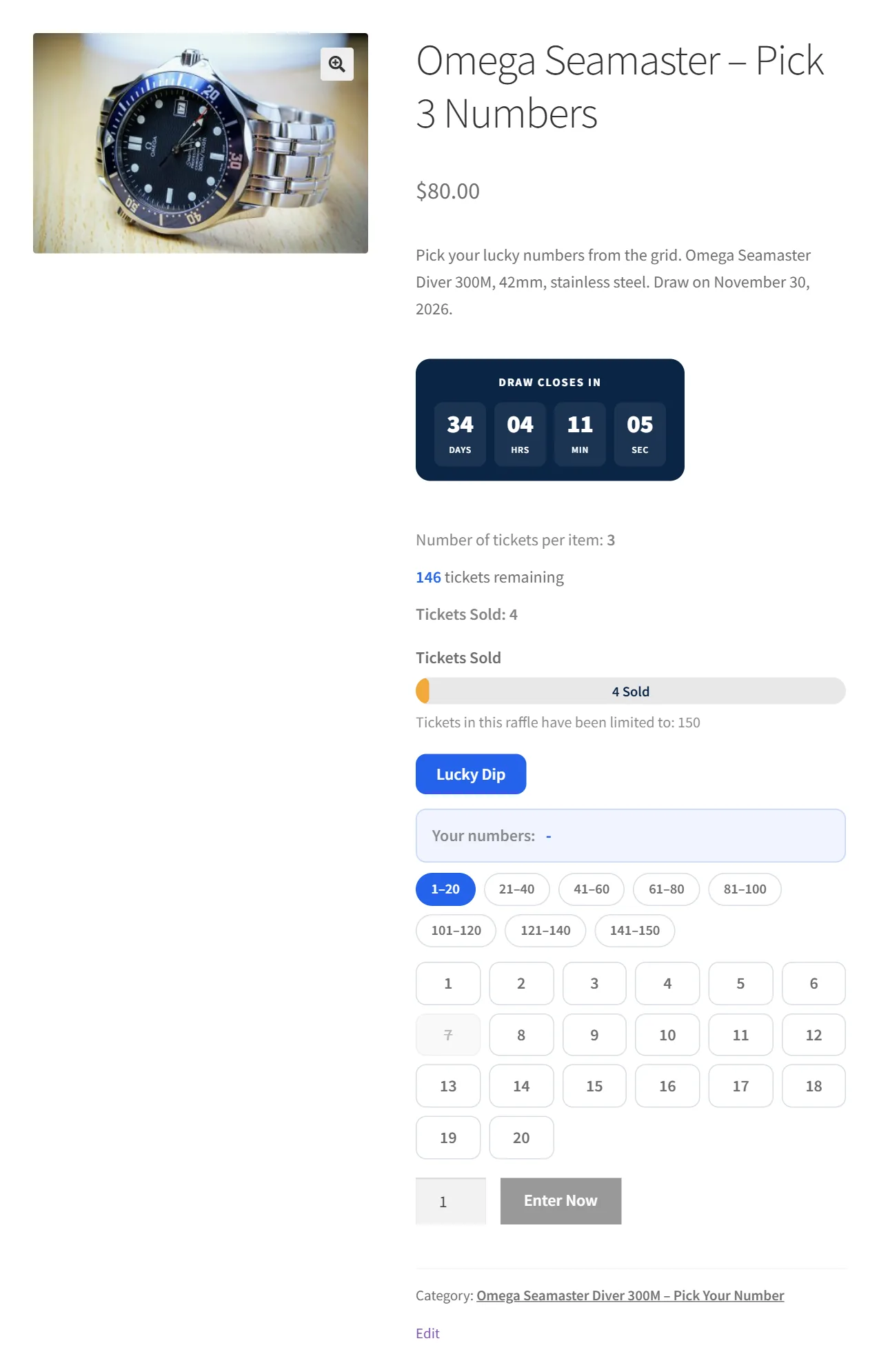
On the product page the customer sees the countdown, how many tickets the package contains and, depending on your settings, tickets remaining or the 50/50 jackpot. They choose a quantity and click the add-to-cart button (Add to cart, or your own text such as Enter Now).
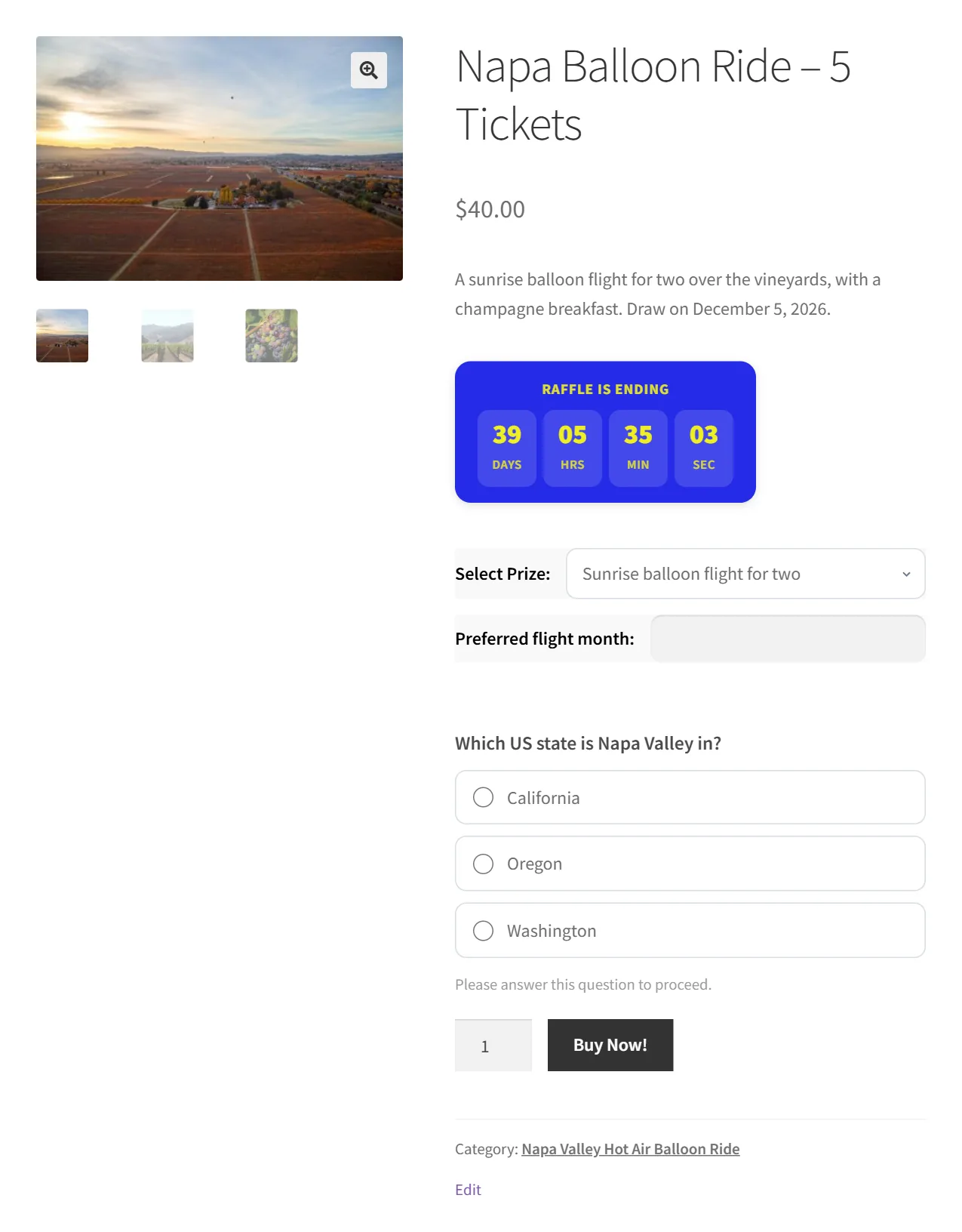
3Answer the Quiz and Choose Options (Gold and Platinum)
If the raffle has a quiz, the customer must choose an answer before adding to cart. If you offer a prize choice or a comments box, they fill those in too. A wrong answer shows “Your answer is incorrect” unless you allow wrong answers.
4Pick Numbers (Platinum)
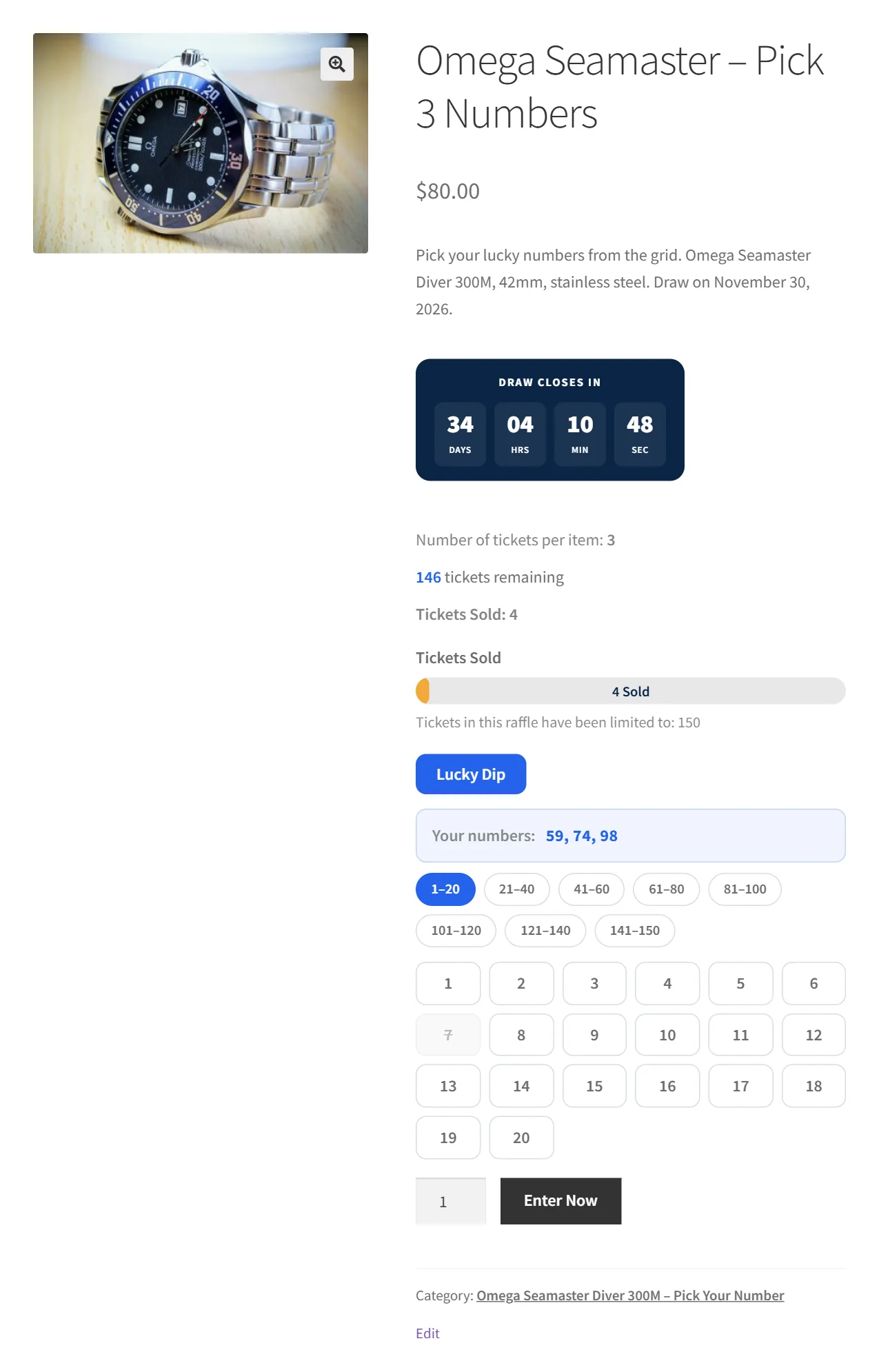
With pick-your-own numbers on, the customer clicks their numbers in the grid, or uses the quick-pick button to let the site choose. Taken numbers are greyed out. With random distribution, numbers are chosen for them.
5Check Out
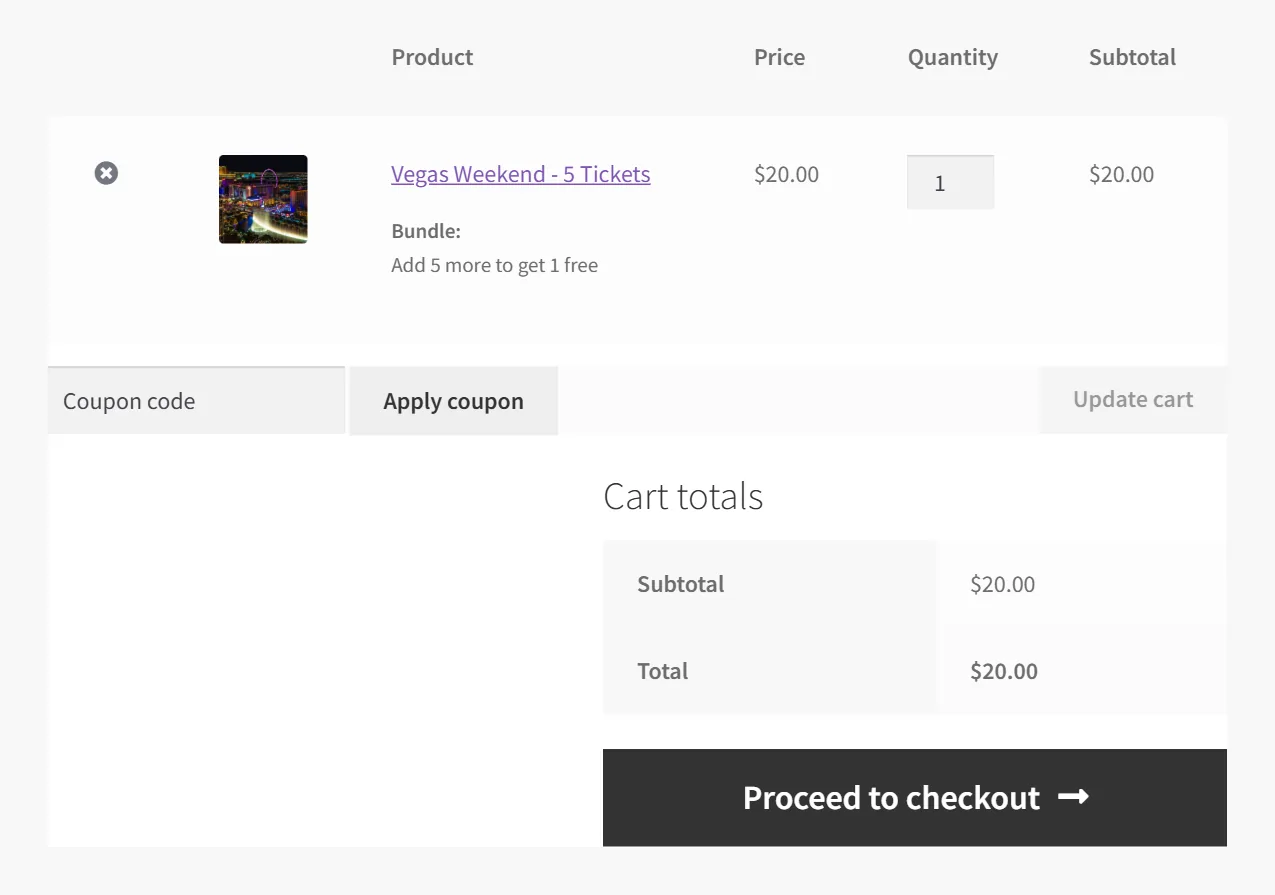
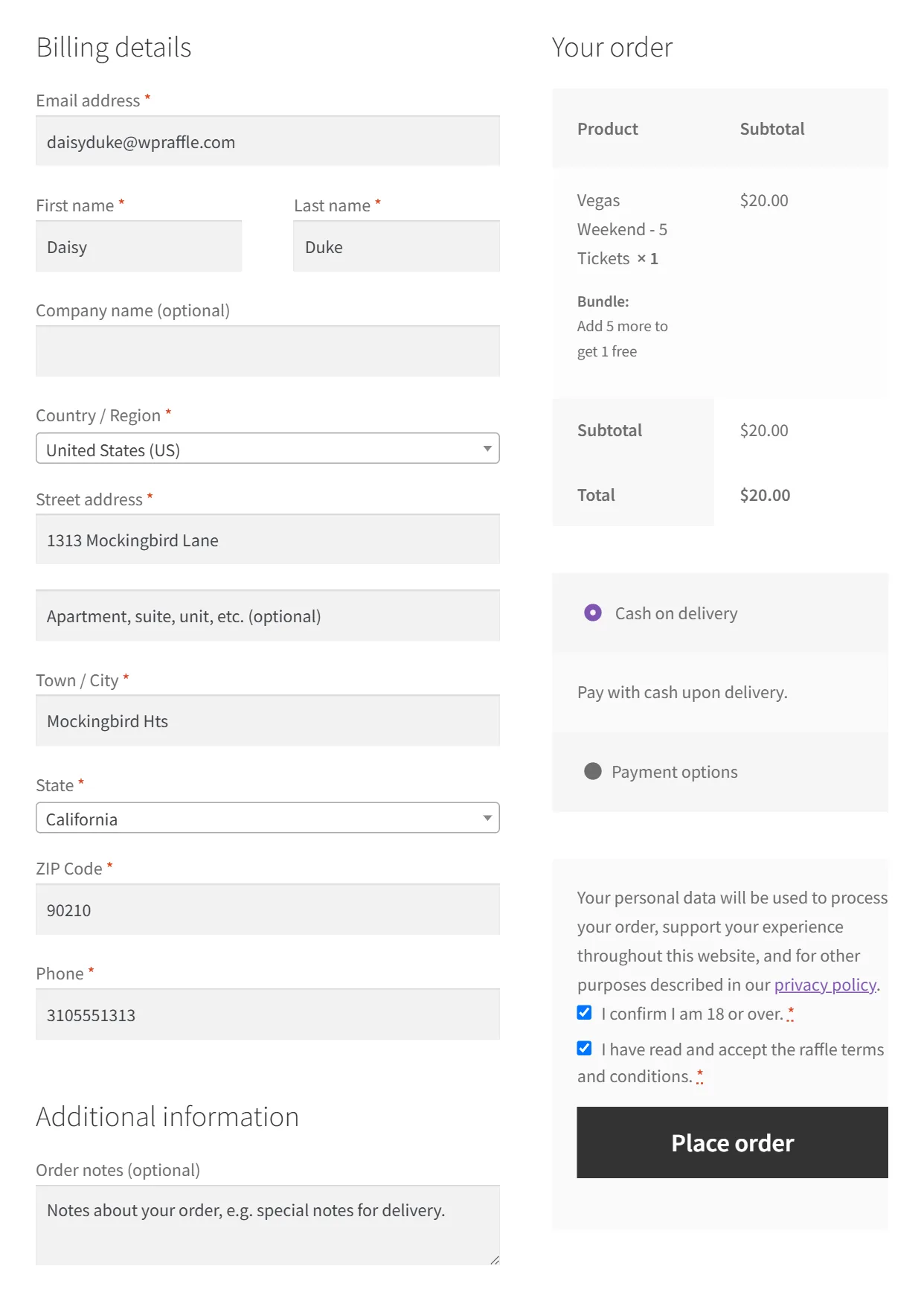
The customer reviews the cart and completes checkout with any payment method you have enabled in WooCommerce. With Platinum gift tickets on, they can enter a gift recipient.

6Receive Ticket Numbers
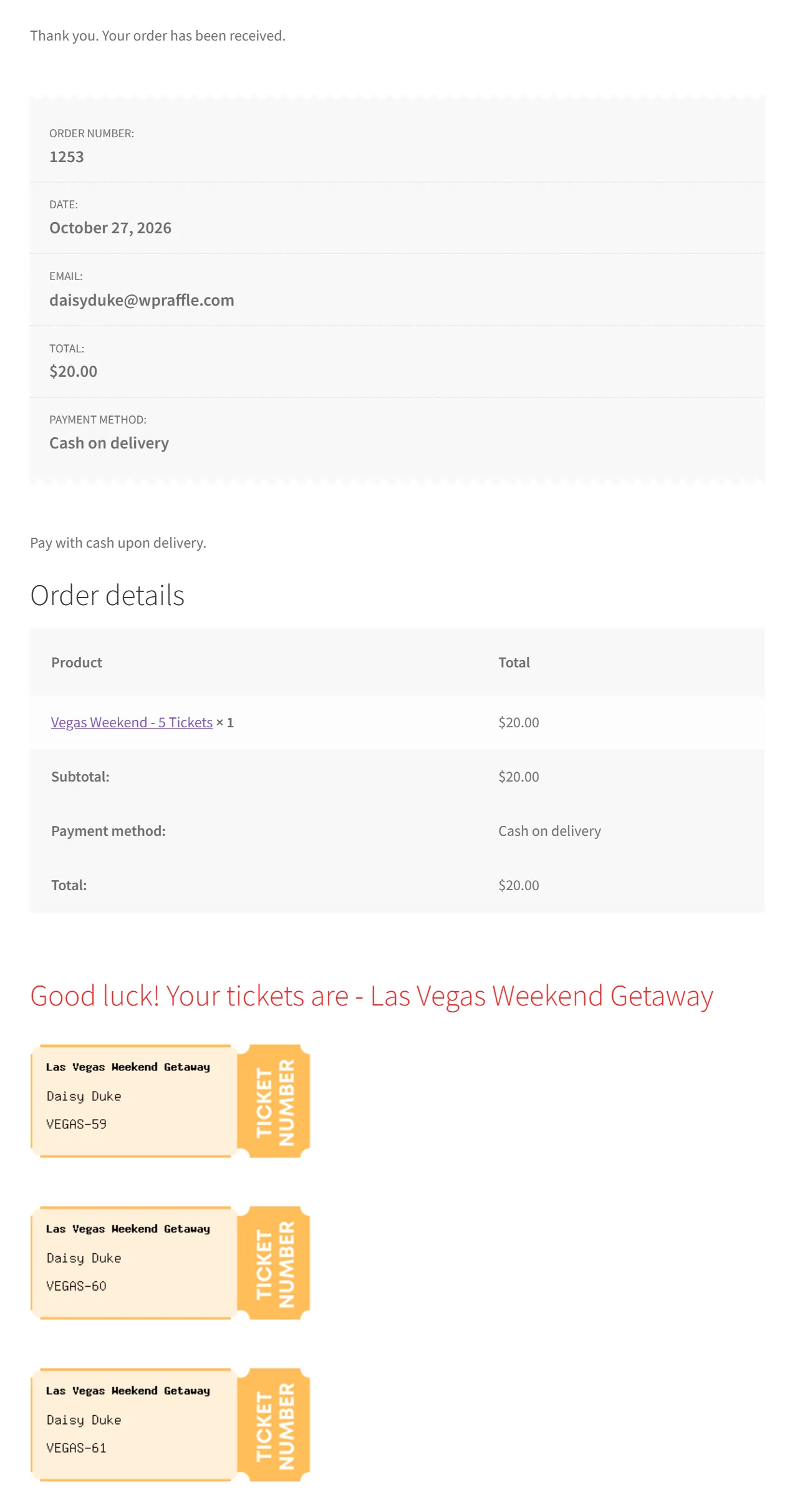
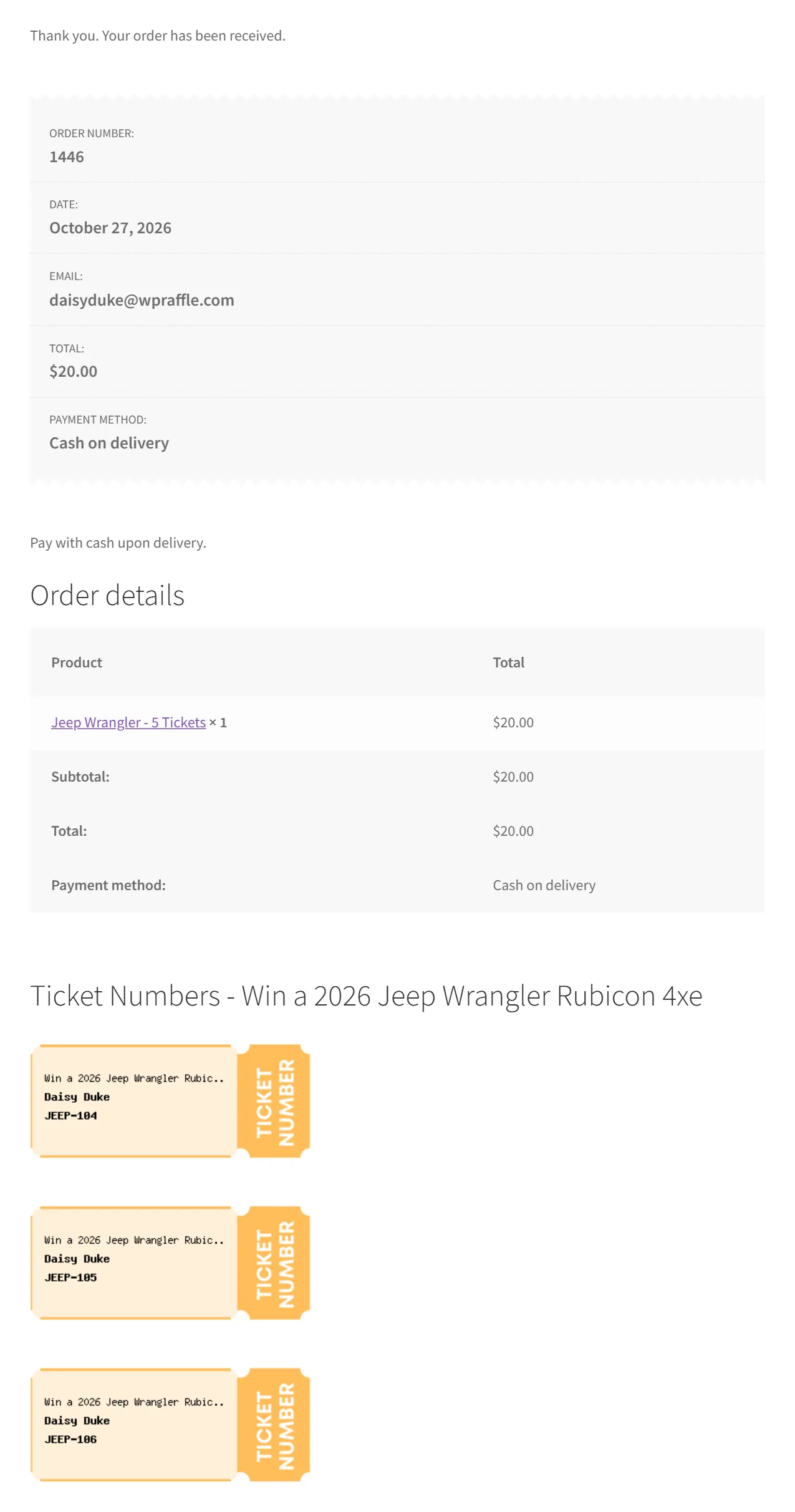
As soon as the order is paid (status Processing or Completed) the ticket numbers appear on the order confirmation page and in the order email. With ticket images on, each ticket is shown as a picture.
7Watch the Draw
If you publish a live draw page, customers can watch the winners being drawn.

?Selling Tickets Yourself
Selling at an event or by phone? On Platinum use Manual Orders to issue tickets straight away; on any edition you can create the order in WooCommerce → Orders and set it to Processing or Completed. See the admin guide for your edition.